 Exchanging Data Between Partners
Use
Planning book data can be exchanged directly between two APO systems. In this step, you transfer planning data stored in a planning book in one APO system to another. For example, this type of data transfer can be used in the following collaborative scenarios:
CPFR Consensus-based forecasting between manufacturer and customers
Exchange of inventory data between manufacturer and supplier
Exchange of inventory data between manufacturer and supplier
You can use the following functions for exchanging bucket-oriented key figures between either 2 APO systems or between an APO and a third-party system:
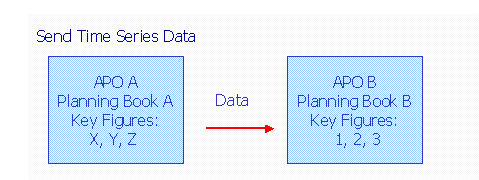
Sending data (push activity)
You can use the function Send Time Series to transfer planning data in a planning book from your system to another system.
Requesting data (pull activity)
You can use the function Read Time Series to transfer planning data in a planning book from an external system to your system.

For more detailed information refer to the system documentation for the relevant BAPIs for the Business Object PlanningBookAPS (BUS10030):
PlanningBookAPS.GetDetail
PlanningBookAPS.ChangeKeyfigureValue
PlanningBookAPS.ReceiveDetail
PlanningBookAPS.RequestDetail
Prerequisites
The time buckets of the data being sent must correspond to the time buckets of the target planning book.
In the logical system key figure values can only be changed for key figures that are stored InfoCubes or in time series in liveCache. With the exception of two key figures, planned orders and purchase requisitions, key figures that are stored in order liveCache cannot be changed.
The characteristic value combinations with which you want to plan must exist in both systems.
Procedure
To do this, choose
Supply Chain Collaboration
→
Collaborative Supply and Demand Planning
→
Time Series-Based Collaborative Planning
→
Send Time Series
or
Read Time Series
.
Maintain the parameters as described in the table below. The difference between the two transactions is the direction of the data exchange.
In this field ... |
Enter... |
|---|---|
Planning book |
Enter source of data to be read. |
Selection |
Define the selection that determines data to be read. For more information, refer to Collaborative Supply and Demand Planning . |
Partner |
Enter partner ID of data source system. For more information on collaboration partners, refer to Maintaining CLP Partner Settings See detailed information on parameter definition below. |
Key figures |
Define key figures for transfer. |
Number of weeks |
Number of weeks during which data should be exchanged. |
Number of days |
Number of days during which data should be exchanged. |
Offset |
Choose
|
In this field ... |
Enter... |
|---|---|
Planning book |
Enter planning book in which data should be stored. |
Selection
|
Define which data should be overwritten by the source data. In the target system, this selection is used for reading planning book data. The data is then overwritten by the transferred data and the result is stored in the target planning book. |
Partner |
Enter partner ID of data target system. For more information on collaboration partners, refer to Maintaining CLP Partner Settings See detailed information on parameter definition below. |
In this field ... |
Enter... |
|---|---|
Characteristics |
In this field you can define characteristics for aggregating data. The choice of characteristics determines the level of data exchange. The key figure data you defined in the data source is aggregated and transferred to the target system according to the different characteristic combinations you select here. For example, you can transmit the forecast values for a location that is group according to its products. This means that the system shows you the forecast for each individual product at this location.
If you have NOT maintained an entry here, data is completely aggregated and is transferred as one value per bucket and key figure. Depending on the disaggregation settings in both systems this can result in the values at detail level being different in both systems. |
In this field ... |
Enter... |
|---|---|
Data source and target key figures |
Values in these fields if the data should be stored in other key figures in the target system as compared to the source system. This can be used, for example, to read the planned distribution demand from one system and save it as the forecast in the other. |
In this field ... |
Enter... |
|---|---|
Data source and target characteristics |
Values in these fields if the data should be stored in other characteristics in the target system as compared to the source system. The same characteristic value combinations should be available in both systems. An information message is stored in the application log for each characteristic combination that does not exist in the target system. This means that even if you change the name of the characteristic, its value must remain the same in both systems. |
Examples
The tables below depict the necessary Collaboration Partner Settings for push and pull scenarios both with and without an SAP Connector.
Push scenario with Connector
APOsystem A transmits the planning data to the Connector A. The latter transfers the data to Connector B. Connector B then transmits the planning data toAPOsystem B.
Prerequisites
Define an RFC destination in APO system A, and a corresponding logical system for the Connector A.
In the
Recipient for Routing Rule
field, maintain the ID of the receiving Connector B, in order that the connected Connector A can construct an appropriate link.
Connector B must be known to Connector A.
Settings in APO A |
Definition |
|---|---|
Partner APO_A |
Define a collaboration partner
You do not need to make any communication settings for this collaboration partner. |
Partner APO_B |
Define a collaboration partner Define the following communication settings Choose the collaboration scenarioSupply and Demand Planning Activate data transfer. Choose the communication typeUse of Business Connector Enter the logical system for Connector A. Enter the Connector B routing recipient to be used within Connector A for routing the RFC connection. |
Settings in APO B |
Definition |
Partner APO_A |
Define a collaboration partner
You do not need to make any communication settings for this collaboration partner. |
Partner APO_B |
Define a collaboration partner
You do not need to make any communication settings for this collaboration partner. |
Push Scenario without Connector
APOsystem A transfers the planning data toAPOsystem B.
This scenario is only possible behind the firewall.
Settings in APO A |
Definition |
|---|---|
Partner APO_A |
Define a collaboration partner
You do not need to make any communication settings for this collaboration partner. |
Partner APO_B |
Define a collaboration partner Define the following communication settings Choose the collaboration scenarioSupply and Demand Planning Activate data transfer. Choose the communication typeUse RFC(synchronous) orUse tRFC(asynchronous). Enter the logical system forAPOsystem B. |
Settings in APO B |
Definition |
Partner APO_A |
Define a collaboration partner
You do not need to make any communication settings for this collaboration partner. |
Partner APO_B |
Define a collaboration partner
You do not need to make any communication settings for this collaboration partner. |
Pull Scenario with Connector
APO system A sends a request for planning data to APO system B using Connectors A and Connector B. APO system B returns the required data toAPOsystem A using Connector B and Connector A.
Prerequisites
Both collaboration partners in yourAPOsystem must define an RFC destination and a corresponding logical system for your Connector. This means that you must maintain the logical system for Connector A inAPOsystem A, and the logical system for Connector B inAPOsystem B.
Both collaboration partners must maintain the ID of the receiving Connector in the
Recipient for Routing Rule
field, in order that the connected Connector A can construct an appropriate link. This means that you must maintain the ID for Connector B in APO system A, and the ID for Connector A in APO system B.
Both partners must define routing information for each other's Connector.
Settings in APO A |
Definition |
|---|---|
Partner APO_A |
Define a collaboration partner
You do not need to make any communication settings for this collaboration partner. |
Partner APO_B |
Define a collaboration partner Define the following communication settings Choose the collaboration scenarioSupply and Demand Planning Activate data transfer. Choose the communication typeUse of Business Connector Enter the logical system for Connector A. Enter the Connector B routing recipient to be used within Connector A for routing the RFC connection. |
Settings in APO B |
Definition |
Partner APO_A |
Define a collaboration partner Define the following communication settings Choose the collaboration scenarioSupply and Demand Planning Activate data transfer. Choose the communication typeUse of Business Connector Enter the logical system for Connector B. Enter the Connector A routing recipient to be used within Connector B for routing the RFC connection.
|
Partner APO_B |
Define a collaboration partner
You do not need to make any communication settings for this collaboration partner. |
Pull Scenario without Connector
APOsystem A requests the planning data fromAPOsystem B. APO system B transfers the planning data toAPOsystem A.
This scenario is only possible behind the firewall.
Settings in APO A |
Definition |
|---|---|
Partner APO_A |
Define a collaboration partner
You do not need to make any communication settings for this collaboration partner. |
Partner APO_B |
Define a collaboration partner Define the following communication settings Choose the collaboration scenarioSupply and Demand Planning Activate data transfer. Choose the communication typeUse RFC(synchronous) orUse tRFC(asynchronous). Enter the logical system forAPOsystem B. |
Settings in APO B |
Definition |
Partner APO_A |
Define a collaboration partner Define the following communication settings Choose the collaboration scenarioSupply and Demand Planning Activate data transfer. Choose the communication typeUse RFC(synchronous) orUse tRFC(asynchronous). Enter the logical system forAPOsystem A. |
Partner APO_B |
Define a collaboration partner
You do not need to make any communication settings for this collaboration partner. |