

 Workflow Examples
The directory ...\SAPforms\Samples contains two application examples (APPROVE.VBP, CUSTOMER.VBP) for approval workflows that illustrate the functions workflow start and work item execution.
These workflows cover the scenarios: Process notification of absence (
WS 30000161 ) and Example workflow for customer creation ( WS 20000084 ).
For more information on workflow
Scenarios
In both scenarios, an employee starts a SAPforms form as an EXE file on a local PC. He or she completes the SAPforms form and chooses Submit to send it to an SAP System. This example is designed for communication using RFC. In other words, an online connection to the SAP System is required.
Example: Scenario WS 20000084 (Simplified)
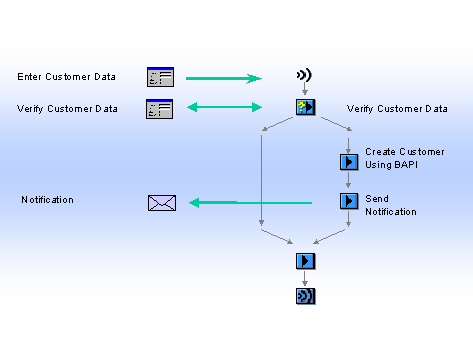
The employee receives the message
"Your request has been submitted successfully" . The corresponding workflow is then started in the SAP System. The employee responsible for approving the notification then receives a work item in his or her Workflow inbox. If he or she chooses Execute, the work item starts the SAPforms form again. This time, however, only values are displayed. The SAPforms form now also contains a Reject and an Accept pushbutton. Depending on the superior’s decision, the employee receives a rejection or an approval in his or her workflow inbox.
For the scenario Example workflow for creating customers (
It concerns the data for state, reference customer sales organization, division and distribution channel ("*"). Except for state, this data is system-specific and must be determined separately. For the example to work, you must maintain the appropriate data for your system in the
CUSTOMER.TXT file . For more information, see Determining a Reference Customer.Process Flow
To use these examples, you need to carry out the following steps:
The container elements for workflow
The additions to the Microsoft Visual Basic source code required for this scenario have already been integrated and commented. These are, for example, the program lines (
One of the scenarios described above is then started.