

 Execution of Manual Process Planning
Use
In planning, you can use the following functions:
Features
Planning
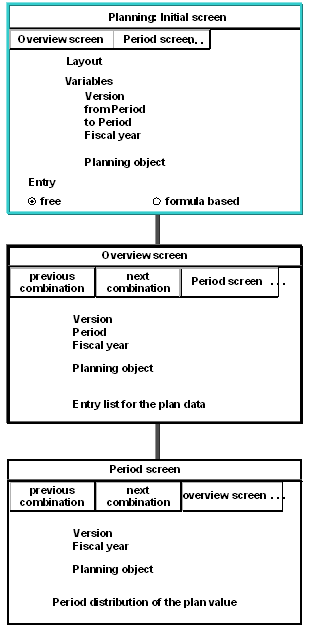
Initial Screen
Before you call up the initial planning screen, select a planner profile. (see
Planner Profiles )To select the planner profile, choose Set planner profile. The profile is set in user parameter PPP, used by the R/3 System when you call up planning.
The initial screen displays the planning layout for the selected planning area. (see
Planning Layouts)If you activate the Free indicator in the initial screen, you can decide whether plan records appear on the overview screen, whether you can change them, and whether you can enter and insert new characteristic values in the rows.
If you activate the Form-based indicator, all planning objects selected in the initial screen appear in the overview screen even if no plan values are available. In each planning sitting, the same characteristic value structure appears. You cannot enter any new characteristic values.
Overview Screen
The overview screen layout depends on the planner profile and related planning layouts. You can change individual settings, such as scaling, during planning.
Choose Scaling to specify whether planning should be entered or displayed in its original value or scaled, for instance, as a power of ten.

You plan costs of $100,000 on the business process Material procurement.
If you select scaling factor
You can select any factors and change the plan value display. In addition, you can set the number of decimal places. The number of places is dependent on the scaling factor. An invalid combination results in an error message.
Choose Goto
® Functions or Edit ® Functions to select a specific combination (such as cost center/cost element), branch to the period screen, or write a long text for planning with the SAP word processing program SAPScript.If you want to process combinations of groups in planning, it may be necessary at times to select a given combination. To edit group combinations, choose Goto ® Next combination/Previous combination to call up a specific combination.
Period Screen
In the period screen, you have the option of displaying or changing the period-based distribution of your plan values. You can select the period screen from the planning overview screen or from the list screen of detailed planning.
Help with Errors
If you receive an error message during business process planning, choose Extras
® Error log for more detailed information on the error.Help With Errors
Error Help |
Error Log |
Group Display |
Effects |
Detailed documentation: Instructions on how to solve the error, master data used, integrated planning used |
List of selected groups (business process group, cost center group, and so on) |