
 Maintaining Forms With the Form Builder
Use
You use the graphical user interface in the Form Builder to define your
Smart Form.
Integration
The user interface of the Form Builder consists of three work areas (see screen capture):
Navigation tree (left); clearly displays general attributes and all other output elements of the form
Maintenance screen (middle); allows you to maintain the attributes of the navigation tree nodes
Form Painter (right); allows you to maintain the layout of your form. If you do not need the Form Painter, you can suppress it by choosing Form Painter
on
/
off.
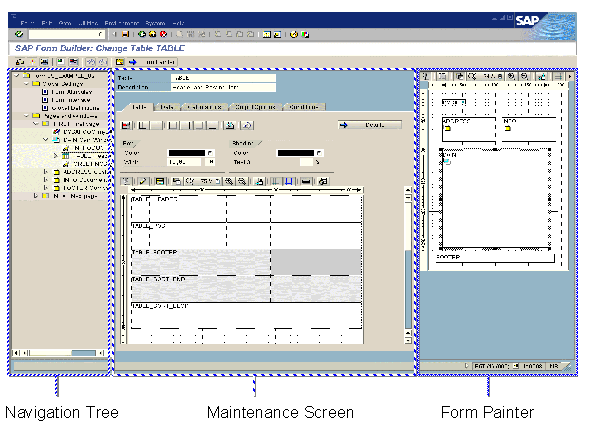
On the maintenance screen additional graphical tools are integrated, depending on the individual
node type:
PC Editor for
text nodes
The
Table Painter for
table and
template nodes (see screen capture)
Features
Navigation
There are several ways of changing the contents of the maintenance screen:
- If you double-click a node in the navigation tree, the system displays the corresponding maintenance screen. Depending on the node type, the selection of tabs may vary. In addition, the relevant output area in the Form Painter is highlighted.
- If you single-click an output area in the Form Painter, the corresponding node in the navigation tree is highlighted. In addition, the system displays the maintenance screen for this node.
- If you double-click a cell of a line type in the Table Painter, you go to the first node in the Form Builder that uses this line type.
Updating the Display
Some settings you make graphically in the Form Painter are copied directly to the maintenance screen. For example, if you use the mouse to change the size of an output area, the system immediately copies these new values into the fields Width and Height on the Output Options tab. However, if you change attributes in the maintenance screen, they take effect in the Form Painter or navigation tree only after you press
RETURN
.
Service Functions
The Form Builder offers the following service functions:
- A field list that contains all
fields of the Smart Form
An error list that helps you localize errors in the definition of the Smart Form

See also:
Field List and Error List
- You can undo changes to the form description step by step (see:
Undo/Redo)
You can store a form or a subtree locally and reload it (see:
Downloading and Uploading Forms)
You can choose Utilities ®
Back to Active Version to return to the last active version of your form. However, any changes you made since then are lost.