 Maintaining Queries
Maintaining Queries
Use
The overview presents the initial screen of InfoSet Query in the form of a diagram and describes the general process of generating queries.
Prerequisites
To be able to use all the functions of InfoSet Query, you should have started InfoSet Query from a role with the reporting type development and must be authorized to change queries.
Features
After calling InfoSet Query, you will see a screen with three areas giving you all the information you need on creating and executing a query. Apart from a few dialog boxes, this screen is the only screen of InfoSet Query.
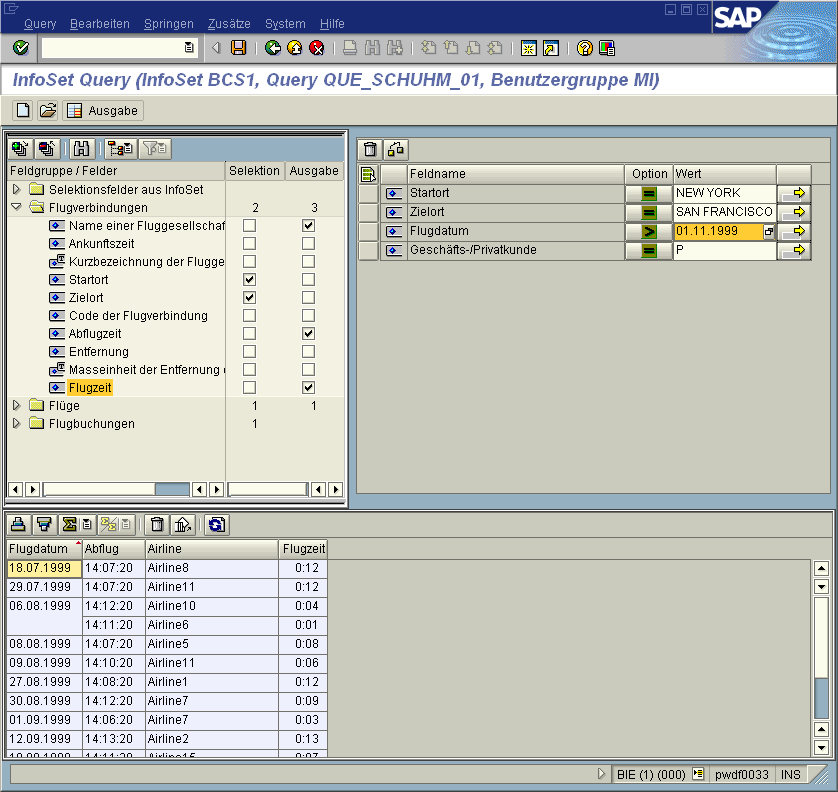
The current InfoSet is displayed in the top left-hand corner of screen. You can choose between three display options:
You can open another screen area under the InfoSet display, to display technical information on a selected field.
The selections used as options for reading the dataset are displayed in the top right-hand corner of the screen. You have two options for displaying the selections:
The output preview is displayed in the lower area of the screen, as long as output fields have been selected. You can edit the output at this point. For example, you can change the order of the columns, form totals and subtotals or display the results list of the query.
What the sub-screens contain after InfoSet Query is called depends on the template with which you started InfoSet Query. Depending on the parameters used during call-up (see
Calling InfoSet Query) you can use a certain InfoSet or query with selection and output fields. If InfoSet Query was started with an InfoSet, you will only see the InfoSet displayed in the top left-hand corner of the screen. If InfoSet Query was started with a query, all areas of the screen are filled according to the query definition, and the defined query settings apply (for example, output as a statistic).If no parameters were used when InfoSet Query was called, the steps so far (via the SET/GET parameters) determine which InfoSet or query was last used and InfoSet Query will be started with the relevant values. If InfoSet Query is started for the first time without parameters, a dialog box appears in which you can select the user group and an InfoSet.

Reading a query as a template does not lock the query. So, there is no restriction as to the number of users using the query as a template at the same time.
Choose Goto ® Variant maintenance to maintain a query variant. The Goto ® Report assignment function can be used to maintain entries in the Report-Report-Interface.

The query loaded as a template (and not saved) or the last one used is always the one to be maintained. This means that you can make the entries straight after loading a query.
See also:
Editing the InfoSet Display Output List Display Creating New Queries Settings Calling Other Reports