Submit Control
Submit Control
Use
The SAPforms Submit control allows you to use the
SAPforms Designer in all form development environments that support ActiveX controls. You can also use the control in Visual Basic.It also makes it easier for you to edit and generate electronic forms.
Integration
Using the Submit control is only one way to utilize the functions of the SAPforms Designer. You can also start the Designer as an add-in from Visual Basic or as a stand-alone version.
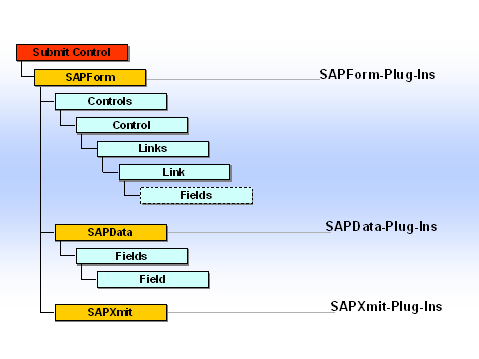
The Submit control in relation to the various
plug-in types.Prerequisites
To work with the Submit control in Visual Basic, you must activate the corresponding ActiveX component. To do so, choose Project ®
Components and select the SAPforms Submit Control entry on the Controls tab.To work with the Submit control in MS Outlook, you must also activate the corresponding ActiveX component first. Start the Toolbox in the form design environment of MS Outlook. Call the Additional Controls dialog box by choosing Custom Controls... from the context menu (right mouse click) of the Toolbox. Choose the SAPforms Submit Control entry here too.
You do not need to make any additional settings if you want to use the Submit control in MS Word or MS Excel. After you have installed SAPforms, the control will be included in the Control toolbox (Other controls) under MS Word or MS Excel.
Features
The SAPforms Submit control contains all of the information required for communication between the form and the R/3 System. Unlike working with the SAPforms Designer normally, the TAG property of the form is no longer used to store this information in the form. Furthermore, no code is inserted in the form’s load method.
Classification
Like every ActiveX control, the Submit control contains properties, methods, and results that can be used to design a form. In addition to the typical properties for this control type ("pushbutton"), the following properties and methods can be maintained:
Submit control
à
à
BeforeSubmit (method)à
Custom (property)à
ErrorMessage (property)à
SuccessMessage (property)Activities
Working with the Submit control entails the following steps:
Start SAPforms Designer
Now choose SAPforms Designer from the dialog box displayed.
The SAPforms Designer is launched.
Generating a Binding
There are two ways of defining the binding between the controls on the form and the R/3 data fields.

This procedure is suitable if you want to define a large number of bindings and therefore want to make this definition in the development environment for forms and not in the SAPforms Designer.
You can then compile the form in Visual basic and convert it to an EXE file or publish it in a folder in MS Outlook.