 SAPforms Designer
SAPforms Designer
Use
The SAPforms Designer is a tool that allows you to edit electronic forms so that they can communicate with the R/3 System. In this way, elements from a workflow container can be displayed, for example, and modified via the form. These elements can also contain several lines.
The SAPforms Designer allows you to define and generate the necessary bindings between the controls on an electronic form and the elements of a certain interface in the R/3 System.
When the form is executed (at runtime), the interface elements are displayed or modified by the controls of the form according to this binding definition. The interface is also selected in the SAPforms Designer.
Prerequisites
Since the SAPforms Designer is an integral component of SAPforms, you must
install SAPforms.You will also need a development environment for your electronic forms. Visual Basic, which is also used in the introductory example (
Getting Started), is an example of such a development environment. However, you can also design forms with MS Outlook, MS Word, and MS Excel.There are three ways of using the SAPforms Designer:
Features
Screen Layout
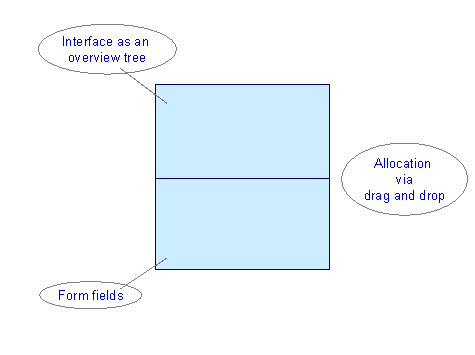
Interface as an overview tree
The top part of the screen displays the selected interface description as a tree structure. The individual elements in this structure correspond to the elements of your selected workflow container, for example.
Form fields
The bottom part of the screen displays the bindings in a table. The form controls supported by SAPforms are displayed in the Form Field column. If you have not defined any bindings yet, the SAP data field column is empty.
Allocation using "drag and drop"
To define the binding, you must fill the individual cells with the elements from the tree structure displayed above. This can be performed using either "drag and drop" or via the Binding menu.
Menu functions
The file menu
Open form |
Opens an existing electronic form. This menu option is only displayed if you call up the SAPforms Designer directly. By choosing the SAPforms Form Plug-In, you can define whether a Visual Basic form (extension FRM) , Outlook form (extension OFT ), or an office form (extension DOC or XLS ) is opened. If you have already generated this form, the binding information is displayed when you open the form. |
Open SAP structures |
Opens a SAPforms-compatible interface to the R/3 System. The following interfaces are supported:
You can also open a demo structure. |
Open... |
The interface type last selected is displayed here. |
Consistency checks |
This function checks whether the binding within an open form is still consistent. |
Generate |
This function generates the selected form. |
Generate and Close |
This function generates the form and closes the SAPforms Designer |
Close |
Choose this function to quit the SAPforms Designer. |
The Display Menu
Node details |
This function displays detailed information on the selected node. |
The binding menu
The binding menu contains various functions with regard to the "binding definition". The binding definition controls the data that is transferred to the R/3 System via the form controls.
To the data element |
Defines a binding between a form control and a structure element. You can also do this with drag and drop.
When you use the menu function, first select a structure element and then a form control. It is possible to fill several structure elements via a form control. |
Release |
Deletes a single binding. |
Release all |
Deletes all bindings. |
Reset |
Deletes all bindings as well as the current interface structure. This function deletes the entry in the TAG property of the form in particular. |
The Tools Menu
The Options menu (Tools ® Options) contains functions for maintaining plug-ins.
Plug-Ins Tab |
You can enter the required plug-in in the Active Plug-In field ( Plug-ins). The SAPforms Designer uses plug-ins to support
You can also maintain Properties for all plug-ins.
Only the possible SAPXmit-plug-ins are displayed for the SAPData-plug-in selected. |
General Tab |
You can maintain the RFC user ID and the RFC Language here. By choosing the pushbutton Restore default settings you can reset all the settings to their default values. |
Generate Tab |
If you choose the Insert initialization code into Load method, the SAPforms Designer inserts a few lines of program code in the form to evaluate the binding definition at runtime and communicate with the R/3 System. If you do not select this option, you must enter the code yourself. You can add a Submit button to your form via the button to trigger the insert action. This will then be used to start communication with the R/3 System. This information and all other relevant information is stored in the TAG property of the form when the form is generated. |
The Help Menu
Tips when displaying start |
Via this function you can activate or deactivate the Tips&Tricks which are displayed at the start of a SAPforms Designer terminal session. |
Activities
To launch the Designer as an add-in under Visual Basic, open a form in the Visual Basic development environment and choose Add-Ins
® SAPforms ® Designer. The main window of the Designer is then displayed.You can also start the SAPforms Designer as a stand-alone version or via the Submit control.
All of the supported form controls are displayed in the table control in the bottom part of the window. If you have already procesed the form with the Designer, the structure information of the SAP interface and the existing binding are also displayed.
Working with the SAPforms Deisgner usually entails the following steps:
