 Creating HTMLBusiness Templates
Creating HTMLBusiness Templates
You must create an HTMLBusiness template for every screen in an Internet application.

If you are developing applications using the Web transactions implementation model, it is best to create HTMLBusiness templates with the SAP@Web Studio template wizard, but you can also
If you are developing applications using the flow file implementation model, you must
create the files manually.Prerequisites
There must be a user in the R/3 System which your service is using.
You must
create a service file first.Procedure
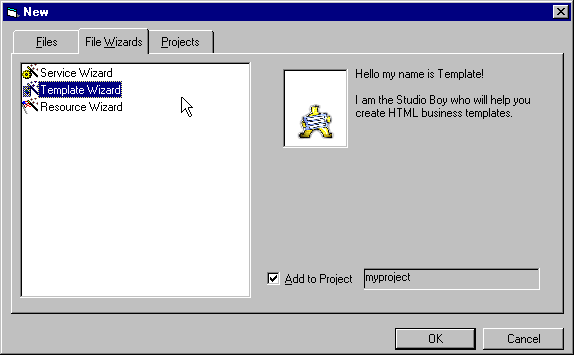
To create an HTMLBusiness template using the template wizard:
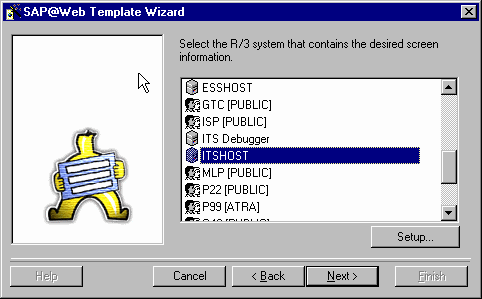
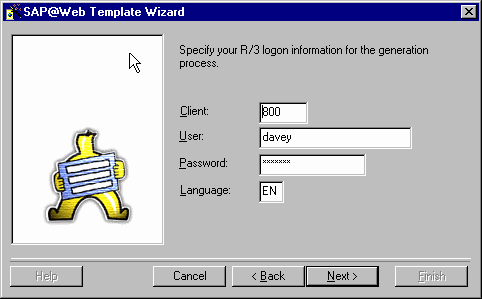
Logon information includes the client, user name, password, and logon language.
If you define service-specific logon information, remember that the language key must be:
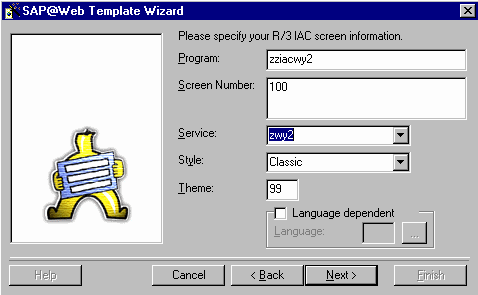
Enter values in the fields as described in the following table:
Field |
Value |
Program |
Program name of R/3 transaction. |
Screen Number |
Screen number of program. |
Service |
The SAP@Web Studio proposes the current service. |
Style |
Template style. There are four possible template styles: The style you choose depends on the type of application you are developing. When you select a style, a description of the main features is displayed on the left. |
Theme |
The SAP@Web Studio proposes the default theme 99 .Unless you intend to create more than one theme for your service, or you want to change the name for some other reason, leave the theme unchanged. |
Language dependent |
|
Result
The SAP@Web Studio:
The Editor menu contains functions for editing HTMLBusiness templates.
The format of the file name depends whether you have created a language-independent template or a language-specific HTMLBusiness template:
File Type |
File Format |
Language-independent |
<program name>_<screen number>.html |
Language-specific |
<program name>_<screen number>_<language>.html |
You edit HTMLBusiness templates in the
HTMLBusiness editor.