 Goods Receipt Without a Previous Posting in IM
Goods Receipt Without a Previous Posting in IM
For this type of goods receipt, you put goods away by first creating a transfer order in the Warehouse Management (WM) component. This means that the goods are not posted initially in the Inventory Management (IM) component and a transfer requirement is not created.
When goods are first placed into stock using the WM component, the quantity of material is not yet available in the IM component. The material becomes available only when the goods receipt posting is carried out in IM. For the subsequent goods receipt posting in IM, the system does not generate a transfer requirement since the material has already been put away in the warehouse with a transfer order. This process is illustrated in the graphic below.
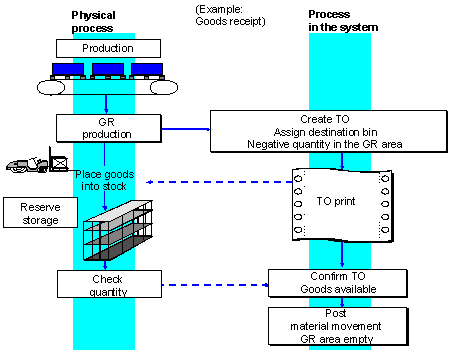 These postings result in a negative quantity in the interim storage type for goods receipt. Therefore you must ensure that negative quantities are allowed for this interim storage type. To do this, select the field Allow negative stock in the storage type record. (See Define storage type in the Master data section of the Warehouse Management IMG.) (See also

The Role of the Movement Type
Normally all movement types for goods receipts have an indicator that triggers the creation of a transfer requirement when a goods receipt is posted in IM. For goods receipts that are posted first in WM, no transfer requirement is needed, nor should one be created in this case. You have to change the way the system handles the IM-WM interface so that a transfer requirement is not created.
Change the Movement Type
If most of the goods movements processed with movement type 521 are posted first in WM, then you should change this movement type. In the table for the WM reference movement type, the TR column (for the automatic creation of a transfer requirement) must be blank.
Use a Special Movement Indicator
For those few instances when you need a transfer requirement, you can use a special movement indicator. To do this, create a new movement type in the table for the WM reference movement type by copying the entry for movement type 521. For the new movement type assign a special movement indicator and set the indicator for the automatic creation of a transfer requirement (the TR indicator). Do not change any of the other fields.
Dynamically Modify the Special Movement Indicator
For postings in IM that have not yet taken place in WM, you can dynamically modify the WM parameters. When you choose WM Parameters on the initial screen of the IM goods receipt posting task, the system displays a window in which you enter the special movement indicator. This indicator is valid only for the current single task.
See also:
Movement Special IndicatorsAutomatic Posting in IM
If the majority of the goods receipts postings that use movement type 521 are posted first in WM, this could result in a large number of postings that have to be made at a later time in Inventory Management. It may be useful to partially automate these subsequent postings by using a batch report that clears the negative stock postings from the interim storage area. You could easily develop such a report for your own system by using report RLLI2100 as a basis. (RLLI2100 clears inventory differences from WM and posts them in IM.) With this report, you eliminate the need to execute individual manual postings to IM.