
Function Key Menu
The function key menu can be opened by clicking the right mouse button. It displays all active function keys and allows to choose a function from it.
Illustration
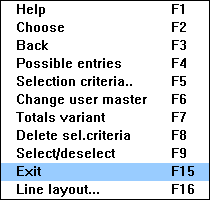
The function key menu; the Exit function is chosen
Purpose
The function key menu is implemented as a pop-up menu. It shows a list of all available function keys and allows to choose a function from it.
In the primary window, it contains all defined function keys, including the keys already displayed in the
Standard Toolbar and Application Toolbar (Control Element). The pushbuttons defined in the Screen Painter are also displayed in the dialog box.Appearance
Arranging Options in the Function Key Menu
The function names and function keys are defined as a list in the function key menu as follows:
Sequence of Options

With the introduction of the new extended function key concept, the function key menu displays the virtual function keys
Use/Functionality
If the right mouse button is pressed, a pop-up menu is displayed at the mouse pointer position. This also applies to modal dialog boxes.
To activate a function from the function key setting, position the mouse pointer on the desired function and click the left mouse button. Users who prefer to use the keybboard use the arrow keys to move the focus to the required function key and then press
ENTER to initiate the function.Technical Notes
The functionality of the function key menu is made available by the Basis Department.
For more information on the design of function key and pushbutton texts, please refer to
Application Toolbar (Control Element).Cross-References