 Defining Global Cells
Defining Global Cells
When you want to perform cell calculations over more than one row or column block, you use global cells. You define global cells by specifying the row and column block coordinate, which pinpoints an exact location in the report matrix.
When you define a report that contains a global cell, you define the coordinates of the cell using symbolic names. A symbolic name is a name assigned to a set line and/or set header, which defines the row and column coordinates for a report cell. A set header symbolic name represents all of the values in the set and a set line symbolic name represents an individual set value. (For more information on symbolic names, see
Using Symbolic Names in the Report Writer.)
You can define global cells that reference report rows for which you have entered a formula and/or key figure block.
The procedure for defining global cells has therefore changed slightly to accommodate this new enhancement.
This procedure is the same as that used for entering key figure cells. For more information, see Defining Key Figure Cells in

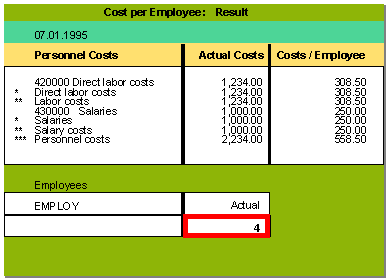
You create a report that displays the actual personnel costs that have been incurred in a specific department (for example, the marketing department) and the actual number of employees in the department. You then define a global cell to create an additional column that displays personnel costs per employee (see the graphic below).
The following graphic illustrates the row block, column block, and global cell definitions used to create the above example report. The example report is defined for table CCSS.
The global cell
‘EMPL’ points to the value 4 (see the above graphic). The symbolic names EMPLOYEE (row coordinate) and ACTQTY (column coordinate) are assigned to the cell. Symbolic name EMPLOYEE is assigned to the set line EMPLOY in the set EMPLOYEES (row block two); the symbolic name ACTQTY is assigned to the set line ISSME in the set COL-QTY (column block two).
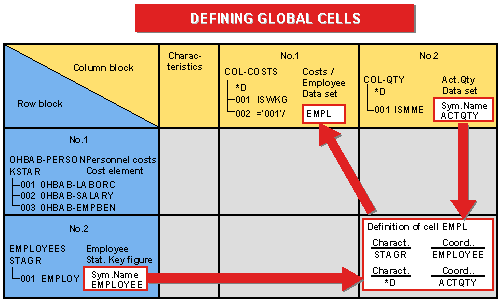
The formula used in the above graphic is
‘001’/‘EMPL’ (column block one). ‘001’ refers to the set line 001 (containing the value ISWKG (actual costs)) in the data set COL-COSTS.The global cell
‘EMPL’ must be defined before the Report Writer can perform the calculation. (For more information on defining formulas in cells, see Formulas).Using the row coordinate EMPLOYEE and the column coordinate ACTQTY, the Report Writer performs the calculation of the Costs/Employee column as follows:
‘001’
= ISWKG (actual costs)‘EMPL’
= Row coordinate EMPLOYEE (number of employees)Column coordinate ACTQTY (actual quantity)
Since no data records would be displayed in the report for the combinations personnel costs/actual quantity and number of employees/actual costs, you must inactivate these row/column combinations to produce the report illustrated in the first graphic of this section.
To create the above example report, you define the report as follows:
The following sets are used in the above report:
Report rows: |
Single-dimension set 0HBAB-PERSON for the characteristic KSTAR (cost element), containing personnel costs |
|
Basic set EMPLOYEES, containing the statistical key figure EMPLOY (number of employees). The symbolic name EMPLOYEE is assigned to set line 001 (for the statistical key figure EMPLOY). | |
Report columns: |
Data set COL-QTY, containing the predefined column ISSME (actual quantity) in line 001. The symbolic name ACTQTY is assigned to set line 001 (for the predefined column called actual quantity). |
|
Data set COL-QTY, containing the predefined column ISSME (actual quantity) in line 001. The symbolic name ACTQTY is assigned to set line 001 (for the predefined column called actual quantity). |
To define a row block from any Create Report screen:
a) Choose Goto
® Rows.The Create Report: Row Overview screen appears.
b) Enter the following information:
– Set 0HBAB-PERSON as row block one
– Set EMPLOYEES as row block two
To define a column block from any Create Report screen:
a) Choose Goto
® Columns.The Create Report: Columns screen appears.
b) Enter the following information:
– Set COL-COSTS as column block one
– Set COL-QTY as column block two
To define the global cell from the Create Report: Columns screen:
a) Choose Goto
® Cells.The Create Report: Cells <report name> screen appears.
b) The cell name EMPL is automatically displayed in the Cell field.
Select Global to define cell EMPL as a global cell.
If you don’t set the Global indicator, the cell you define is a normal cell (also called a local cell). The coordinates in a local cell can only reference one characteristic in the current row and column block. A local cell is only valid within one row/column block.
c) Choose Edit
® Choose cell.The Definition of Cell Empl dialog box appears.
d) In the Block number field, you enter the number of the row block for which you want to enter the row coordinate of the global cell. Enter
2 in this field. The system then recognizes that the cell is located somewhere in row block 2.e) Choose Continue.
The Definition of Cell Empl dialog box appears. On this screen, you define the row and column coordinates for cell EMPL.
f) To select the symbolic name used as the row coordinate for the cell:
– Check that the row block number in the Row - Block number field is correct. The number you entered in the previous dialog box (in this case, 2) appears as the default value.
– Choose Define row coordinates.
The symbolic name EMPLOYEE from set EMPLOYEES is displayed in the Coord. field, pinpointing the exact row coordinate of the cell.
If more than one symbolic name has been defined in the set(s) used in the row block, a dialog box appears, listing the symbolic names that you can use as the row coordinate. You can then select the symbolic name that you want to use as the row coordinate in the cell.
g) To select the symbolic name used as the row coordinate for the cell:
– Enter
2 in the Column - Block number field. The system then recognizes that the column coordinate of the cell is located somewhere in column block 2.– Choose Define column coordinates.
The symbolic name ACTQTY from set COL-QTY is displayed in the Coord. field, pinpointing the exact column coordinate of the cell.
If more than one symbolic name has been defined in the set(s) used in the column block, a dialog box appears listing the symbolic names that you can use as the column coordinate. You can then select the symbolic name that you want to use as the column coordinate in the cell.
h) Choose Continue.
The Def indicator is set, showing that the cell is now defined.
– Personnel costs (row block one)/actual quantity (column block two)
– Number of employees (row block two)/actual costs (column block one)
For more information on deactivating row/column block combinations, see
Deactivating Columns for a Row Block.When you execute the report’s report group and output the report, it displays the additional report column Costs/Employee, showing the actual personnel costs per employee (see the first graphic in this section).