 Defining Cells
Defining Cells
Use
You use cells to perform mathematical operations within a report. A cell pinpoints a particular location or range within the column-row matrix of a report. Once the Report Writer has located a point/range (or coordinate), it can then use the cell in formulas. Report Writer cells are used much like the cell address or range in a spreadsheet program. However, since the Report Writer uses row/column blocks instead of physical rows and columns, cells are located using symbolic names stored in sets.
When you define a report that contains a cell used as an operand in a formula, you must define the coordinates of the cell (the row coordinate and the column coordinate). These coordinates tells the Report Writer which values to use to calculate totals in the report.
You define the coordinates of a cell using symbolic names. A symbolic name is a name assigned to a set line and/or to a set, which defines the row and column coordinates for a report cell. You can use a symbolic name to represent all of the values in a set (set header symbolic name) or to represent an individual set value (set line symbolic name). For more information on symbolic names, see
Symbolic Names in the Report Writer.
Suppose you create the same report as in
Cell
A in the graphic below identifies the value 409,600.00 . The cell was assigned the symbolic names SN-HSL0 (column coordinate) and SN-KSTL (row coordinate). Symbolic name SN-HSL0 was assigned to the set line HSL-0 in the set TD-ACT-CELL; the symbolic name SN-CNTR was assigned to the entire set TD-RCNTR-12.
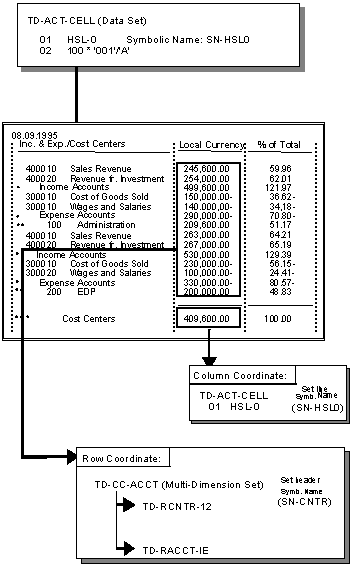
The formula used in the above graphic is
100*‘001’/‘A’ . The value 001 refers to the set line 001 (containing the value HSL-0) in the data set TD-ACT-CELL (used in the report column)."
A " is the cell that must be defined before the Report Writer can perform the calculation. (For more information on defining formulas, see Formulas). The Report Writer knows that it must multiply 100 by the actual local currency amount (HSL-0), but it does not know what it should divide the amount by.Given the column coordinate SN-HSL0 and the row coordinate SN-CNTR, the system performed the calculation of the % of Total column as follows:
‘001’ |
= HSL-0 (actual data in local currency) |
‘A’ |
= Column coordinate SN-HSL0 (actual data in local currency) |
|
Row coordinate SN-CNTR (all cost centers) |

A cell can only appear in a formula that is used as a column block. A cell cannot appear in a formula that is used as a row block. For more information about using formulas, see
For more information on defining global cells, see
Defining Global Cells.Procedure
The Create Report: Cells screen appears.
If there is more than one cell in a report, they are listed on this screen.
The Create Report: Define Cells screen appears.
The following entries were made on the Create Report: Define Cells screen:
·
The column coordinate is the symbolic name SN-HSL0 (local currency column)·
The row coordinate is the symbolic name SN-CNTR (for all cost centers in the report rows).a) Position the cursor on the Column coordinate - Coordinate field.
b) Choose Define.
A dialog box appears, listing the symbolic names that you can use as a column coordinate. You can choose from set header and set line symbolic names. A set header symbolic name is defined in a set header and the symbolic name applies to all values contained in the set. A set line symbolic name is defined in a set line and the symbolic name applies only to the value defined for the set line.
In the previous graphic, the set line symbolic name SN-HSL0 is assigned as the column coordinate. SN-HSL0 refers to set line 001 with the value HSL-0.
c) Select the symbolic name that you want to use as a column coordinate and choose Choose.
The symbolic name appears in the Column coordinate - Coordinate field.
The level number determines at what set hierarchy level a value is used for the cell.
You can only assign level numbers for set header symbolic names (for an entire set). You cannot assign a level number for a set line symbolic name.
a) Position the cursor on the Row coordinate - Coord. field.
b) Choose Define.
A dialog box appears, listing the symbolic names that you can use as a row coordinate. You can choose from set header and set line symbolic names. A set header symbolic name is defined in a set header and the symbolic name applies to all values contained in the set. A set line symbolic name is defined in a set line and the symbolic name applies only to the value defined for the set line.
In the previous graphic, the set header symbolic name SN-CNTR is assigned as the row coordinate. SN-CNTR refers to set TD-RCNTR-12 and all values contained in the set.
c) Select the symbolic name that you want to use as a row coordinate and choose Choose.
The symbolic name appears in the Row coordinate - Coord. field.
The level number determines at what hierarchy level a value is used for the cell.
Valid values for this field are as follows:
1
Use values at the first level of a set characteristic for the cell.2
Use values at the second level of a set characteristic for the cell.n
Use values at the nth level of the set characteristic for the cell.1-
Use basic set values for the cell.2-
Use the total for each basic set value for the cell.For this field, you can only use as many numeric values as there are levels within the set hierarchy. 1- and 2- are the only negative values possible.
For example, you cannot enter 5 in this field if there are only four levels within the set hierarchy.
You can only assign level numbers for set header symbolic names (for an entire set). You cannot assign a level number for a set line symbolic name.
In the report in the previous graphic, you may want to see the account percentages for each cost center total, instead of the account percentages for the total amount. The report in the following graphic shows the account percentages for each cost center.
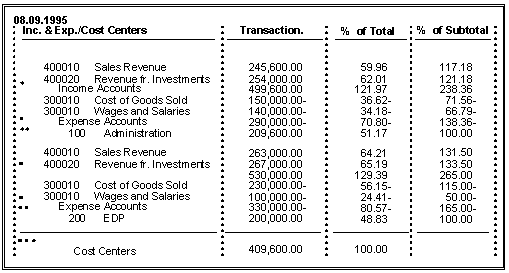
To create the percentage column in the above graphic, you enter 2 in the Level field next to the row symbolic name SN-CNTR. Based on this entry, the system uses the totals at the second level of the basic set TD-RCNTR-12. The following table contains the formulas used to calculate the columns shown in the above report.
Table for Producing Percentage Columns
Column |
Level |
Formula |
% of Total |
1 |
100* ‘010’/’A’;A=409,600.00 |
% of Subtotal |
2 |
For cost center 100: B=209,600.00 For cost center 200: 100*‘010’/‘B’ ; B=200,000.00 |
Additional Functions on Screen Create/Change Report: Define Cells
Choose |
Function |
Edit ® Choose coordinate |
Define row or column coordinate for cell |
Edit ® Delete coordinate |
Delete coordinate assigned to a cell |
Goto ® Layout ® Reset layout |
Reset all layout parameters to the default values of the standard layout |
Extra s ® List of characteristics |
Display a list of characteristics used in the report |
Extras ® Maintenance language |
Switch to a new report language (for example, to enter language-specific text for the report description) |
Extras ® Threshold value |
Enter threshold value condition to highlight in color or print report rows, depending on the values in a specific report column |
Extras ® Other std layout |
Assign a new standard layout to the report |
When the cell definition has been saved, the Def indicator is set on the Create Report: Cells screen.