Defining a Planning Layout
Defining a Planning Layout
Use
Use this step to define the structure of your screen or the data entry screens for Merchandise and Assortment Planning. These entry screens are called planning layouts and represent the structure of the line and column structure on the screen.
Prerequisites
You can only run planning for the planning levels (for example, purchasing organization) and the characteristics contained in the planning hierarchy.
Features
Depending on your business requirements, define the following elements for your planning layout: the header area, the sequence of the characteristics and key figures in the rows and columns, and the calculation formulas.
Your planning layout is maintained with the programs defined in the Report Painter.
You can use
Microsoft Excel as your planning interface in your SAP System.Planning Layout Structure
Each data entry field is assigned a line and a column, according to the position of the fields on the data entry screen. The data entry fields contain data defined by the characteristics and key figures entered in the relevant lines or columns of the planning layout.
In your planning layout, you can use the characteristics for versions and periods in additional to the planning level (for example, purchasing organization) from the planning hierarchy.
Planning layouts contain the following components:
Define characteristics and their values, valid for the entire planning layout.
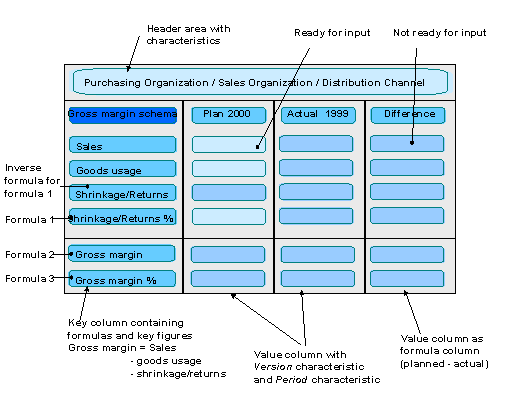
Select the characteristics, characteristic values, and key figures for your planning session. The key columns are the top columns in planning layouts. You can enter more than one key columns in the planning layout.
Example: Structuring Planning Layouts
The following graphic illustrates an example of structuring a planning layout. Inverse formulas are used to define formula columns.
Defining the Header Area
Use General selections to define characteristics and characteristic values that are valid for all rows and columns in the planning layout. For example, the values used if the planning layout only refers to one version.
The relevant characteristic is no longer valid for defining rows and columns.
Use Edit ® General selections ® General selections to select the characteristics to be included in the header area of the planning layout. All the characteristics are valid for all the rows and columns in the planning layout.
Use Edit ® General selections ® Header creation to define the sequence in which the characteristics are to be displayed in the planning header area later. Note that a maximum of nine selected characteristics can be entered in the header area for each planning layout.
Defining Key Columns
The key columns are the top columns in planning layouts.
Use one of the following options to define key columns:
Define the first key column by clicking on the key column header. Use Edit ® Columns ® Nee key columns to insert additional key columns. Note that each new key column inserted before the existing key columns. For this type of definition you can only choose one characteristic for each key column. Use Edit ® Columns ® Sort key columns to change the sequence of columns.
This method involves defining each row individually (within the key column). You can define characteristics, a key figure or a formula for each row. This enables you, for example, to map gross margin in a key column. The method runs simultaneously with the definition of value columns.
Note
Decide if key figures are to be placed in the rows or the columns of the planning layout when you are defining the rows and columns. This saves complications at a later date. A window appears when you are defining the first element. Select either Characteristics or Key figures with characteristics in this field.
Defining Value Columns
The following value columns exist in planning layouts:
Defining Normal Columns Containing Characteristics or Key Figures
Define the first value column by clicking on the relevant column header. Define additional value columns by clicking on the empty space next to the first value column. Choose the columns and then the characteristics and characteristic values.
Do not place intervals between characteristic values in a row (for example, article A to H). However, you can place intervals for the period characteristic.
It is important that the same characteristics are always used for all columns.
Defining Attribute Columns
The following can be used as attributes:
Use distribution keys to distribute cumulated values among the period values. Use the distribution key to represent seasonal trends using the planning periods within a fiscal year.
If Distribution key is not selected as an attribute, the distribution key from the planning hierarchy is used. If no data has been defined, analog distribution is used. If data does exist, analog distribution is also used.
Use this column to display the currency or the unit of measure when you run planning.
Use the control for the Promotions field to insert the planning layout and enter delta values as an entry aid. For example, add 15,000 € to an existing planning value of 40,000 €: enter '+' in the Promotions field. Enter '15,000' in the value column.
It is important that the same characteristics are always used for all columns. The same characteristics do not have to be used for Time. Time cannot be selected for the attributes Distribution key, Promotion, and Unit.
The attributes Distribution key, Unit, and Promotions always have a direct link to a data cell. Two definition alternatives exist for these attributes:
Create a direct link between the attributes column and the values column using Edit ® Columns ® Additional fields. If you change the characteristic value for the relevant value column, the system adjusts the attributes column using a suitable window, if required.
No link is created with the value column if you click on the empty field next to an existing value field. This means that you define the characteristics with the relevant characteristic values when you are defining the columns. If you choose the Unit attribute, the field contains the unit of measure for the planning time period.
Defining Formula Columns
Two types of formula exist:
Use the following procedure to define a formula column:
Click on the empty field after the value column and select the element type Formula. Use the formula components and the value columns that have already been defined to create a calculation formula in the window that appears.
Use Format ® Ready for input on/off in the Report Painter menu to mark rows or columns in your planning layout as display columns only. This is useful if the planner is only displayed as information (for example, when comparing data with another planning version).
Working With Inverse Formulas
No formulas can be assigned to key figures in the planning layout. The values are imported from the info structure. Use inverse formulas to plan key figures direct. Inverse formulas are used to change the link between key figure cells and formula cells.
For example, an inverse formula for the cells
C = A / B is
A = B * C
Example
Use the following formula to calculate the size of Markdown in % from sales:
Markdown in % = absolute markdown / sales * 100
The sizes are the Absolute markdown and Sales key figures: Markdown in % is calculated using a formula.
Instead of the absolute markdown value, you want to enter Markdown in % directly in your planning. Let the System calculate the Absolute markdown key figure and save it in the database. This means that the above formula must be inverted:
Absolute markdown = markdown in % * sales / 100
Proceed as follows in the planning layout:
Markdown in % of sales = absolute markdown / sales * 100%
When you start planning, the value for the key figure Absolute markdown is read from the database. Markdown in % is calculated. If you want to change Markdown in % manually, the relevant absolute value is calculated using the inverse formula. The value for the Absolute markdown key figure is stored in the database when you save the planning session.
Layout 1SAP31, delivered as standard, contains examples of inverse formulas. For more information, see also: markdowns, price reductions, shrinkage, returns, and gross margins.
Manipulating Cells in Planning Layouts
For further information, see
Manipulating Cells in Planning Layouts.Excel Integration in Planning
For more information, see
Excel Integration in Planning.Default Values for Displaying Decimal Values
When you define your planning layout, both the number of the desired decimal points and a scaling factor (for example, plan in multiples of 1000 units) can be predefined for each column. These default values can be changed again when you run your planning.
Flexibility of Characteristic Values
Make your planning layouts as flexible as possible. Define your characteristic values in such a way that the concrete values are entered during the planning session.
You have the following options:
Enter '*' as the characteristic value in the single key column.
If you use this method, all the assigned characteristic values are taken from the planning hierarchy when you run planning.
Insert a variable for characteristic values by selecting the indicator Variable on/off in single key / value columns or in General settings. In manual planning, these variables are taken from the
Use
Variants in Manual Planning in this situation.Single variants are not used throughout the entire system. They are only valid in the planning layouts that they have been defined or created for. Name your variables as you desire. Variants relate to particular characteristics and can therefore be used for more than one characteristic within a planning layout (for example, variable 1 for the Versions characteristic is not the same as variable 1 for Purchasing organization). Variables can be used more than once in the layout (for example, variable 1 for the Versions characteristic in the first and second column).
Note
You can use additive operations with variables for characteristic values that relate to number fields. The variable concerned is enhanced by adding + or - or a maximum two-character figure.
Example
Use the following layout to plan the current fiscal year by entering a variable and displaying the figures from the previous year in a comparison column.
Column 1: variable A (from) and variable B (to)
Column 2: variable A-12 (from) and variable B-12 (to)
For example: enter variable A01.2000 (from) and variable B-12 (to) in column 1.
For example: enter variable A01.2000 (from) and variable B-12 (to) in column 2.
Use single values or variables that can be replaced with selections from the characteristic screen in complex key columns and in value columns in which you cannot enter '*'.
Use text variables to set text parameters in fields where text is entered. To do this, enter a local variable (beginning with the special symbol $) in text maintenance for the element.
Assign a characteristic to the text variables using Extras ® Variables ® Define variables (Detailed view for the variables). At the end of your planning session, the system automatically finds the value of the variables by selecting the characteristics that have been assigned. Planning layout 1SAP31 contains examples of this.