 Structure of the Project Builder
Structure of the Project Builder
The following screen areas are available for working in the Project Builder:
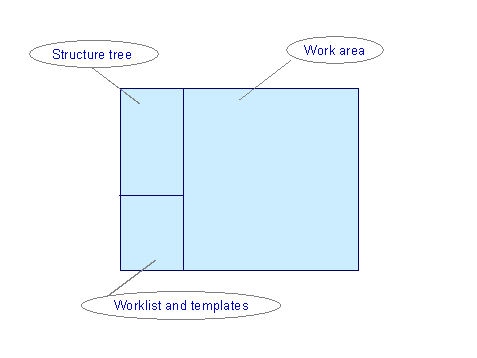
Structure tree
The structure tree displays the project object (project definition, WBS element, activity, activity element, milestone, document) that you have selected in its hierarchical context. You can change the dependencies and assignments of individual project objects in the structure tree manually (using Drag & Drop). You can also create or delete project objects. In the user-specific options you can specify how many hierarchy levels are displayed expanded in the structure tree. Additionally you can choose whether you want to see a preview of the last project you have processed, when enter the Project Builder. (see
User-Specific Settings) 
In the structure tree itself, you can only carry out tasks that change the structure of the project, that is create, move and delete objects. Business transactions are not possible.
For more information, see
Functions in the Structure Tree.Worklist/Templates
In this screen area you have access to both the worklist and the templates
You can store user-specifically frequently used project data (project definitions, networks, and WBS elements) in the worklist, so that you can access them quickly later. Furthermore, a list of the last five projects that you have worked on is always displayed in the worklist.
The templates are available during processing to create new objects or structures in the current project by.
You can also change the templates screen area user-specifically (see
User-Specific Settings). When you start the Project Builder, the worklist is displayed However, when you open a project, the system automatically switches to the Templates screen area. When you are working on a project, you can switch between the worklist and the templates by choosing the relevant pushbutton. When you are working on a project, you can switch between the worklist and the templates by choosing the relevant pushbutton.Work Area
In the work area, you see the details view of the object selected in the structure tree. You can also directly access overviews of subordinate objects. Here you can execute all the business transactions for project coordination and execution. You can always move between the detailed view of the selected object and the overviews of the subordinate objects.
You can change the size of the three screen areas to suit your own requirements. When you leave the Project Builder these settings are saved automatically.