 Automatic Debit Position (Automatic Posting)
Use
The
Automatic debit position
function allows you to automatically process flows that occur at regular predefined intervals for previously fixed amounts.
 Example
You can use this function for fixed-interest securities to post interest flows or repayments automatically, or flows generated from the conditions.
There are two procedures for processing these regularly occurring flows:
One-Step Procedure
When you use the one-step procedure, the selected flows that have planned status are transferred to actual flows in the subledger by the automatic debit position function, and the amounts are posted directly to the bank clearing account in Financial Accounting. The items are cleared in the bank clearing account when the account statement is imported.
If you wish to post flows individually, you can do this using the Manual Debit Position (Incoming Payments) function.
Example: Automatic Debit Position Process

Two-Step Procedure
You can also use the automatic posting function together with the
Manual Debit Position
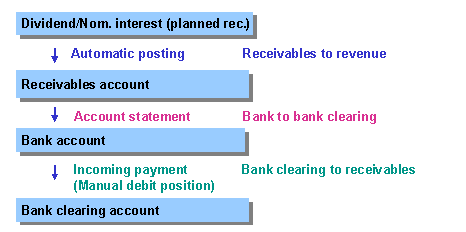
function. (To do this, you have to make certain Customizing settings as described in the prerequisites). The automatic posting function not only posts the existing planned records as actual records, but at the same time generates new incoming payment flows as planned records (or actual records) in a receivables account.
When the ‘account statement’ has been imported, you can use the Manual Debit Position (Incoming Payments) function to post the incoming payment in the Treasury subledger.
Example: Process of Automatic Debit Position with Incoming Payment
Prerequisites
You select the automatic posting option for all the flows you want to post automatically in the
Posting control
field in Customizing for securities by choosingDefine Flow Types
.
By choosing
Define Company Code-Dependent Data,
you can define whether automatic posting is actually permitted for each product type.
You make the same settings under

Securities

Position Management
Securities Account Management
Update Types
Define Update Types
 and
and
Specify Update Types for Securities Account Management
. Before you can make the settings under
Specify Update Types for Securities Account Management
, you must use
Assign Update Types to Usages
to assign the update types to Usage
0003 Securities Account Management
.
If you want to use the two-step procedure , then you have to define this in the Securities area Customizing under
Define Flow Types
and underSpecify Update Types for Securities Account Management.
You do this for all flows for which incoming payment flows are to be generated by checking theIncoming payments
field. By choosingMaintain Company Code-Dependent Data,
you can define whether incoming payment flows are actually generated for each product type.
You also have to create the incoming payment flows under
Define Flow Types
and under
Define Update Types
. Then you assign them as offsetting flows to the update types under
Position Management
Securities Account Management
Update Types
Assign Update Types to the Functions of Security Account Management.
See also:
For more information, see the relevant section in the
Implementation Guide
.
In the Securities area Customizing under
Accounting in Operative Valuation Area
Flow Types
Assign Flow Types to Update Types
, you assign the securities flow types to the corresponding update types.
Tax flow types
If you defined tax rates for the flow types you want to process using the automatic posting function by choosing
Define Tax Rates
in Customizing, these tax flows are generated automatically in automatic posting and posted as actual records. The automatic posting function also includes taxes that have to be generated for automatically generated taxes.
You also have to set the
Posting control
field to 01 for the tax flow types by choosing
Define Flow Types
and
Specify Update Types for Securities Account Management
in Customizing, and make the relevant entries in the
Incoming payments
field if you want to process incoming payments.
To ensure the automatic debit position run works successfully, first post all the flows that affect the relevant ID numbers and securities accounts up to the due date for which the automatic debit position run is carried out.
Repayments are the only exception to this rule, because they can be posted by the automatic posting function itself.
The automatic debit position run does not take account of securities accounts containing flows that affect positions which still have
planned
status
.
If this is the case, an error log appears listing the flows that have to be posted first.
See also:
The prerequisites section in the unit Securities Account Management
Features
Selection
General Selections |
|
Company code |
Selection of securities flows to be processed |
Product type |
|
ID number |
|
Securities account |
|
Up to and including due date |
|
Posting Control |
|
Posting date Document date |
To control how postings to the general ledger in FI are made, you can enter a posting date and a document date. If you do not enter a posting date, the system posts all the flows for an ID number in a company code and a securities account with the earliest due date of these flows. The system uses the current date as the document date. |
Simulation |
When you flag this indicator, the system performs a simulation run. This is similar to the update run, except that no flows are posted to the general ledger or the subledger. |
Output
Posting log
The posting log provides you with information about all the flows that are transferred to and posted in FI.
Log of actual flows posted and planned records generated
This log displays all the flows that were posted as actual flows as well as the new planned records.
Error logs
Error log for the planned records to be posted first
This log displays which position-changing flows in planned status still have to be settled before they are posted automatically.
General error log
This error log shows you which ID numbers in each company code could not be processed. The reasons for this may be as follows:
You cannot process ID numbers you are currently working on using the automatic posting function (with the exception of the test run).
An error occurred in the posting interface when processing the relevant class in the company code. For this, see the error log for the posting interface.
Error log for the posting interface
This lists all the errors that occur when you post or simulate posting.
Selection parameters output
The selection parameters that were used to start the posting run are listed at the end of the log.
Activities
Choose
Back Office
Securities Account Management
Payments
Automatic Debit Position.