Configuring Clock In Clock Out
The Clock In Clock Out (CICO) feature decouples time tracking from the mobile status of a work order or operation, allowing multiple users to start and log time against the same work order or operation simultaneously.
Overview
The Clock In Clock Out feature is called PM_CLOCK_IN_CLOCK_OUT .
The CICO parameter in the ConfigPanel allows multiple users to work on the same work order or operation, where all users receive the work orders and operations to their devices. CICO allows multiple work orders and operations to be in the Started state that belong to different users. Mobile device users are able to see the CICO state of all work orders or operations on their device. Users can also filter their work order or operations lists based on clock in or clock out status.
-
Multiple people can work on the same work order or operation even if the work order or operation is already started by another user
-
Users can clock in to any work order or operation on their device
-
Users can only clock in to one work order or operation on their device at a time
-
Users must clock out of the current work order or operation before clocking in to a different work order or operation
-
All time recording (CATS and Confirmation) uses the clock in clock out period as the default duration in time entry screens
-
When a user clocks in to a work order or operation:
-
The timestamp of the work order or operation is saved to a user-specific table that is persisted in the back end
-
The mobile status of the work order or operation is set to Started if it isn’t already in a started state
-
-
When a user clocks out of a work order or operation:
-
The work order or operation status is set to either Hold or Complete
-
If a work order or operation is set to Complete and Confirmations are used, the user can set it as the final confirmation
-
-
A user can start any work order or operation that is in a Hold, Received, or Local state
-
A user can start only one work order or operation at a time
-
The mobile status of a work order or operation is used to track time in either CATS or Confirmations
How to Set the CICO Parameter Using the Configuration Panel
-
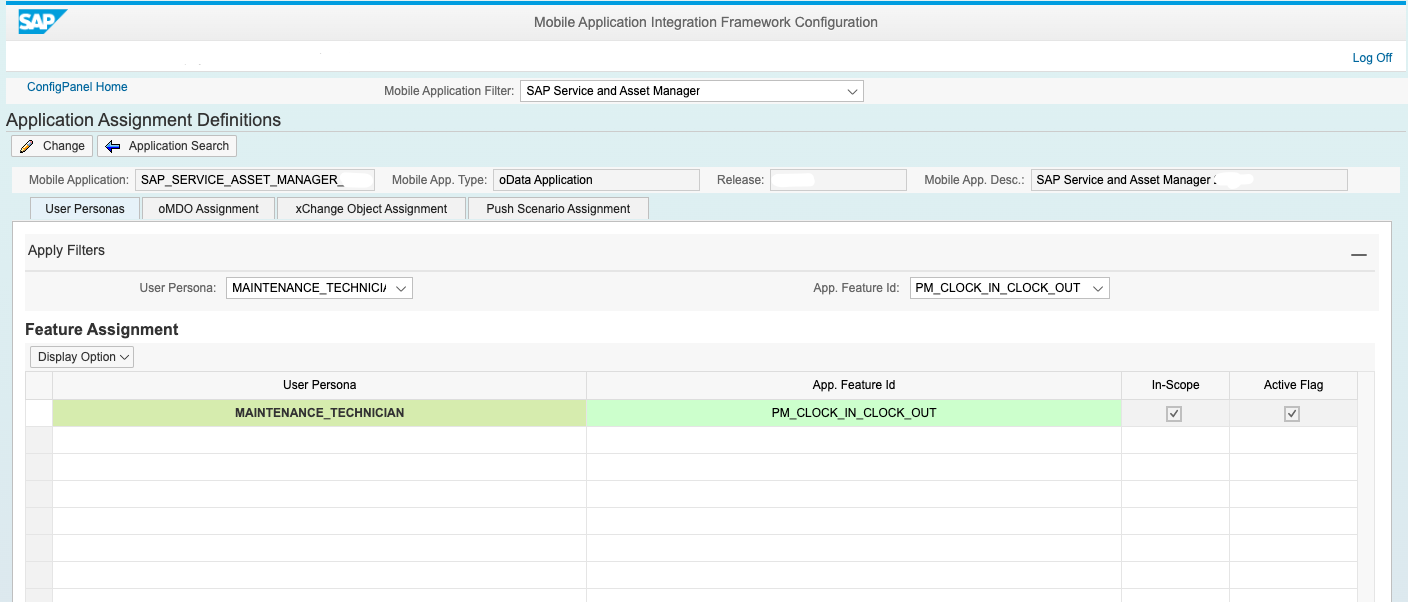
Using the ConfigPanel, navigate to Component Assignments. Select your application in the Mobile Application Filter. Click the application link in the Search Result table.
The Application Assignment Definitions page displays.
- Click the Change button. Find the PM_CLOCK_IN_CLOCK_OUT feature ID in the MAINTENANCE_TECHNICIAN user persona part of the table. Enable or disable the feature using the Active Flag checkbox.
- Save your changes.