Configuring Features
Customers can disable a feature if it is not relevant in their business scenarios, regardless of the personas used. Customers can also create features, not just enable or disable standard features.
Context
A new feature created by a customer can only be created in the customer namespace.
Procedure
- Choose one of the following ways to proceed:
- Application level: Navigate to
 Configuration Panel
  Mobile Application Configuration hyperlink Select Mobile Application (SAP_SERVICE_ASSET_MANAGER_<version>) Features tab
 from the home page.
The list of features delivered in SAP Service and Asset Manager is displayed in the Configuration Panel. You may define new features in a customer namespace only.
Each feature has an Active check mark that you can toggle. This acts as the master switch across the application.
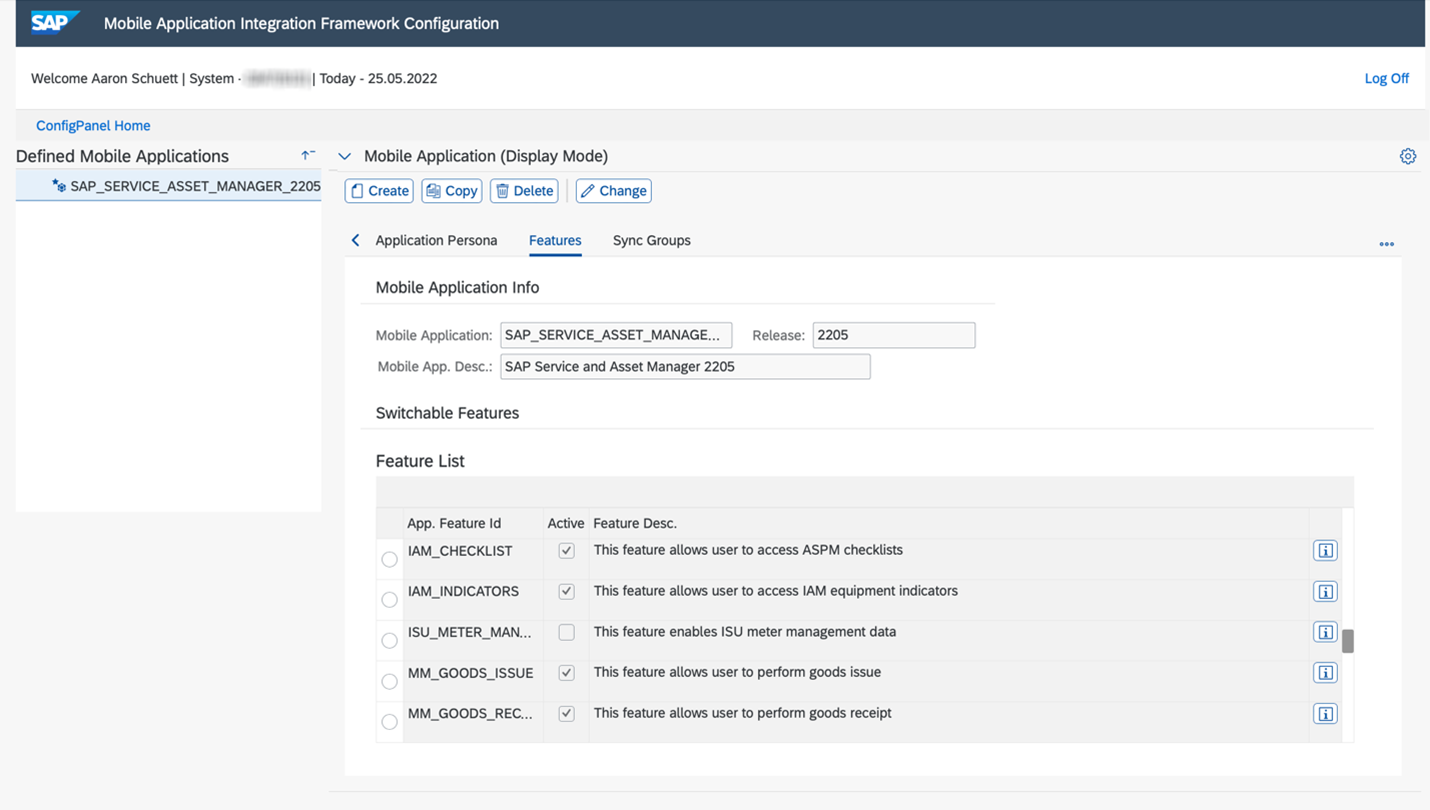
Note that enabling feature above does not check if system is qualified for the feature or not. If your system does not support ISU Meter Management, but you enable the ISU_METER_MANAGEMENT feature in the feature list, you could run into issues.
- Persona level: Navigate to Configuration Panel Component Assignments hyperlink Select Mobile Application (SAP_SERVICE_ASSET_MANAGER_<version>) User Personas tab from the home page.
You can also toggle features related to a persona. Each persona is configured with a list of features supported in the standard delivery of SAP Service and Asset Manager.
You can view a list of features by persona in the Configuration Panel. Each feature has an In-Scope checkbox, meaning that the feature is allowed for that persona. In-scope features are not editable in customer or QA environments. Only In-Scope items can be enabled or disabled using the Active Flag checkbox.

You can enable a feature for one persona, but disable the same feature for another persona. The list can be filtered using the User Persona or Application Feature Id drop-down list to find entries directly.
Note that if the feature is disabled at the application-main switch level, the feature is still considered disabled, regardless of the Active Flag status at the persona level.
- Application level: Navigate to
- Click the Change button. Enable or disable desired features.
- Save your changes.
Results
Enabled features display in the Component Assignment Switchable Features tab.