First Notice of Loss
The First Notice of Loss feature offers your customers the possibility to report claims online through a guided step-by-step procedure. The claim report process is fully configurable in Backoffice.
Features
- guided, step-by-step procedure
- used for capturing of customer's request
- (potential) submission of data to external systems
- product, category, or company-specific process
- fully configurable in Backoffice
- backed by light, extensible, and reusable framework
Accessing a Claim Report Process
Users can enter the claim process directly on Homepage or through My Policies page in My Account, by clicking "MAKE A CLAIM" button.


As the illustration of the feature, the claim process is enabled for auto insurance.
Selecting the Effective Policy
When a user clicks "MAKE A CLAIM" button, they are presented with a page that lists all valid and effective policies for which a claim process can be started. Note that if a policy is valid, but it has not yet come into force, or in other words, it hasn't become effective yet, the policy won't be displayed. If the policy is for whatever reason not displayed, although it should be, a user has the possibility to seek support from agents by clicking the agent locator button. A user needs to select the policy for which they want to report a claim, confirm that the provided information is truthful, and then click the"CONTINUE" button in order to be able to proceed to claim reporting forms ("claim checkout").

Reporting a Claim
The claim reporting process includes four sample steps that capture all the relevant information required for recording a loss event.
The dynamic web forms (yForms) are used to capture data on the first three steps, together with a simple summary step (similar to Final Review page in the regular checkout).
The Document Upload feature has been provided as well, as a part of the dynamic forms library in the Financial Services Accelerator application built using the financialspastore extension. This feature offers users the possibility to upload images, Microsoft Office, PDF, and plain text files that are up to 5 MB in size. In the FNOL process, it is required to provide evidence of the accident by uploading adequate files in previously mentioned mime types. The maximum number of files that can be uploaded is four. To verify that they have uploaded the right document, users can download the document and check. Users can also remove the uploaded document.
The Document Upload API creates a document that is assigned to the specified user. The API response is the newly created document. As the document is uploaded for a specific customer, before the actual upload, the client needs to obtain an access token and gain access to the Upscale Service APIs. OAuth Client Security is implemented in order for a client application to securely access the Document Upload API. When using the OAuth 2.0 client, data will always be secure, because the communication between the OAuth 2.0 client and the server is secured by an HTTPS connection.

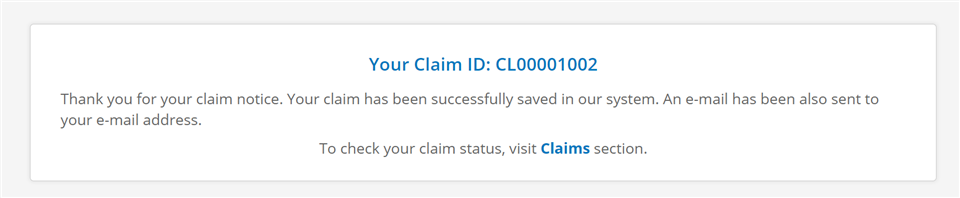
When the claim request is submitted, the claim confirmation page is displayed with a claim number. At the same time, the confirmation email is sent to the user. The claim status is also changed from OPEN to PROCESSING status. The claim is in an OPEN status during the claim report process. When the process is finalized, it goes into PROCESSING status until someone verifies it.
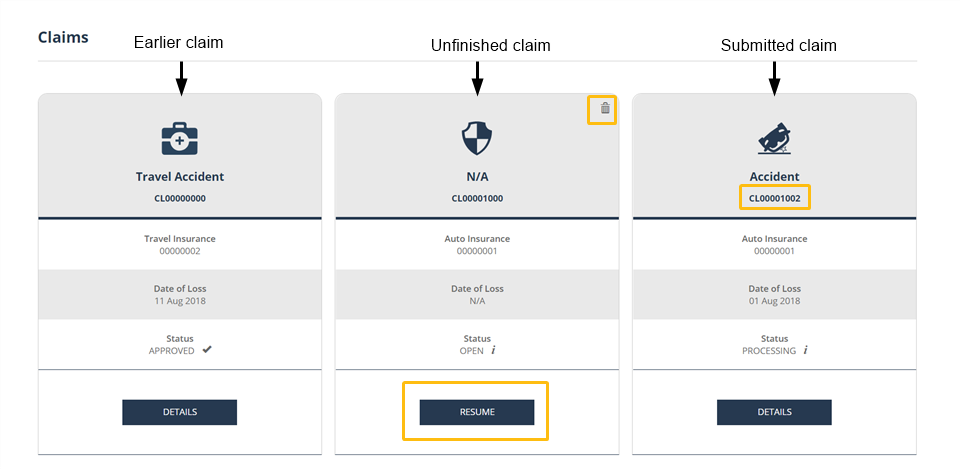
Users can now see their submitted claims on the Claims page of the My Account area (the third claim card in the following image). Note that you can resume or delete unfinished claims (see second claim card). If a claim is in an APPROVED or PROCESSING status, it can't be deleted. The "DETAILS" button is disabled unless the financialspastore extension is used for storefront building. In that scenario, when the user clicks the "DETAILS" button, a Claims Details page is displayed, allowing the user to see more details about their claim.
Configuration
In Backoffice you can configure how many steps you want to have, what is their name, sequence and type (yForms or simple summary steps), and which content you wish to be displayed on each step. Finally, you can associate this group of steps with different types of categories; in case of Financial Services Accelerator, these are different types of insurance products.
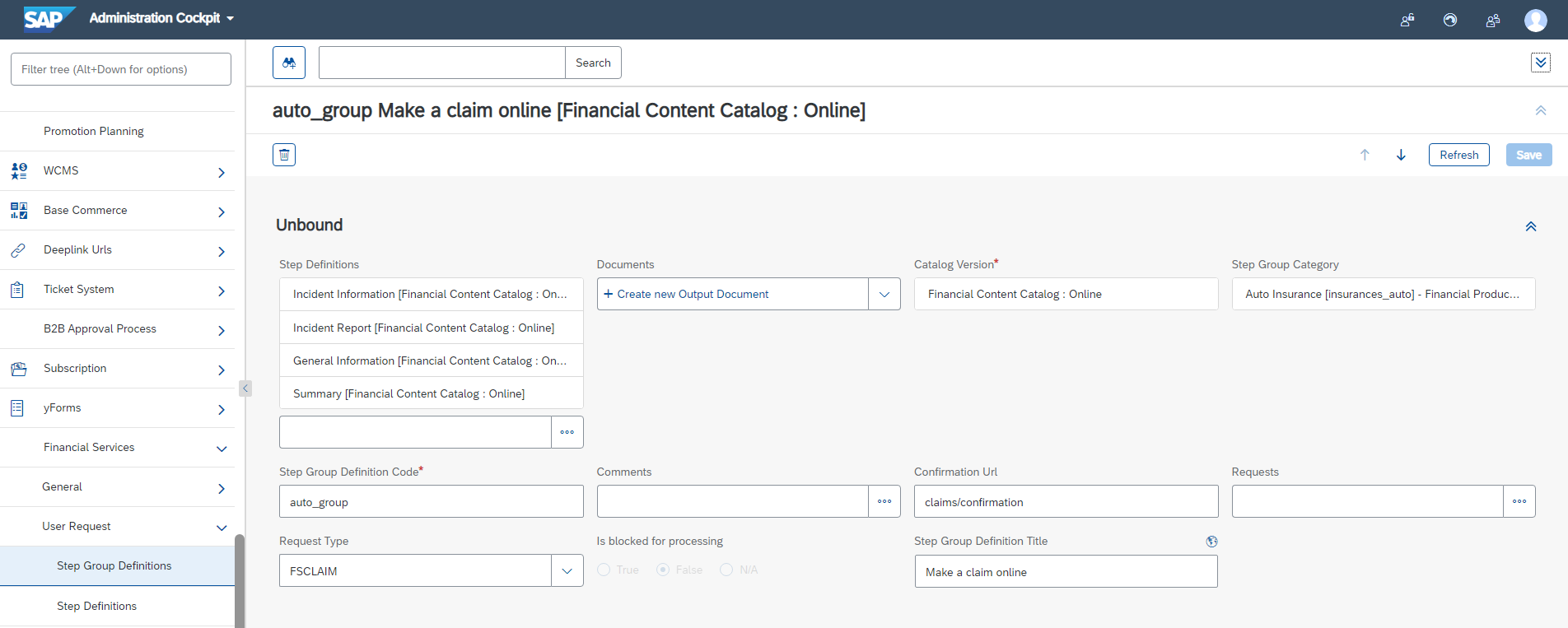
Although the framework is implemented for reporting claims, it could be extended and reused for other request types ( contact request, service request, policy change, etc.). For more information on the technical implementation, see User Request Framework.