Specifying Options for Data Analysis
Prerequisites
- To access the SQL Monitor data, you need the authorization profile for displaying SQL Monitor data. See also: Preparations
Context
The data selection screen provides you with options for customizing the selection and the visual representation of currently collected SQL Monitor data.
Procedure
- To adapt the selection settings to your specific needs, you have the option to change the default settings in the data selection screen.
Option Description Results With this option, you can decide whether you want to limit the result set of the SQL monitoring to a specific time interval or not. With the Current setting for results, you get all the SQL monitor data in the result display that has accrued since the last reset. However, the option By Time Interval enables you to select one or multiple time series to specify the time interval for the measurement results. In the latter case, click the corresponding button for selection. The use of time series enables you to analyze the development of measurement data over time. But you might also be interested only in those measurement results that occured during a specific period of time (for example, 10:00 to 11:00 o’clock).
Using time series mode for SQL monitoring
Object Selection Specifying the Package, Object Type or Object Name enables you to focus your data analysis on a limited object set. Requests By specifying the options Request Type and Request Entry Point, you are able to focus on specific business process in your system. For example, you can limit your scope to a business process that is initiated by an entry point such as a specific transaction, RFC call, or ABAP report. Tables This selection enables you to restrict the displayed results to SQL statements that access a specific set of database tables within the running system. Aggregation The aggregation option specifies whether or how the monitoring data is aggregated for display in the result list. With the option By Source Code Position, all SQL monitoring data records that belong to the same source code position (independent of the requests or tables), are aggregated in the result view. This option provides you with a source code-oriented view on the monitoring data.With the option By Request, all SQL monitoring data records that belong to the same request entry point (independent of the source code position or tables), are aggregated in the result list. This option provides you with a request-oriented view of the monitoring data. Order by Here you can specify according to which performance indicators the result view will be ordered. For example, if you want to focus on the most expensive SQL accesses, you can select the option Total DB Execution Time. If you are more interested in the most frequent accesses, you can select the option Total Number of BD Executions. The option Total DB Records allows you to detect the SQL statements that read or write most of the database data. Technical Records If you select the option Display Technical Records, records will also be added to the result view that are related to SQL statements executed implicitly by the ABAP runtime (kernel). These records are not related to an Open SQL statement, a native SQL statement, or an ABAP statement that explicitly executes SQL statements. With a suitable selection, you have the opportunity to focus your view of the data on specific aspects.
Example
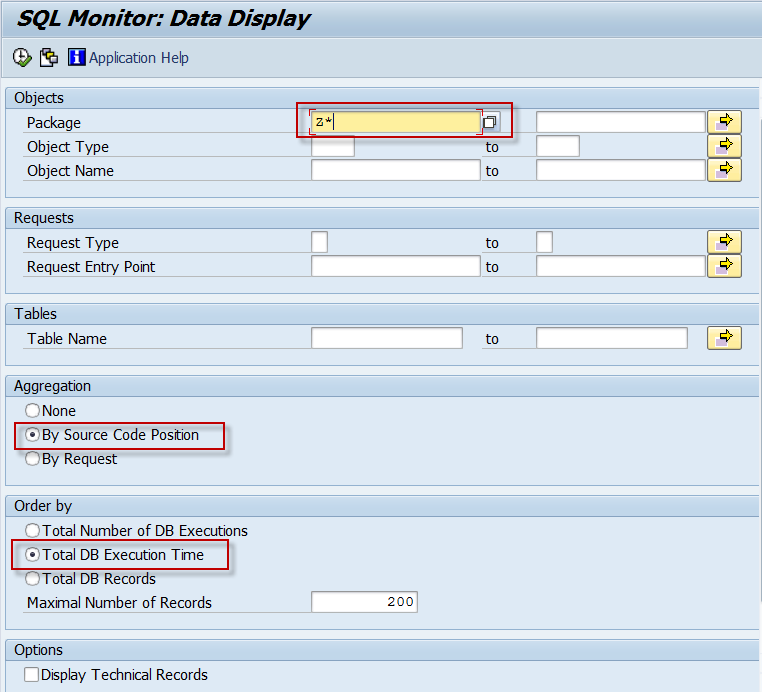
a. You want to identify the top n most expensive custom code SQL statements of the system.
In the SQL Monitor data selection screen, limit the packages to your custom code (SAP customers: Z*, Y*, or own namespaces) and aggregate them by source position. Order data records by total DB execution time.
b. You want to identify the top n requests in your system with highest SQL traffic.
In the SQL Monitor data selection screen, aggregate data recordings by request and order by total number of executions.

c. You want to analyze the SQL profile of an individual request.
In this case, you can drill down from the result list of top n requests (example b) or limit the scope directly in the selection screen.

d. You want to determine which custom ABAP code uses a DB table.
For this case, you can limit the display of data recordings to the desired database table and to the custom ABAP code accessing the table.

e. You want to analyze the development of requests/SQL statements over time
In the SQL Monitor data selection screen, you may, for example, aggregate data recordings By Request and order by Total DB Execution Time. In addition, limit the result set of the SQL monitor on a time interval of your interest by selecting one or multiple time series.

The selection By Time Interval enables you to drill down the results for each selected request by clicking the Display Time Series button in the result view.
See also: Analyzing SQL Monitor Data in the Result View > Selection C