
Application Installation
Certificate
If the certification authority (CA) is used, it is necessary to install the certificate on the device. The private part of the certificate is used on the backend, the public part of the certificate is used on the client.
Application Settings
After the application is installed on the device, start the "Mobile POS" application from the application menu. When you start the application for the first time, you are asked for the settings of the connection to the Flow Service backend and Onboarding Service.
The following values are required:
- Flow Service URL in the following format: wss://{hostname}:{port}/services/stomp/
- Onboarding token: Onboarding token used for the first communication with Onboarding Service
- URL to Onboarding Service: Onboarding Service checks the validity of the onboarding token and generates a client token.
- Tenant ID: ID of the tenant
- Business unit ID: ID of the business unit
- Workstation type: "MOB" for mobile POS
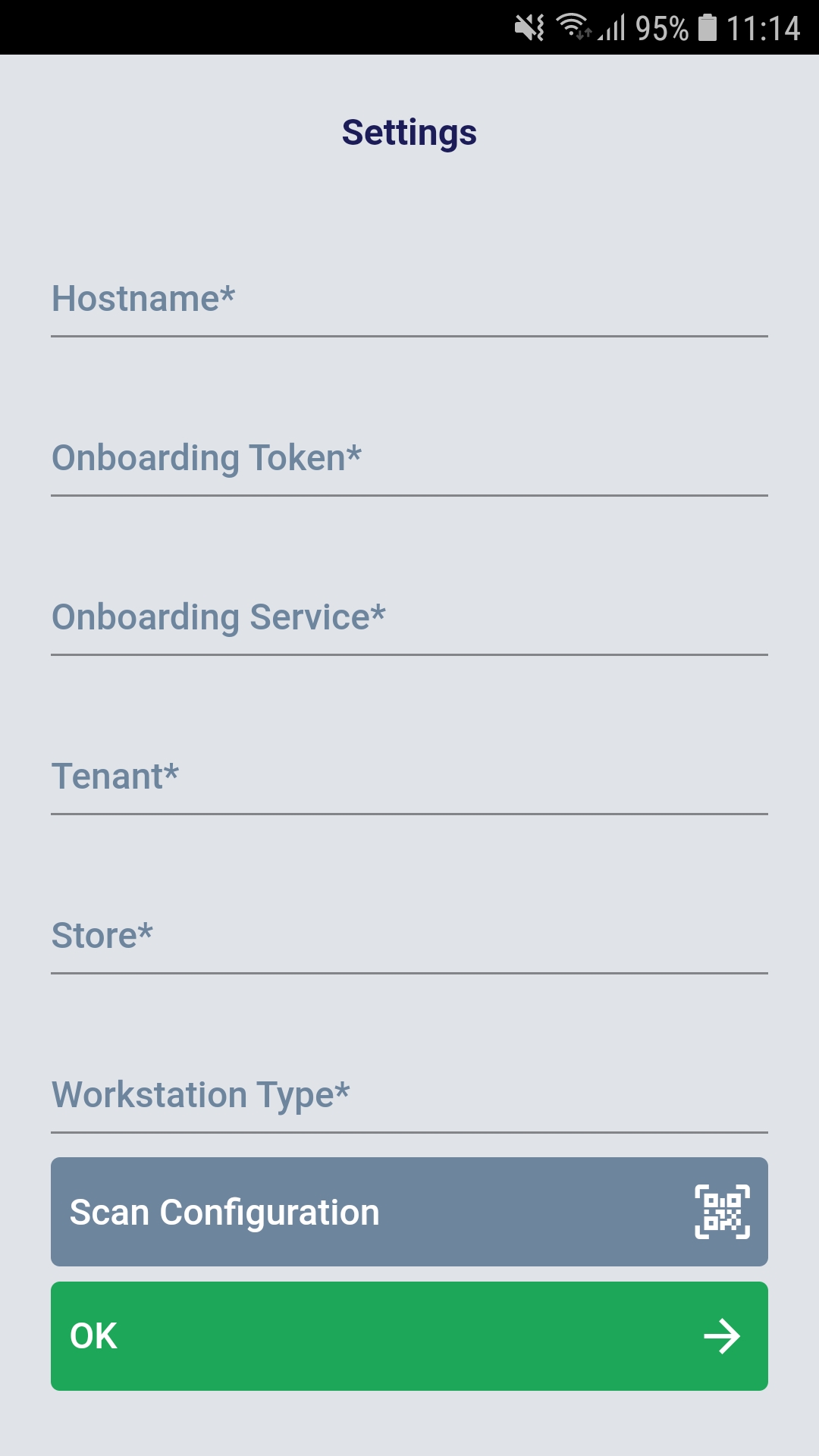
The user can enter the settings manually or can scan a QR code by clicking on the "Scan Configuration" button. The QR code is generated by the function. If the QR code is saved as a picture on the device, the user can load the picture into the scanner by clicking on the folder icon.

The QR code contains the Flow Service URL and all the needed data for the client onboarding mentioned above.
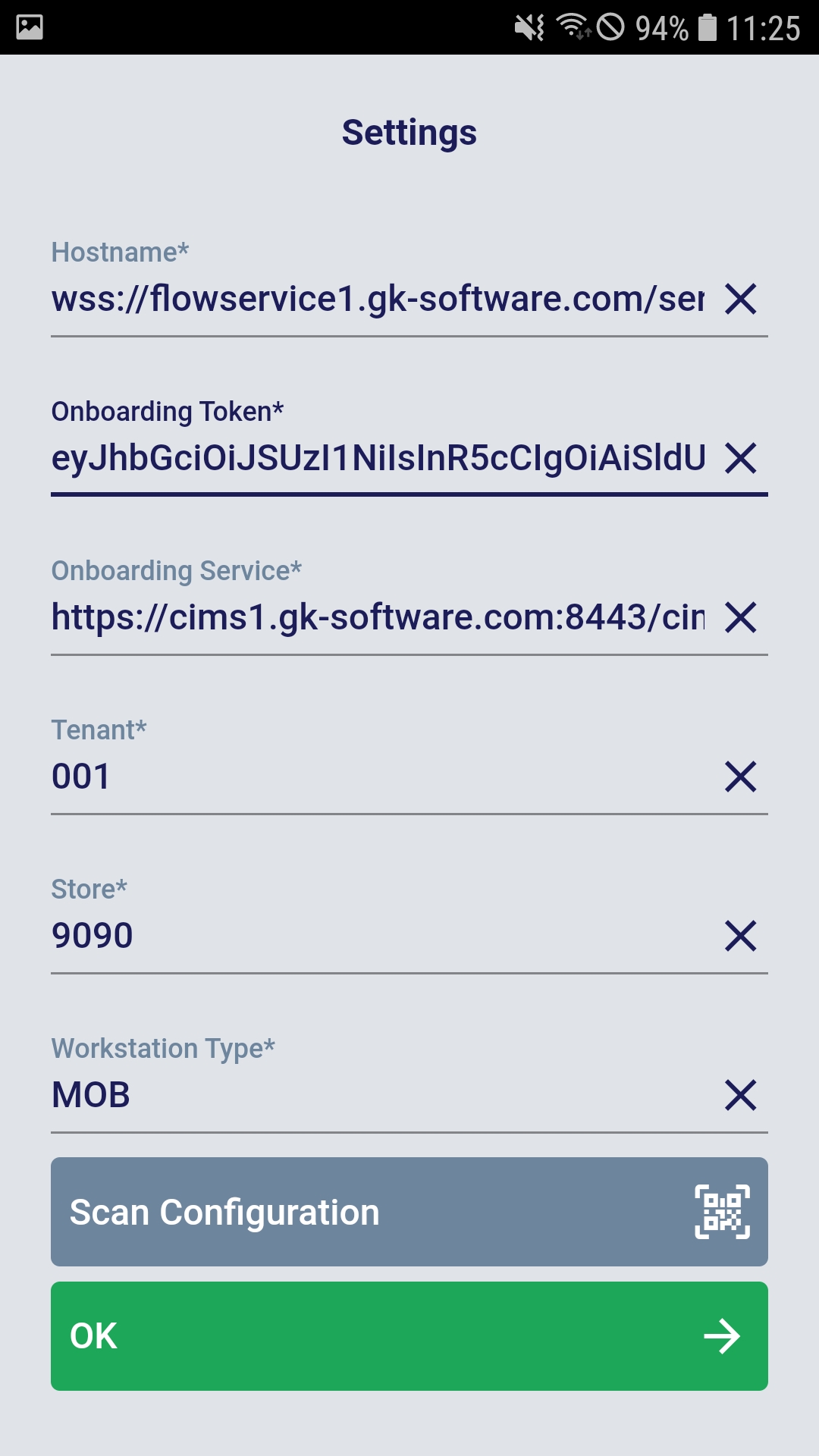
After all of the fields have been filled, the user confirms the connection settings using "OK". The application is connected and receives all other required settings from the Flow Service. The user can log in and start to register transactions.