Working with Folders and Diagrams
Folders allow you to organize and structure your workspace, even if you have a large number of diagrams.
Diagrams placed in Shared documents can be viewed and edited by all users of a workspace. Workspace administrators can enable the My documents folder, which is private. Other users can't view or edit this folder.
Notes on working with multiple users and workspaces can be found in the section Manage Users and Access Rights.
The Folder Structure
The main workspace folder is Shared documents. The My documents folder can additionally be enabled by a workspace admin.
Within these folders, you can create subfolders to organize your diagrams.
Choosing the arrow next to the folder/s name or on folder/s name itself will collapse or extend the folder. This way, you can quickly switch between folders and still keep track, even if you have an extensive folder structure.
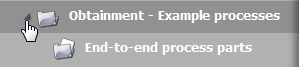
If the name of a folder is cut off due to the width of the folder column, the full name will appear when hovering over it with your mouse. You can also extend the folder column by dragging its border line to the right.
My Documents
Workspace administrators can enable the My documents folder for all users under Setup > Edit general configuration. Diagrams in this folder and its subfolders are private. Other users can't view or edit them.
Creating a New Folder
To create a new folder, proceed as follows:
-
If you want to create a subfolder, first navigate to the folder in which you want to locate the new folder.
-
In the menu bar, choose
 New
New  Folder
 . A dialog pops up, in which you can enter the folder name.
 -
Specify the folder name and then choose OK . The new folder is now visible in the folder structure.
Renaming a Folder or Diagram
-
In the Explorer select the folder or diagram you want to rename.
-
In the main menu choose
Edit Change name/description. -
Change the name. In multi-language workspaces translate the changed name to all available languages.
-
Choose Rename to save your changes.
Moving Folders and Diagrams
-
Select the folder or diagram you want to move to a different location.
-
In the menu bar, choose
Edit Move. The corresponding dialog box opens. -
Now select the new folder.
-
Choose Move to complete the moving operation. The view of the folder will then be updated.
If you don't have publish access rights on the published elements and on the target folder, the following dialog opens:
-
Finally, choose Move . The folder or diagram is moved to the selected location.
Copying Diagrams
-
Select the diagram you want to copy. To copy several diagrams at once, hold the Ctrl key while selecting them. Or, draw a selection frame around the diagrams.
-
In the menu bar, choose Edit and then Copy . The Copy dialog opens.
-
Select which folder you'd like to place the copy in.
-
Optionally, you can select one of the following options by activating the corresponding checkbox:
-
Copy linked models, too Please note that BPMN call activities are not copied.
-
Copy all revisions of the diagram .
-
-
Choose Copy . The copied file is then located in the selected target folder.
Removing Folders or Diagrams
-
Select the folder or diagram to be removed in the main area of the explorer. To select multiple folders, keep Ctrl pressed while selecting, or drag a selection frame around them.
-
In the menu bar, choose
Edit Delete. -
Choose Yes to delete the selected object.
-
To delete objects permanently, select the Trash folder in the folder navigation.
-
Select the objects you want to delete permanently.
-
In the menu bar, choose Remove.
-
Confirm by choosing Yes. The selected items are permanently deleted.
Restoring Diagrams and Folders
Diagrams and folders that have been deleted are moved to Trash folder. If you do not explicitly remove them from there, they can be restored.
To restore a diagram or folder from the Trash folder, proceed as follows:
-
Go to the Trash folder. It can be found in the folder tree on the left.
-
Select the files you want to restore.
-
Choose Restore in the menu bar.