Risk Management
Learn how to define custom risk management tables in the Dictionary.
Creating Risks and Controls in the Editor
You can document the risks and controls directly in your process landscape. This is obtained via the element attribute.
To add a risk to a diagram element, proceed as follows:
-
Ensure that you defined Risks and Controls as described in Managing risks and controls definitions.
-
Select the element.
-
In the attribute panel under Custom Attributes select the defined category. The Risk Management dialog opens.
-
Enter the name for the risk. While typing a name, the system automatically proposes possible names of existing risks.
Suggestions pop up as you type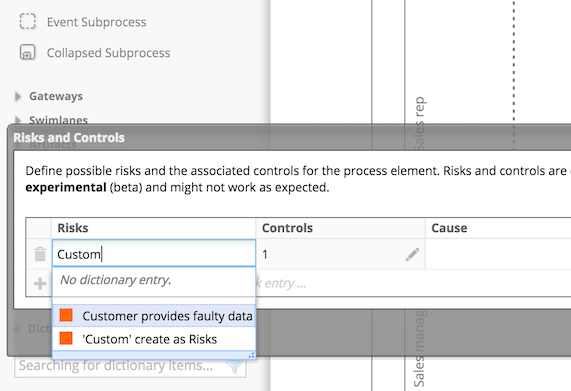
-
Enter the risk definition.
The risk definition
-
For each risk, you can add controls:
Add a control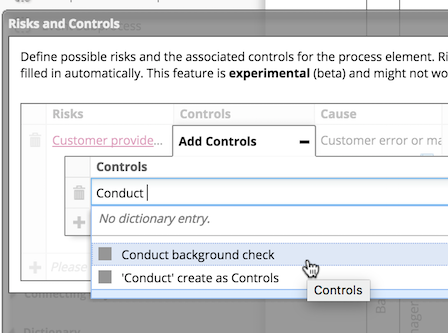
-
Choose
 (visualize) in the toolbar to visualize controlled and uncontrolled risks:
To create an overview over all risks and controls, you can create reports, see section Generating risks management reports.
Edit Risks and Controls in the Dictionary
When you need to update a specific risk or control, you can do this centrally in the Dictionary. The update will affect all diagrams that reference this risk or control immediately.
Of course, you can also add new risks and controls in the Dictionary (see Using the Dictionary in the Editor).
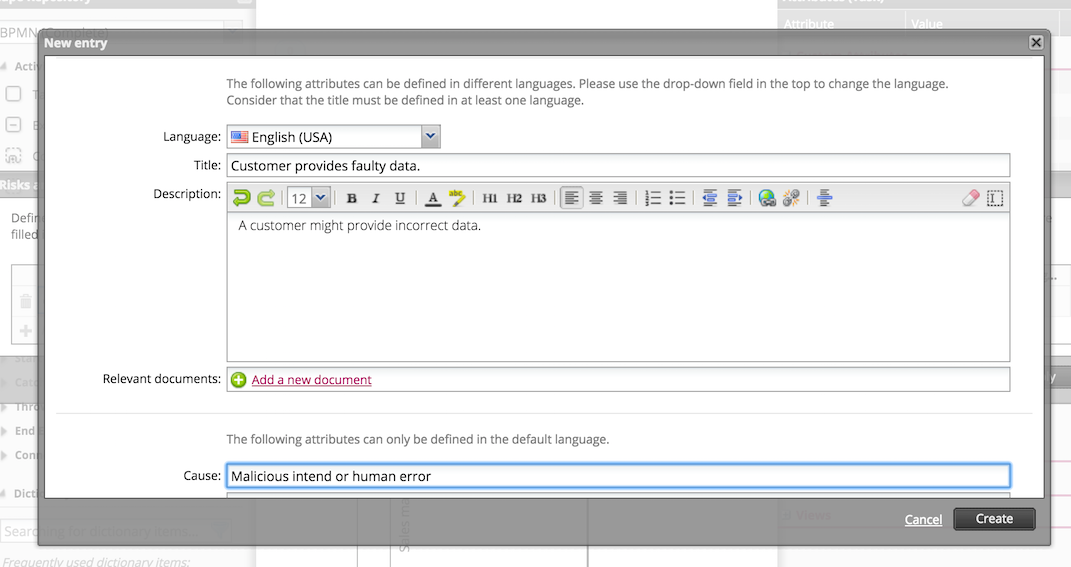
To add risks and controls to the Dictionary, open the Dictionary and create new entries of the type Risk or Control:
To ensure your risks and controls definitions are updated when a process changes, you can employ approval workflows, see section Approval workflows, that enforce a review by a risk management specialist before a process revision is published in SAP Signavio Process Collaboration Hub or otherwise released into a production environment.