Textures
Use
You can apply texture files (actual photographs or other raster images) to a surface of an object to give it a more realistic appearance. Without textures, 3D objects are practically colored geometry with some shading.
Textures are applied to the various maps contained within each material. For example, the Diffuse, Bump, and Opacity maps. The effect that a texture has on an object is defined by the map to which it is applied and that map’s properties. Applying the same texture to different maps, you gain very different results as shown below.
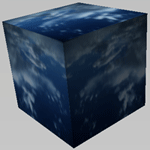
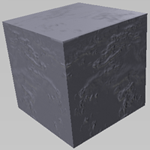
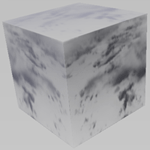
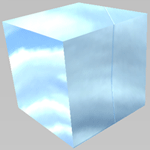
Many texture map properties can be saved into a file using the Texture Maps tab.
For 3D models in SAP Visual Enterprise Author, any 2D format is supported as a texture, provided the 3D model format supports the 2D format type and that the 2D format is supported by SAP Visual Enterprise Author.
External Textures
Many textures that are used in 3D scenes are located within the 3D file itself; other 3D scenes reference textures that are located outside of the file. These are called “external textures”.
If a file includes external textures, an “External files” link is displayed in the Information panel, from where you can display information about those textures including the location and status of each file.
If SAP Visual Enterprise Author cannot locate the external references, you must manually add the paths where the texture images are stored to SAP Visual Enterprise Author.
Activities
Adding a Texture to a Map
Do one of the following:
-
Drag a texture from the Textures list to the object in the scene.
-
Open the Material Properties window for the material, click the Maps tab, select the map to which you want to add the texture, and navigate to and select the texture you require.
Toggling the Display of Textures
Do one of the following:
-
Choose
 Display
  Materials Show Textures
 from the Navigation toolbar.
 -
Press CTRL + T on your keyboard.
More Information
2D File Formats