 HCM Processes and Forms (Technical Overview)
Architecture

Figure 1: HCM Processes and Forms Architecture
The component is made up of the following architectural elements:
Process
The process groups together the following elements: ISR scenario (
for Adobe Forms only
), form scenario, and workflow template. A process can include one or more form scenarios.For more information, see Process.
ISR Scenario
For Adobe Forms only:
The ISR scenario is used to select the form and to define the form layout. It is part of the cross-application Internal Service Request function.For more information, see ISR Scenario.
Form scenario
The form scenario answers the following questions regarding the following properties:
What type of form is used in the scenario?
Which fields are used in a form?
How are these fields linked with the infotype fields in the back-end system?
Which scenario steps exist?
Which types of attachments can be uploaded?
Which services are used?
The services determine the logic used to process form fields in the back-end system. The following types of service are available:
PA Service (enables Personnel Administration infotypes to be created, changed, and deleted)
PT Service (enables Time Management infotypes to be created, changed, and deleted)
PD Service (enables Personnel Development infotypes to be created, changed, and deleted)
Generic Services Framework
The standard system includes the generic service
S_MGR_POSITIONS
(Positions in Manager's Area of Responsibility), for example. You can use this service to ensure that a manager is offered only those jobs for selection in thePositions
form field that belong to his or her area of responsibility.
Which action is assigned to the scenario? (Roadmap forms only)
What is the sequence in which the infotypes are processed? (Roadmap forms only)
For Adobe Forms only:
Each form scenario has exactly one ISR scenario.For more information, see Form Scenario.
Workflow template
You use a workflow template to define the process flow, define agent determination, and to control the form application in a process.
For each process there is a workflow template that defines the process flow.
For more information, see Business Workflow for HCM Processes and Forms.
Process Object
The process object represents the persistence layer of runtime data that results from the execution of a form-based process.
The system creates a process object if the user triggers the process in the start application. The system saves the following data and elements in this process object:
Data that a user entered in the form (for each process step)
Attachments that a user included in the process while the process was being executed
The process object is created and the data is saved using the Case Management component.
For more information, see Process Object.
Start Application
The start application enables processes to be started. Depending on the portal role, the start application can be structured differently. It displays the processes to be executed and the steps required to start a process (for example, displaying the
Employee Selection
function on the user interface of the start application).For more information, see Start Application.
Form Application
The form application enables forms to be called in different scenario steps that are modeled in the workflow template.
For more information, see Form Application.
Digital Personnel File (DPF)
You can use the DPF together with
HCM Processes and Forms
. If you integrate the personnel file, the system automatically saves any forms and attachments in the employee's Digital Personnel File that are created when the process is executed.The permanent saving of processes is fulfilled using the process object; however, the DPF provides an optional enhancement to the
HCM Processes and Forms
functions. Note
NoteIt is only possible to transfer forms and attachments for Adobe and FPM forms. The Digital Personnel File (DPF) is also supported only for Adobe and FPM forms.
End of the note.
Integration
HCM Processes and Forms
uses the following components and their technologies:
Internal Service Request (ISR)
For Adobe Forms only:
The ISR Framework (including SAP Interactive Forms by Adobe /Adobe Document Services
) provides the technical basis for defining an ISR scenario and defining the graphical layout of the forms.HR Master Data (PA-PA) and Data from Time Management (PA-PT)
The fields of forms in
HCM Processes and Forms
can be linked with the fields in Personnel Administration (PA) infotypes, Personnel Development (PA), or Time Management (PT) infotypes. When the process is executed, the system updates the data in the infotypes with the entries made in the form fields.SAP Business Workflow
provides the technical basis for modeling the process steps that depict the process flow after the process is started.In the workflow, you specify the following information for the individual process steps:
The order of the individual process steps
The functions that are provided to the users in the form application
The users that are to execute a process step
How and where the data is to be saved
SAP Enterprise Portal
The portal provides all users integrated in a process with the iViews needed to execute the process on the user interface:
Start Application
The start application enables the user to start processes.
Universal Worklist (UWL)
The UWL provides the work items with which the user can call the forms for which he or she is the intended agent.
Manager Self-Service (MSS)
The manager obtains access to the
HCM Processes and Forms
functions intended for him or her using the Manager Self-Service.Employee Self-Service (ESS)
The employee obtains access to the
HCM Processes and Forms
functions intended for him or her using the Employee Self-Service.Records and Case Management
Records and Case Management provides the following underlying technology:
Storage of process instances (for more information, see Process Object)
The interface and data storage for the
Digital Personnel File
(DPF) and the process documents (forms and attachments) stored there.
Features
There are several different process types that can be started in HCM Processes and Forms:
Start Process for Employee
You start a process for a single employee, editing data for that employee in a form.
Start Process Without Employee Selection
You start a process without first selecting an employee, you can assign the employee at a later stage in the process.
Perform Hiring Process
You start the hiring process; the employee personnel number is automatically created after the start step is completed.
Start Process for Multiple Employees
You start a process for multiple employees at the same time, editing data for those employees in a table.
Start Organizational Process
You start a process for object types job, position, or organizational unit. You edit data in a form for that object type.
The standard process for HCM Processes and Forms involves the following steps:
Select the object type - employee (or
Skip Employee Selection
checkbox), job, position, or organizational unit - that you want to execute the process for.Select a process (in
Start Process for Multiple Employees
, you choose process before choosing employees).Edit the form (or data in a table for
Start Process for Multiple Employees
).Save data for the employee(s) or object.
For more information on process steps, see HCM Processes and Forms.
Process Types
Start Process for Employee
involves selecting one employee, selecting a process, editing a form and saving data for that employee. This data can be forwarded to one or more further agents in the process for input, or you can have a one-step process, which is finished when the first agent selects Completed
. It is also possible for an employee to start a process from ESS using a link. For a sample process, see Birth of a Child (Germany).
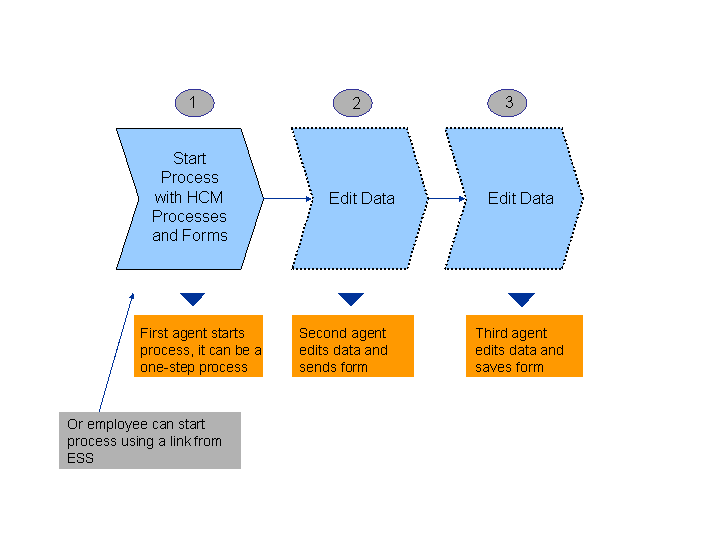
Figure 2.1: Start Process for Employee
It is possible to perform Start Proces for Employee
process without first selecting an employee, for example, the Special Payment
process. You can assign the employee at a later stage in the process, for example, the third agent involved in the process assigns the employee. You enter data and send the form to the next agent, he or she reviews the data and sends the form to the final agent in the process who assigns the employee and saves the data. For a sample process, see Special Payment (Process Start Without Employee Selection).
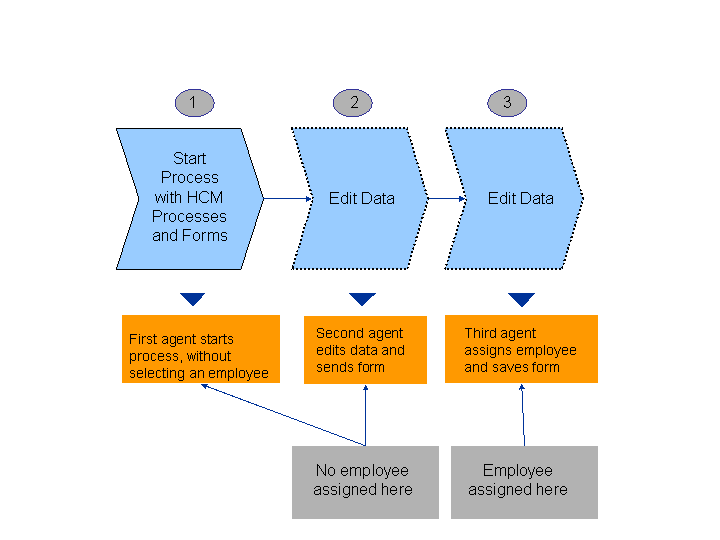
Figure 2.2: Start Process Without Employee Selection
Perform Hiring Process
allows you to start a process without first selecting an employee. You enter employee data, and the employee personnel number is assigned after the first process step. The rest of the process continues like a multi-step employee process. You enter data and send the form (the personnel number is automatically created), the next agent reviews the data and sends the form to the final agent, who saves the data. For a sample process, see Hiring (US).
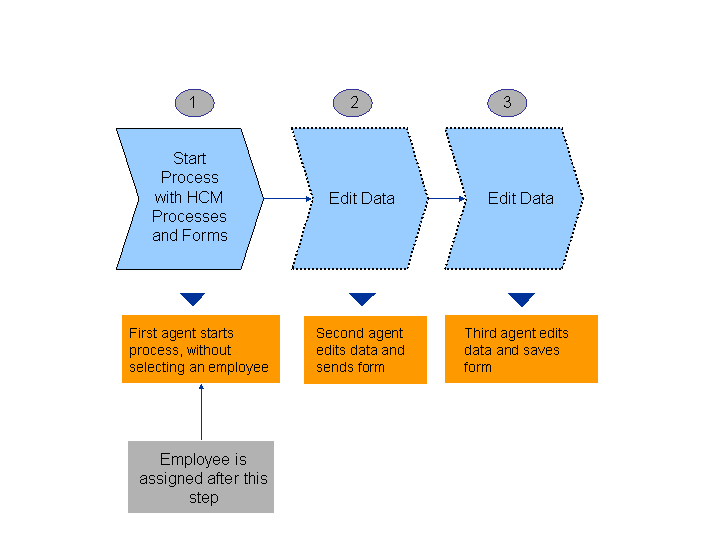
Figure 2.3: Perform Hiring Process
Start Process for Multiple Employees
allows you to start a process for more than one employee at the same time. This can be a single-step process where you want to change a specific piece of data for a number of employees, for example, country of residence. Alternatively, it can be a multi-step process where individual process instances are generated for each employee selected in the request step, for example, Special Payment
process. You enter data in a table for all the employees, when you send, separate process instances are generated for each employee, the next agent (can be different for each employee) reviews data in a form, the final agent saves the data. For a sample process, see Special Payment for Mass Start (Multi-Step Process).
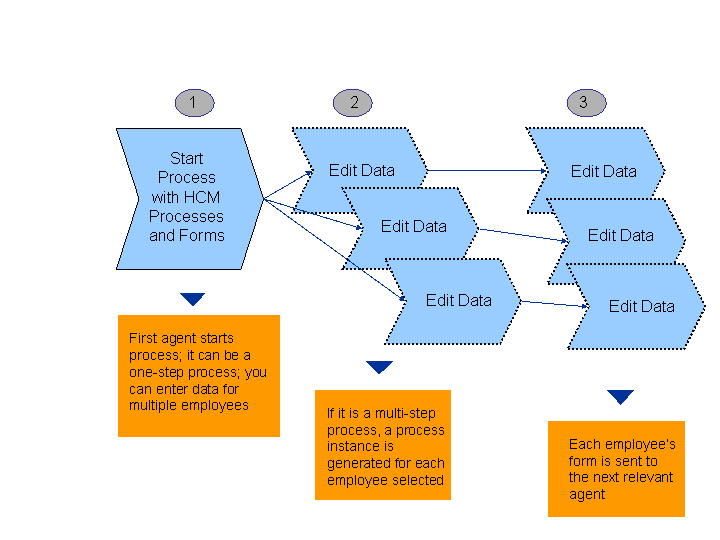
Figure 2.4: Start Process for Multiple Employees
Start Organizational Process
— As well as starting a process for an employee, you can start a process for the object types - job, position, and organizational unit. The process then takes the same format as if you were choosing an employee. You select the object type, select a process for that object type, edit data and save, forwarding to the next agent if workflow is involved (you can also have a single-step process). The next agent reviews the data and sends the form, the final agent saves the data. For a sample process, see Create Position.

Figure 2.5: Start Organizational Process