 Object Editors
Use
You can use the editors Display/Change <Object> to display and edit design or configuration objects.
Integration
The object editors are located in the main screen on the right of the navigation area and below the main menus and toolbars.
Prerequisites
You can call up an object editor by
· creating a new object
For more information, see the Creating a New Object.
· selecting the object in the navigation area (on the tab page Repository/Directory or the tab page Change List) and
¡ double-clicking, or
¡
choosing
Open ( ) in the context
menu.
) in the context
menu.
· dragging an object from the navigation area to the work area of the main screen and releasing it so that the work area is highlighted with a black frame (Drag & Drop).
You also have navigation options between the individual object editors of different object types. The descriptions of the individual design or configuration objects give you more information about these options.

For example, you can double-click an action in the graphical work area of the business scenario editor to navigate to the action editor.
Features
General Structure of the Object Editors
All object editors have the same basic structure.

For information on special properties and additional functions that are specific to the object type, see the description of the individual objects.
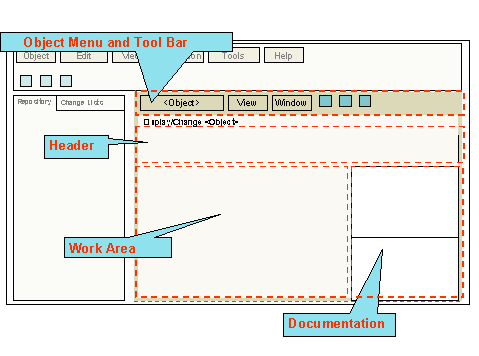
The object editor consists of
· the object menu and toolbar
· header
· work Area
· documentation area (can be hidden)
Object Menu and Toolbar
As well as the main menu, the Integration Builder also includes an object menu (and toolbar) in the individual object editors. You can use the object menu to access all functions that relate to the object you have opened. This section describes these functions.
You can access the object menu with the key combination Alt + F10. If you keep the Alt key pressed, you can use the cursor keys (or the shortcut letters listed below) to navigate in the object menu.
You can also use shortcut letters and keys to access functions. We have also included the shortcut keys and letters in the description of the functions.
For example, you can access the function
Display/Edit ( ) with a
key combination (Alt + Object ID)
® A, or directly with Ctrl +
E.
) with a
key combination (Alt + Object ID)
® A, or directly with Ctrl +
E.
You can call up the object menu functions with the following entries.
<Object> (Alt + object ID, object ID: see below under Key Combinations for Different Object Types)
|
Function |
Description |
Shortcut Key |
Shortcut Letter |
|
|
Switches from display to change mode, and back again |
(Ctrl + E) |
D |
|
|
Checks the correctness of the object |
F7 |
C |
|
|
Displays the object status |
|
I |
|
Copy from External Change List |
Copies an object from another change list. |
|
O |
|
|
Saves the object |
(Ctrl + S) |
S |
|
|
Deletes the object |
|
E |


Imported objects (RFCs and IDocs) only have the
functions Display Object Status ( ) and Delete (
 ).
).
View (Alt + I)
|
Function |
Description |
Shortcut Key |
Shortcut Letter |
|
|
Shows or hides the header of the editor |
|
S |
|
|
Shows or hides the object documentation. The documentation window opens on the right of the editor (see Documenting Objects). |
|
D |


Window (Alt + W)
|
Function |
Description |
Shortcut Key |
Shortcut Letter |
|
|
Detaches the object editor from the main window. You can then use the cursor to move the object editor freely (see Navigation). |
|
D |
|
|
|
(Ctrl + F4) |
C |


Header
The header displays the following information on the object.
· Key information on object
This information includes the object key defined when the object was created. This key information depends on the individual object type, and is described in more detail in the information on these object types.
· Description
You can enter a language-specific short description of the object here.
· Status
The status of the object. The object can have the status Being Edited or Active (see Displaying the Object Status und Change Lists).
Work Area
This area is used for displaying and editing various object properties.
The work area is specially adapted to the individual object type. For more details, see the description of the object type.
Navigation
Object editors appear as tab pages, whose tab index (with the name of the object and the symbol of the object type) is located at the bottom edge of the screen. The tab page design of the object editors gives you additional navigation options (see Navigation).
Key Combinations for Different Object Types (Menu Entry <Object>)
Key combinations for calling the menu entry <Object> for the design and configuration objects:
Design Objects
· Business scenario objects
¡ Business scenarios (Alt + B)
¡ Actions (Alt + A)
· Interface objects
¡ Message interface (Alt + M)
¡ Message type (Alt + M)
¡ Fault message type (Alt + F)
¡ Data type (Alt + D)
· Mapping objects
¡ Interface mapping (Alt + I)
¡ Message mapping (Alt + M)
¡ Imported archive (Alt + I)
· Imported objects
¡ RFCs (function modules) (Alt + F)
¡ IDocs (Alt + I)
Configuration Objects
· Business scenario (Alt + B)
· Routing relation (Alt + R)
· Mapping relation (Alt + M)
· Endpoint (Alt + D)
· Logon data (Alt + L)
