 Value Mapping
Use
An object can be represented in different ways in different contexts.

For example, a user Julie Moore (object) can be a customer in business system A, but an employee in business system B.
You can use the value mapping function to map different representations of an object to each other. You can store the mapping rules for different objects in a value mapping table.
The value mapping functions are used in the following locations in the SAP Exchange Infrastructure:
· Java mapping
For more information, see Executing Value Mappings.
· Routing
When identifying a receiver from message contents, the value mapping function maps a payload field to a receiver business system. For more information, see Defining Receiver Identification and Specifying the Extractor Parameters.
Structure of the Value Mapping Table
Then value mapping table is structured as followed (see graphic).
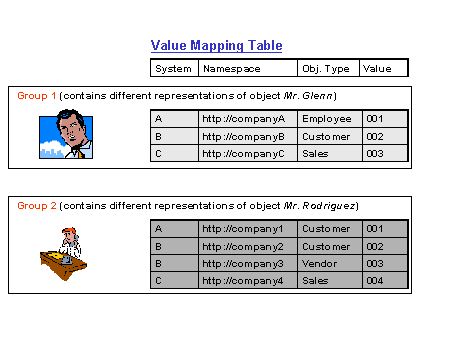
A value mapping table contains different representations of objects.
The representations of the same objects are listed together in groups. A group of entries in the value mapping table contains multiple representations of the same object. One representation of an object takes up a single table line.
A group contains at least two representations; a group with only one representation is rejected by the database.
The example (see the graphic) groups the different representations of the object Mr. Glenn in group 1, and the different representations of the object Mr. Rodriguez in group 2.
The fields of the value mapping table have the following meaning:
· System
The field System indicates the context, generally a business system. However, the field can also indicate other entities, depending on how the value mapping table is used.
· Namespace
Specifies the namespace of the object type.
· Object type
Specifies a ‘role’ in which the object can appear in different contexts.
· Value
Identifies the representation of the object in the group.
Duplicates
A group generally contains only one representation for each system, namespace, and object type. If a group contains multiple representations with the same system, namespace, and object type, then one of these representations must be specified as the ‘main’ representation. The other representations are known as ‘duplicates’ and are flagged in the table.
When you use the value mapping functions, you can search a group for a representation with a specific system, namespace, and object type. If you find multiple representations, the main representation is used for the value mapping.
For example, if the customer Julie Moore has the number 002 in system B, and also has the number 004 in the same system (perhaps because she has been registered twice as a customer), then a duplicate of Julie Moore’s representation is generated in the same group.

Features
The Integration Builder (Configuration) contains the central access point for displaying and changing the value mapping table. To do this, choose Tools ® Value Mapping in the main menu.
The editor in which you display and change the value mapping table consists of two tab pages.
Tab Page Selector
You select entries from the value mapping table on this tab page. You can restrict your selection by the fields of the value mapping table in the header of the tab page.

Remember that you can only select representations from one group. If you do not specify any selection criteria, the whole value mapping table is displayed.
The bottom section of the tab page displays the entries of the value mapping table (according to your selection criteria).

Different groups are distinguished by light and dark lines. Entries that belong to the same group are also linked together by a parenthesis.
Functions
Click a group to select it. Selected groups are highlighted in yellow.
|
Icon |
Function |
|
|
Gets the groups from the database and displays them in the lower section of the tab page |
|
|
Opens the selected group and the tab page Editor |
|
|
Creates a new – empty – group, and opens the tab page Editor |
|
|
Deletes the selected group from the database |


Tab Page Editor
You can make entries in the value mapping on this tab page.
Functions
|
Icon |
Function |
|
|
Inserts a new line |
|
|
Deletes the selected line |
|
|
Sorts the table entries |
|
|
Switches between display and change mode |
|
|
Saves the entries |


