Creating a Theme for SAP NetWeaver Business Client
This example shows how you design a theme for SAP NetWeaver Business Client (NWBC).
In the following steps, you will create a new theme on the basis of
SAP Gold Reflection. The result should
look as follows: 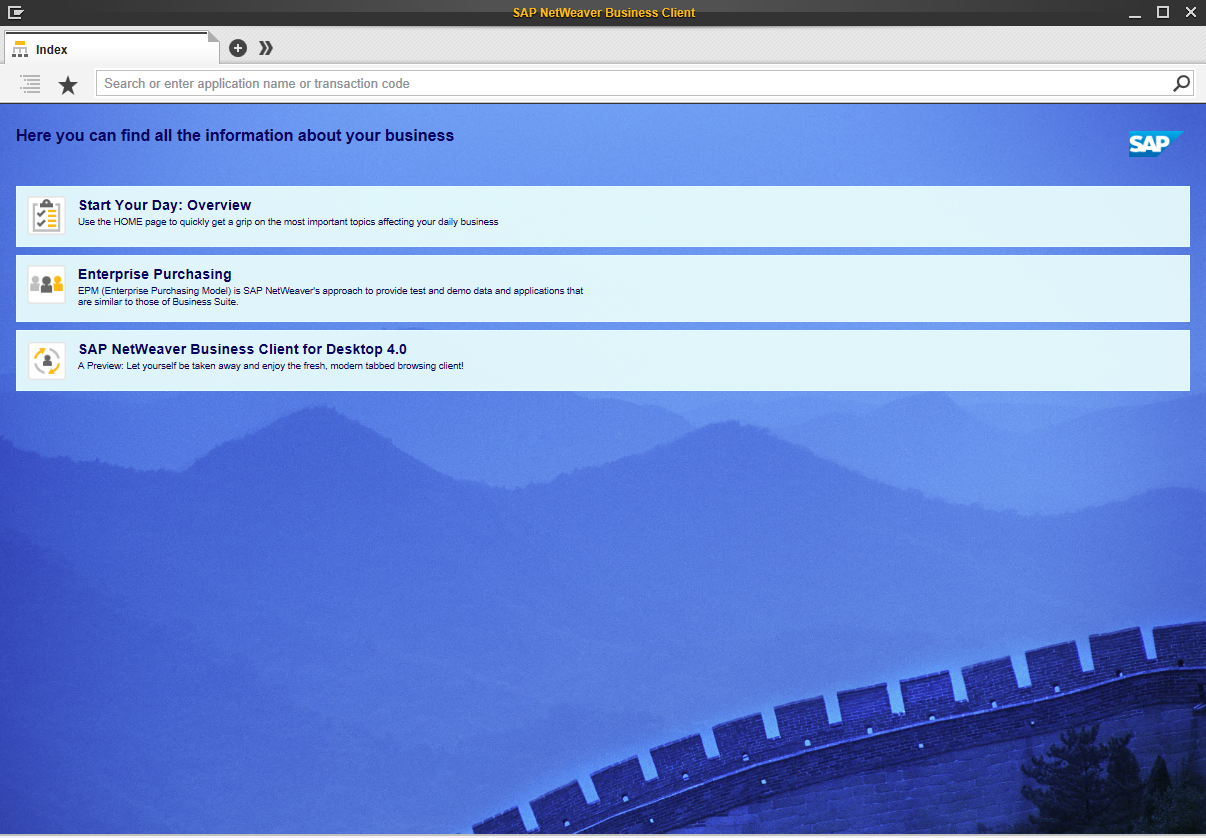
- Start the UI theme designer.
- In the theme list on the start screen, select SAP Gold Reflection and choose Open.
- Add sample content for the preview.
- Click on the link NWBC Application Previews.
- Mark the Index Page and New Tab Page checkbox.
- In the Target Pages panel, select the Index Page preview you just added.
- Add a background image:
- In the Quick tab, open the value help for the Background Image input field.
- Drag and Drop an image file from your local hard disk to the dialog box and confirm.
- Adjust the text color to match the background image:
Open the color picker for the Text Color parameter and select a dark blue.
- Adjust the background color of the index page sections.
- Switch to the Expert tab.
-
In the search field, enter sapUI2NwbcSectionBgColor.
- Open the color picker for the sapUI2NwbcSectionBgColor parameter and select a light blue.