Overview
The desktop version of SAP NetWeaver Business Client (NWBC) 5.0 has a modern and simple look and feel, and implements an easy-to-use, web-browser-like user experience coupled with easy navigation and a focus on content (tabbed browsing).
The figure below illustrates the main screen areas of NWBC, comprising the shell, content area, and the side panel:
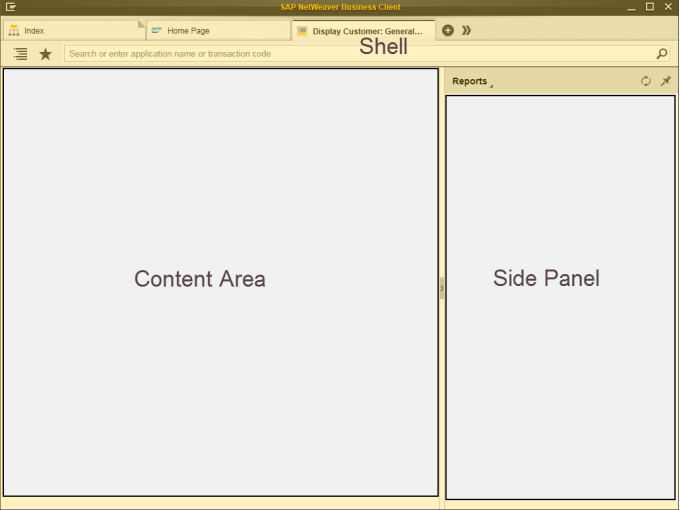
The desktop version allows you to adjust the appearance and settings of the business client to meet your personal and technical requirements, for example by selecting your theme or branding options.
The shell aims at reducing the space consumed by the client in favor of applications running in the content area where users do their actual work. They can use the side panel to display additional context-sensitive information that relates to the main application. Users can open the menu from
the
 icon in the header area and make system settings, customize view and personalization options, and access the help and support functions, including the product documentation.
The presentation of the menu as a dropdown menu also helps to save screen space at the top of the shell.
icon in the header area and make system settings, customize view and personalization options, and access the help and support functions, including the product documentation.
The presentation of the menu as a dropdown menu also helps to save screen space at the top of the shell.
The shell design is intentionally neutral to frame content from diverse applications and technologies, be it Web Dynpro or SAP GUI transactions. The shell for the desktop client is rendered in the Corbu design by default. This is a theme with a light, neutral design, and enlarged resolution for better readability. The user can customize the appearance of the shell and content area by switching the theme in the personal settings. It is possible to select either a dark or light flavor, which only affects the header area. The high contrast theme is also available, which triggers a theme change in the client, Web Dynpro, and SAP GUI pages. All content except for content embedded as Web URL is displayed with the high contrast theme.
With a tab-based navigation model (tabbed browsing), users are now able to work on multiple tabs in parallel. They can load any content into the tab rather than into a new window. Users can switch between the tabs easily without terminating the sessions; each new tab hosts a new session. If
users are working with many applications in one window at the same time, they can get an overview of all the tabs in the tab bar by displaying the tab list or with the help of the tab previews in the task bar. The tab list displays all the tab titles if more tabs are open than can be displayed in the
tab bar. Users can display the complete list of open tabs and quickly navigate to a selected tab by choosing the
 pushbutton in the tab bar.
It is possible to personalize a user's navigation structure by adding pages for frequently used transactions or applications to the Favorites or by pinning tabs so they are available when the users logs on to a system the next time.
Users have many different options to find and launch applications. This includes navigating from an overview page, from the quick launch, or from the navigation panel. The overview pages such as the Index page and the New Tab page serve as the central point of entry to a role-based navigation.
The powerful search and quick launch capabilities of the desktop client are combined in a single type-ahead field. Users can either start a search using a configured search provider, for example, the Desktop Search, or they can directly start transactions or Web Dynpro applications. Search results are grouped into different search categories, for example, by results in Favorites and Recent Items, or by results for Desktop Search and Transactions and Applications.