 Sample Process: Creating a Sales Order
This sample process is designed to illustrate the process of creating a sales order in more detail.
If you create a sales order in SAP ERP and you are performing an availability check, the system synchronously calls the scheduling service in SAP Transportation Management (SAP TM).
If you want short response times in SAP ERP, you should do your planning with a restricted number of resources and not use the capacity check in the optimizer. For more information about planning, see VSR Optimization.
Subsequent planning is done in a manner such that the result is not too different from the dates determined in the synchronous sales order scheduling, for example, by using the same planning profile.
When you use the ATP check, you have to ensure that the scheduled material staging date is not earlier than the actual material availability date given by the ATP check in SAP ERP. You can do this by selecting the settings for the pick-up and delivery window in the freight unit type accordingly. You can also use the pick-up and delivery window settings to prevent a calculated delivery date that is earlier than the requested delivery date. For more information about freight unit creation, see Creation and Editing of Freight Units.
The difference between the calculated and the requested delivery date and also between the material staging date and the material availability date depends on the planning costs settings of the planning profile you have selected. For more information about planning profiles, see Planning Profile.
Prerequisites
The same prerequisites apply as specified in Scheduling of SAP ERP Sales Orders in SAP TM.
Process
The following figure shows a sample process for creating a sales order:
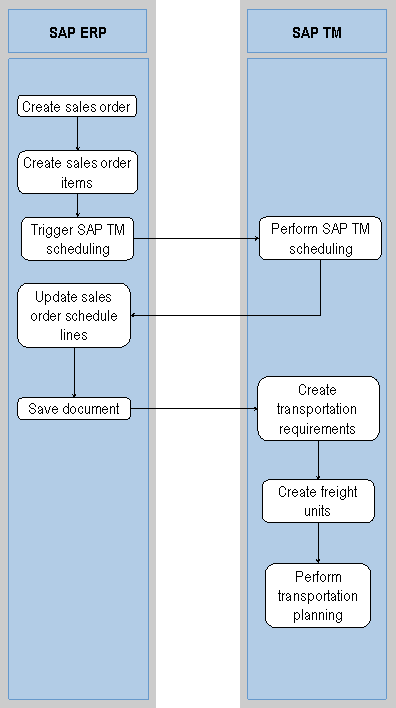
Create sales order (SAP ERP)
Create sales order items (SAP ERP)
Trigger SAP TM scheduling (SAP ERP)
You can do this by choosing the
 (Availability Check for Entire Document) pushbutton.
Perform SAP TM scheduling (SAP TM)
The system temporarily creates a transportation requirement and performs transportation scheduling.
Update sales order schedule lines (SAP ERP)
The system updates the schedule lines in the sales order according to the planning results.
Save document (SAP ERP)
After you have saved the document in SAP ERP, the document is transferred asynchronously to SAP TM.
Create transportation requirements (SAP TM)
The system creates transportation requirements.
Create freight units (SAP TM)
If selected in the Customizing of the transportation requirement type, SAP TM creates freight units immediately after creating transportation requirements.
Perform transportation planning (SAP TM, optional)
You can perform subsequent process steps with the created freight units, for example, you can perform transportation planning to create freight orders or freight bookings.