 Creating a XSL Transformation Expression
Procedure
Open the application in the Object Manager panel.
Under the Detail section, choose the Contained Objects tab.
The Contained Objects tab page appears.
Choose Expression from the Type field and choose Create Object.
In the Object Creation dialog box that appears, choose XSL Transformation in the Type field.
Enter the following data:
Name
(Optional) Short Text
(Optional) Text
Choose Create and navigate to object.
The XSL transformation expression appears in the Object Manager panel.
 Note
NoteIf you choose Create the XSL transformation expression appears under the Contained Objects tab.
End of the note.Choose Show result data object. You can assign a standard type, select an existing data object or create a new data object as the result data object.
Select a Standard Type
Choose
 (Graphical Access).
In the context menu, choose Default Objects and choose the data object type.
Select an Existing Data Object
Choose
(Graphical Access).In the context menu, choose Select....
In the Object Query dialog box that appears, select the data object.
The selected data object is added as the result for the XSL transformation expression.
Create a New Data Object
Choose
(Graphical Access).In the context menu, choose Create....
In the Object Creation dialog box that appears, create the data object.
For more information, see Creating Data Objects
Choose Add Parameter button.
A new line appears in the Parameter for XSL Transformation table. You can assign a standard type, an existing data object or an expression or a new expression as the parameter.
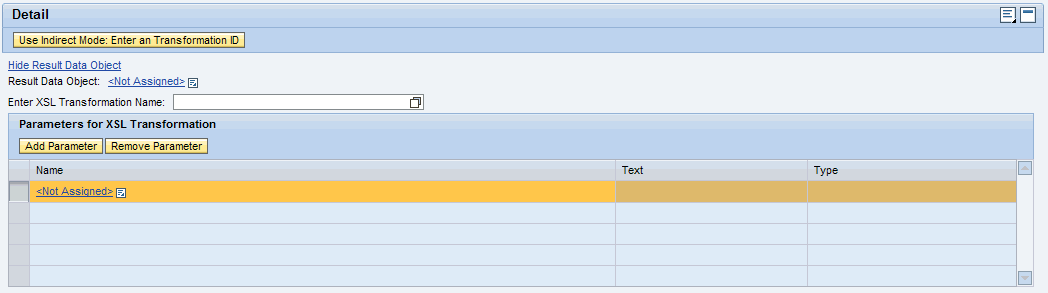
Select a Standard Type
Choose
(Graphical Access).In the context menu, choose Default Objects and choose the standard type.
Select an Existing Data Object
Choose
(Graphical Access).In the context menu, choose Other Context Parameter....
In the Object Query dialog box that appears, select the data object.
The selected data object is added as the parameter for the XSL transformation expression.
Select an Existing Expression
Choose
(Graphical Access).In the context menu, choose Select Expression....
In the Object Query dialog box that appears, select the expression and choose Select.
The selected expression is added as the parameter for the XSL transformation expression.
Create a New Expression
Choose
(Graphical Access).In the context menu, choose Expressions....
In the Object Creation dialog box that appears, create the expression.
For more information, see Creating Expressions
Activate the expression.
Save the expression.