 Creating a Decision Table Expression
Procedure
Create a Decision Table
In the Object Manager panel of the application, under the Detail section, choose the Contained Objects tab.
The Contained Objects tab page opens.
Choose Expression from the Type field and choose Create Object.
In the Object Creation dialog box that appears, choose Decision Table from the Type field.
Enter Price_Factor_And_Premium_DT in the Name field.
Enter Price Factor and Premium DT in the Text field.
Choose Create and navigate to object.
The decision table opens in the Object Manager panel.
Add Context to the Decision Table
Under the Detail section, under Table Settings , choose
 Append Column
  From Context Data Objects...
  .
.In the Context Query dialog box that appears, select LEVEL_OF_COVER data object and choose Select.
Similarly, add AGE as context to the decision table.
Add Result to the Decision Table
Choose
 (Graphical Access) next to Result Data Object.
In the context menu, choose Select....
In the Object Query dialog box that appears, select PRICE_FACTOR_AND_PREMIUM. This is the structure data object you have created in the previous step of our tutorial.
Now, you should see the following:
The data objects, SET_PRICING_FACTOR and SET_BASE_PREMIUM appended to the decision table as result data objects as shown below.
 (Decision Table Structure)
 Note
NoteThe Column is result checkbox is automatically selected for both the SET_PRICING_FACTOR and SET_BASE_PREMIUM data objects.
End of the note.The column headers of the decision table under Table Data section.
 (Empty Decision Table) Note
The texts displayed as column headers in the decision table are derived from the field labels of the assigned data objects. There is no way of overriding these texts for table-specific purposes.
End of the note.
Add Values to the Decision Table
Under Table Data, choose Append Row.
Under Level Of Cover column, choose
(Graphical Access).In the context menu, choose Direct Value Input.
Select is equal to and enter Normal as shown below.
 (Decision Table: Entering Values)
Choose Done
You should see Normal under Level of Cover column in the decision table.
Under Age column, choose
(Graphical Access).In the context menu, choose Direct Value Input.
Select is between and enter 0 and 29 as shown below.
 (Decision Table: Entering
a Value Range)
(Decision Table: Entering
a Value Range)Choose Done.
You should see the range [0..29] value under Age column in the decision table.
Under Set Pricing Factor column, choose
(Graphical Access).In the context menu, choose Direct Value Input.
Enter 1,0 in the Value field and choose Done.
You should see 1 under Set Pricing Factor column.
 (Decision Table: Entering Result Values)
Under Set Base Premium column, choose
(Graphical Access).In the context menu, choose Direct Value Input.
Enter 1000 in the Value field and EUR in the Currency field.
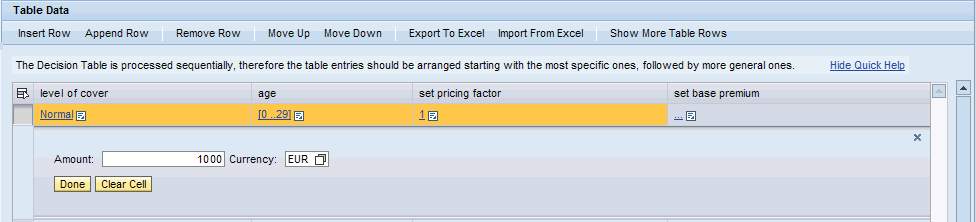 (Decision Table: Entering an Amount)
Choose Done.
You should see the first line of the decision table filled with the values as shown below.
 (Decision Table: Complete Row)
Create the following table lines using the above procedure.
Level of Cover
Age
Set Pricing Factor
Set Base Premium
Normal
30 and 49
1.2
1000 EUR
Normal
50 and 69
1.5
1000 EUR
Normal
70 and 79
1.9
1000 EUR
Normal
is greater than 79
2.4
1000 EUR
Astute
0 and 29
1.5
1200 EUR
Astute
30 and 49
1.8
1300 EUR
Astute
50 and 69
2.25
1400 EUR
Astute
70 and 79
2.85
1600 EUR
Astute
is greater than 79
3.6
2000 EUR
The decision table should look like as shown below:
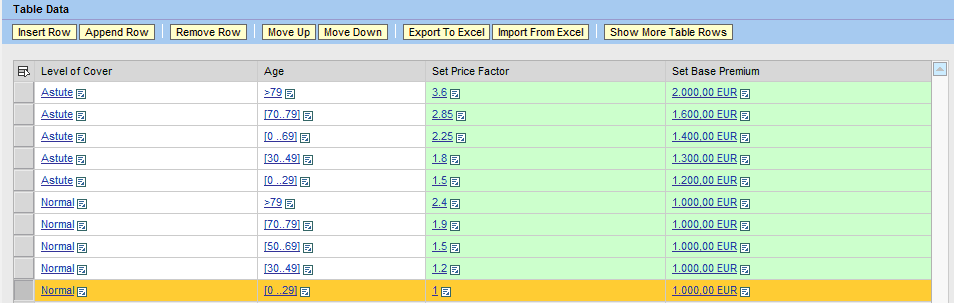 (Decision Table: Final View)
Save and activate the decision table expression.
The system may ask you whether you really want to activate structure Price_Factor_and_Premium_DT. Mark the box to also activate the Referenced Objects and choose OK.