Advanced Role Search
Roles may be added to the target selection of the Object-Based Navigation Editor easily by finding the role in the Portal Content folder, right-clicking it and adding it from the context menu. However, roles are often numerous and there may be multiple roles with similar names, or the content administrator may not be aware of all the roles assigned to a specific user or group. The advanced role search finds these roles and adds them to the target area.
Added Value of the Role Search
-
The search for roles is filtered. You can search by group, user, or role.
-
A wild card search is enabled using an asterisk (*).
-
Administrator gets additional information:
-
A search by user or group returns all the roles to which the specific user or group is assigned.
-
Searching by group gives information about the role structure which is not visible from the Portal Content folder. Knowing to which group a role is assigned, as well as to which user, may be useful information.
-
-
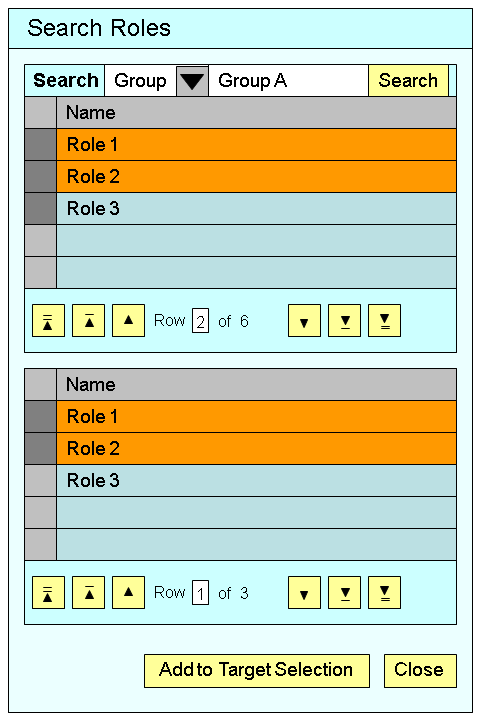
Access the role search utility by choosing the Advanced Role Search link at the bottom of the Target Selection area.
-
Set the search parameters and choose Search .
The roles returned appear in the upper panel of the search utility.
-
Select the roles to be added to the target selection area.
The selected roles appear in the lower panel, from which they are moved to target selection. If only one role is returned, it automatically appears in both the upper and lower panels.
If many roles are returned, use the arrow buttons to navigate through the list.
-
Choose Add to Target Selection and move the selected roles