 CCMS Selfmonitoring Monitor for Instance-Specific Data
The SAP CCMS Technical Expert Monitors
monitor set contains the CCMS Selfmonitoring
monitor, which displays the status of the monitoring architecture and of the Alert Monitor. The monitor displays, among other things, whether the Alert Monitor was able to perform the following actions:
Start the data collection methods for which it is responsible
Assign and access the shared memory that it requires to determine and manage alerts
Set up the RFC connections to remote systems and components
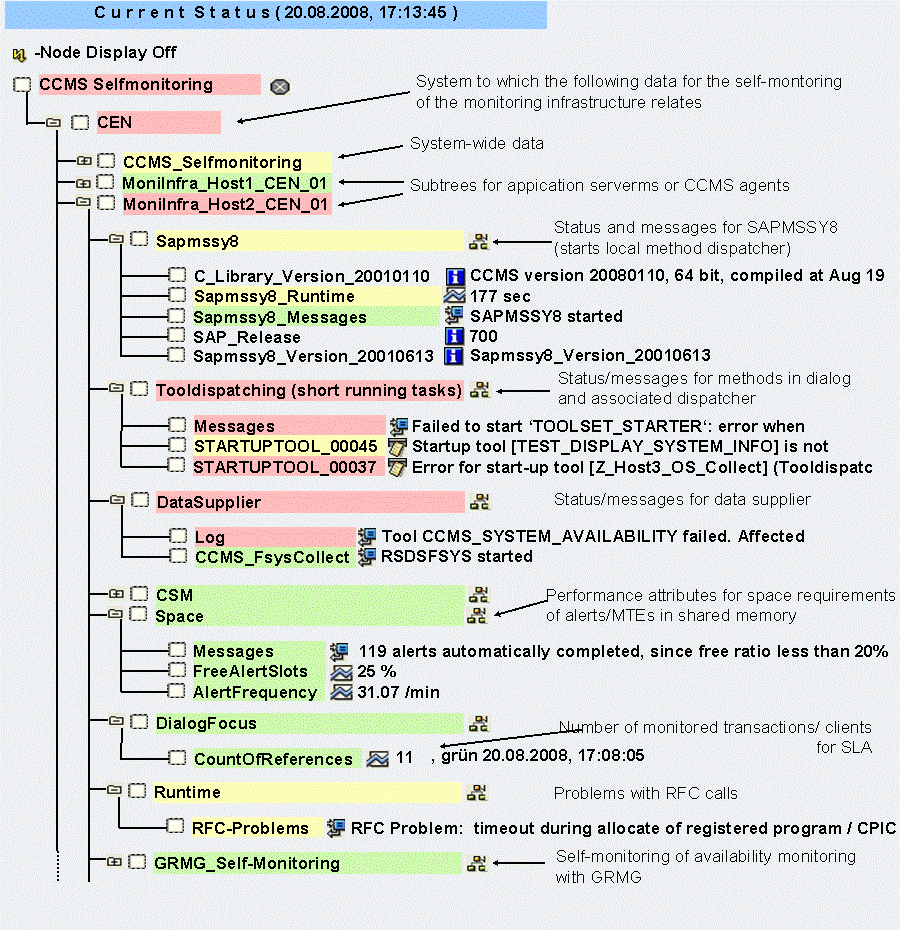
Both the CCMS agents and individual Alert Monitor methods (data collection methods and auto-reaction methods) can display problems and their status in the Selfmonitoring
tree.
 Note
Note
The CCMS Selfmonitoring
monitor consists of multiple subtrees; on the one hand, the system-wide subtree with the title CCMS Selfmonitoring
below the relevant system (see CCMS Selfmonitoring Monitor for System-Wide Data), on the other hand, the instance-specific subtrees for the monitored servers and active CCMS agents.
Features
The subtrees MoniInfra_<Name>
contain data either about a CCMS agent (SAPCCMSR and SAPCM3X) or about an application server. The structure of the subtree is different in each case, and you should therefore choose your naming convention so that the two types of subtree can be clearly distinguished from each other. We recommend that you use the naming convention <Host_name>_<System>_<Instance-System_number>
for your application servers. The names of the subtrees that monitor CCMS agents, on the other hand, have the structure MoniInfra_<Host_name>
.
In the case of an application server, the subtree consists of the following monitoring objects:
Sapmssy8
(MTE classSapmssy8
)This program runs every five minutes on each monitored instance in the context of the AutoABAP SAPMSSY6, starts the local method dispatcher (which is responsible for methods in dialog) and ensures that the properties and methods in the shared memory and the database are reconciled.
C_Library_Version
(MTE classCCMS_Sapmssy8_Version
)This MTE specifies the release of the kernel (and therefore of the application servers) that created this node.
Sapmssy8_Runtime
(MTE classSapmssy8_Runtime
)This MTE specifies the runtime of the program SAPMSSY8, which occupies a dialog work process during its run.
An alert in this MTE indicates that the data collection methods started by SAPMSSY8 are running for too long. This extends the runtime of SAPMSSY8 itself. SAPMSSY8 must not run for longer than five minutes. Otherwise, the next start of the program is before the end of its previous run. Due to the importance of SAPMSSY8 for the CCMS monitoring infrastructure, we recommend that you set an auto-reaction with automatic alert notification for this node (more information:Forwarding Alerts to Alert Management (ALM), for example), so that you are immediately informed about alerts in this node.
This problem does not normally occur with data collection methods delivered by SAP; however, individual SAP methods could have long runtimes if they have to evaluate large quantities of data (for example: transactional RFC in the case of problems with failed tRFC calls).
Check whether you have included your own data collection methods in the monitoring architecture and whether these methods caused the performance problem. Check the
Data Supplier
subtree (see below) for error messages or runtime messages.Runtime alerts from SAPMSSY8 can also be connected with general performance problems. For this, check the Dialog Overview or Entire System monitors.
 Caution
Note that a method that is terminated due to a timeout goes into the status
FATAL ERROR
and is therefore no longer executed. This happens if an individual method exceeds a runtime of about two minutes. In this case, a corresponding message appears in the node3Sapmssy8_Messages
. To have the method executed again, you need to reset the corresponding node (more information: Resetting MTEs and Alerts). However, you should only do this once you are sure that the original reason for the timeout no longer exists.End of the caution.Sapmssy8_Messages
(MTE classSapmssy8_Status
)This MTE contains messages output by SAPMSSY8. An alert can indicate that the data collection for the monitoring architecture is not functioning error-free. If SAPMSSY8 is terminated due to a data supplier that is not functioning correctly, the program automatically sets this data supplier to the status
fatal error
, and does not start it again during the next run. SAPMSSY8 should therefore function normally again at the next automatic start.SAP_Release
(MTE classCCMS_Selfmon_SAP_Release
)This MTE contains the valid SAP release of the application server.
Sapmssy8_Version
(MTE classCCMS_Sapmssy8_Version
)CCMS uses this version number as an indicator for necessary changes. If a new SAP_DEFAULT properties variant must be generated due to changed data suppliers, CCMS changes the version number in the coding of SAPMSSY8. SAPMSSY8 compares the content of this node with its own version number and creates a new SAP_DEFAULT properties variant if the version numbers are different.
Tooldispatching (short running tasks)
(MTE classCCMS_Tooldispatching
)This MTE contains, in the log attribute
Messages
(MTE classCCMS_Tooldispatching_Messages
), runtime messages from the local method dispatcher that starts the methods that are to run in dialog. Methods that are started by this dispatcher can add their own status MTEs, meaning that you can also find runtime and error messages here.STARTUPTOOL_<number>
(MTE classCCMS_Startup_Tools
)If a method that is to run in dialog is designated a startup method (more information: Methods), the system creates status attributes with the name
STARTUPTOOL_<number>
when the system starts up, to which this method is assigned as the data collection method. This ensures that the method is automatically started, even if there are no other nodes with this method. Once the method has been successfully started, these status attributes are deleted, so that the only nodes that remain visible are those for which an error occurred when calling the method.The most common error in this monitoring object relates to release problems, that is, the method is not released as a data collection method. In this case, a warning (yellow alert) is assigned to the node. You can ignore this warning. In the properties of the method, deactivate the indicator
Execute method immedaitely after monitoring segment start
on theControl
tab page.If you receive a red alert in the specified status attribute, the associated method is not functioning correctly. If this is the case, contact SAP Support.
Data Supplier
(MTE classDataSupplier
)This MTE contains the runtime messages from data suppliers of the monitoring architecture. Depending on the programming of the data supplier, these messages could appear either in the shared log attribute
Log
or in a separate MTE for the corresponding program. This monitoring object is of particular importance for SAP Support. You can activate tracing for many data collection methods using a method parameter. These messages are then output in the log attributeLog
. NoteMore information about programming a data supplier: Producing a Data Supplier for the CCMS Alert Monitor.
End of the note.CSM
(MTE classCCMSSelfMoniCSM
)If an error occurs while filling or updating the CCMS System Component Repository (SCM) or while comparing a system repository with a central repository, the associated log file message is displayed here.
As errors of this type are usually only temporary, you should first repeat the operation that failed. If the error persists, contact SAP.
Space
(MTE classCCMSSelfMoniSpace
, see also SAP Note 414029)This MTE contains attributes about remaining space in the monitoring segment of the shared memory.
CautionIf the monitoring segment becomes full, the functioning of the CCMS monitoring infrastructure is significantly impacted. You should therefore solve space problems immediately. You can do this in one of two ways:
You can increase the size of the monitoring segment. To do this, increase the value for profile parameter
alert/MONI_SEGM_SIZE
(more information: Extending the Shared Memory Area).If you central monitoring system consists of multiple instances, as a short-term measure, ensure that the monitoring contexts are distributed evenly across the monitoring contexts. You can do this by fixing system-wide contexts to particular monitoring segments (more information: Monitoring Contexts in the Toplogy Display). Without this fixing, system-wide contexts are usually created on the central instance.
End of the caution.In detail, this subtree contains the following attributes:
Messages
(MTE classCCMSSelfMoniSpaceMessages
) displays messages from the methods that are assigned to this MTE. If alerts were automatically completed, the system will display a corresponding message.FreeAlertSlots
(MTE classCCMSSelfMoni-FreeAlertSlots
) specifies the percentage of the memory that is still available.AlertFrequency
(MTE classCCMSSelfMoni-AlertsFrequency
) specifies the number of alerts per minute.
If the storage space in the monitoring segment is insufficient, you must increase the shared memory area or complete alerts. You can have the monitoring architecture perform the latter automatically (see Complete Alerts Automatically).
NoteAn analysis method is assigned to all three MTEs with which you can display a precise breakdown of the remaining storage area by alerts and by MTEs and attributes of the various categories.
End of the note.DialogFocus
(MTE classDialogFocusSelfMoniClass
)The performance attribute
CountOfReferences
shows the number of defined references for client-specific and transaction-specific monitoring. It therefore shows how many clients and transactions you are monitoring separately. This type of monitoring is especially well suited to checking Service Level Agreements (SLA). Use the Transaction-Specific Dialog Monitor to do this.Runtime
(MTE classCCMSSelfMoniRuntime
)This MTE displays problems in the lower layers of the monitoring architecture. Errors during data transfer by RFC are displayed in the log attribute
RFC Problems
(MTE classCCMSSelfMoniRFC-Problems
).
Activities
To start the monitor, follow the procedure below:
Start the Alert Monitor using transaction RZ20 or choose

CCMS

Control/Monitoring
Alert Monitor
 .
.On the
CCMS Monitor Sets
screen, expand theSAP CCMS Technical Expert Monitor
set.Start the
CCMS Selfmonitoring
monitor from the list by double-clicking it.