
 Interpreting a Text Attribute as File
Name/URL and Display Contents
Interpreting a Text Attribute as File
Name/URL and Display Contents

Use
Files or Web resources can be monitored with various monitoring functions of the monitoring architecture. When doing so the name of the monitored file, for example, can be output as a text attribute (as in the case of Monitoring of Log Files). To quickly display the contents of a file of this type or of a URL from the Alert Monitor, there are two analysis methods that display the contents of the file or the URL in a separate window.
Prerequisites
The text attribute must have content that fulfills one of the following prerequisites:
· The content can be interpreted as a URL.
· The contents can be interpreted as a file name, and the file can be accessed using a CCMS agent.
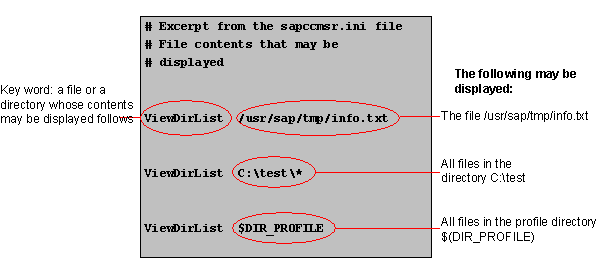
For security reasons, the CCMS agent only transfers files for which you have previously assigned a display authorization. To do this, enter the files whose display is to be allowed into the agent configuration file SAPCCMSR.INI, after the key word ViewDirList. You can use the wild card character (*).

For the working directory
of the CCMS agents and the
 working directory of
the operating system collector SAPOSCOL, you do not need to assign read
authorization in the SAPCCMSR.INI file. The files in these directories can
always be displayed.
working directory of
the operating system collector SAPOSCOL, you do not need to assign read
authorization in the SAPCCMSR.INI file. The files in these directories can
always be displayed.
You must restart the CCMS agent to allow the changes to the SAPCCMSR.INI file to become effective (see Installing and Registering the CCMS Agents).
Example
Procedure
Assign the appropriate analysis method to the desired text attribute. To do this, follow the procedure below:
1. Start the Alert Monitor using transaction RZ20 or choose CCMS → Control/Monitoring → Alert Monitor.
2. Start the desired monitor from the list by double clicking it.
3. Select the desired node and choose Properties.
4. The system displays the Monitoring: Properties and Methods screen. Choose the Methods tab page and then choose the Method Assignment pushbutton.
5.
The Monitoring:
Methods screen appears. The rest of the procedure depends on whether you
want to assign the analysis method only to this node or to the entire
MTE
class.
6.
If you only want to assign
the analysis method to this MTE, choose change mode with the Display
« Change ( )
pushbutton, and choose the Analysis tab page. In the Method
Assignment group box, choose Method Name.
)
pushbutton, and choose the Analysis tab page. In the Method
Assignment group box, choose Method Name.
7.
If you want to assign the
analysis method to the selected MTE class, choose the name of the MTE class in
the header data of the screen by double clicking it and choose change mode
using the Display «Change ()
pushbutton. In the Method Assignment group box, choose Method
Name.
8. In the Method Name input field, enter one of the following method names:
¡ CCMS_SHOW_FILE_FROM_TEXT_ATTR, if the contents of the text attribute is to be interpreted as a file name; the associated CCMS agent returns the contents of this file through RFC, and it is then displayed.
¡ CCMS_SHOW_URL_FROM_TEXT_ATTR, if the contents of the text attribute is to be interpreted as a URL; the Web browser is called at the frontend with this URL.
9. Save your entries.
Result
If the text attribute can be interpreted as a file name or a URL, you can now display the contents of the file or the URL by choosing the attribute by double clicking it.
See also:
Assigning Methods to
MTE Classes