Start of Content Area

Process documentation SAPOSCOL: Error Analysis  Locate the document in its SAP Library structure

Purpose

If incorrect, incomplete, or no values at all about the operating system are displayed in the operating system monitor or in the Alert Monitor of an SAP systems, we recommend the following procedure:
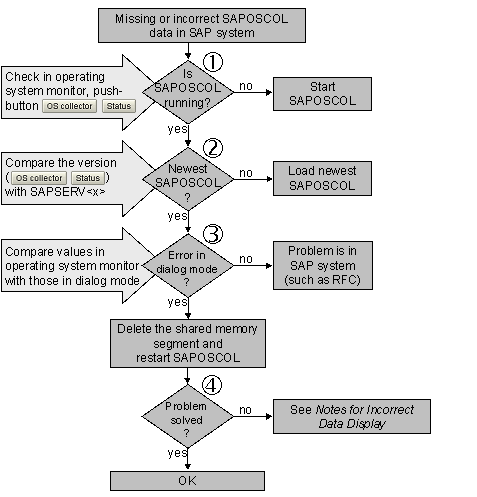
This graphic is explained in the accompanying text

Process Flow

  1. Check whether SAPOSCOL is running on the relevant host. You can perform this check at the operating system command line by entering the command saposcol -s in the SAPOSCOL directory (see Control SAPOSCOL from the SAP System). In the operating system monitor, choose the OS Collector and Status pushbuttons.
  2. If SAPOSCOL is not running, start it; for example, using the operating system monitor, by choosing OS Collector and Start.

  3. Check whether you are using the current version of SAPOSCOL. To do this compare the version of SAPOSCOL running on your host with the current version in the Software Catalog at http://service.sap.com/swcenter-main.
  4. If the version numbers are not identical, download the newest version (see Downloading SAPOSCOL), stop the running version and start the new SAPOSCOL (see Start SAPOSCOL and Stop SAPOSCOL).

  5. Compare the values displayed in the operating system monitor and in the Dialog Mode of the SAPOSCOL Operating System Collector.
  6. If the values are identical and the incorrect values are therefore already present in the shared memory segment of SAPOSCOL, the SAP system is not the cause of the problem. In this case, restart SAPOSCOL and delete the shared memory segment after stopping SAPOSCOL.

  7. If the problems persist after a restart, you can find notes for correcting the errors, some of which are platform-dependent under Notes for Incorrect Data Display.

See also:

This graphic is explained in the accompanying text Operating System Monitor and Operating System Collector SAPOSCOL initial pages.

End of Content Area