
 Importing a BAPI in Guided
Procedures
Importing a BAPI in Guided
Procedures

Use
Using Guided Procedures (GP) design time you can expose any RFC-enabled function module as a callable object. Unlike Web Dynpro components and BSP applications, specific implementation is not required for the RFC modules. The integration into the GP framework is done transparently by the system.
To expose the function module as a callable object, you must follow the wizard the GP design time provides.
Prerequisites
- You have launched the GP design time. For more information, see Launching Guided Procedures (GP) Design Time.
- You have created a folder where you want to store you callable object.
- You have configured an endpoint.
Procedure
...
1. Open the gallery, and choose Create Callable Object from the contextual panel.
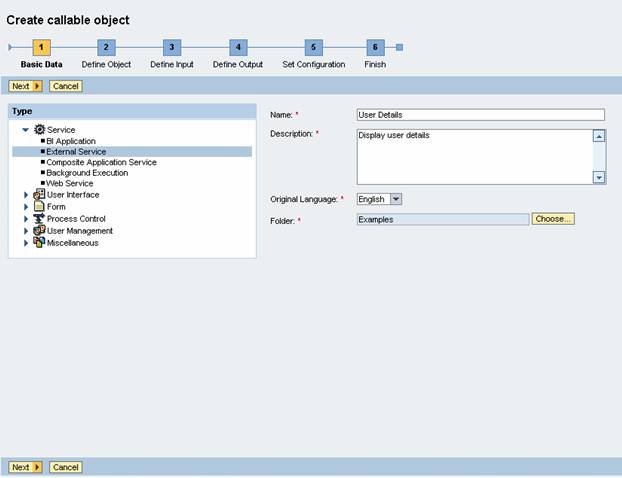
2. Enter the following data as shown in the example:
○ Type – choose Service → External Service
○ Name – enter an arbitrary name for the callable object; for example, User Details
○ Description–explain the function of the callable object, for example
○ Original Language – choose English
○ Location – choose a folder where the callable object is stored
Basic Data
3. Choose Next.
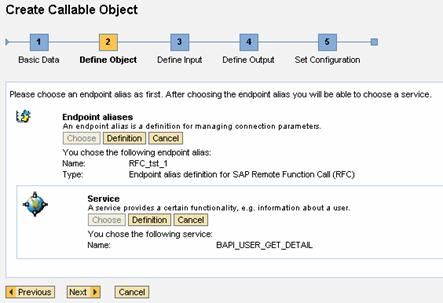
In this step you must choose:
a. Endpoint
i. Click Choose under Endpoint aliases.
ii. Select RFC_tst_1 from the list of available endpoint aliases.
iii. Use Choose to confirm your choice.
b. Service
i. Click Choose under Service.
ii. In the field Function Name type BAPI_USER_GET_DETAIL and choose Go. The system searches for the BAPI and displays its details once it has been found.
iii. Use Choose to confirm your choice.
Example: Define Object
4. Choose Next.
The input parameters are automatically detected. The required input for the callable object is the user name.
5. Choose Next.
The output parameters are automatically entered as well.
6. Choose Next.
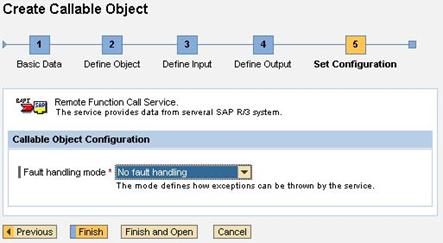
In the configuration screen you must set up the exception handling for the callable object.
The selected BAPI does not support exception handling; therefore, select No fault handling in the dropdown menu Fault handling mode, as shown in the example.
Example: Set Configuration
7. To complete the procedure, choose Finish and Open.
Result
You have exposed the BAPI as a callable object. Now you can test and activate it.