 Constant Selection
In Query Designer, you make selections to specify which data is visible when a report is run. You can then use navigation and filtering to can restrict the filter selection at runtime.
Constant Selection allows you to define a selection in Query Designer as constant. Navigation and filters then have no effect on this selection at runtime. This makes it easy to select reference sizes that do not change while the report is running.
Filter on a Query Result Cell
As constant selection is a property that influences the effect of filters on cells, it is important to know which filters can affect a query result cell. For the sake of transparency, the following abbreviations will be used for the filters.
In general, the following filters can have an effect:
The global or fixed filter (SF). This represents all restrictions that you can make to characteristics in Query Designer and which are in the free characteristics or the columns and rows under Filter.
The dynamic filter (SD), restrictions in the query's navigation block.
The attributes of the drilldown characteristics (SA). These are the characteristic values that are in the corresponding header column or column header.
Depending on the number of structures in the query, other filters can also have an effect on the cell.
 Example
An illustrated example of a query with a key figure structure in the rows and a characteristic structure in the columns:
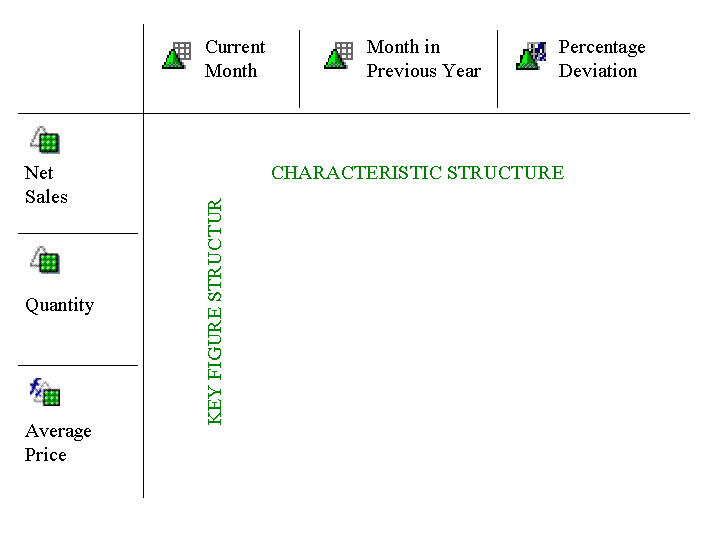
If the query contains two structures, the following filters take effect:
The filter from the selection in the first structure (S1). The structure element in the first structure will be referred to from now on as Eo.
The filter from the selection in the second structure (S2). The structure element in the second structure will be referred to from now on as Fo.
If it is an exception cell, (S1) and (S2) are replaced by the filter on the exception cell (SC).
If the query contains a structure, the filter afffects the selection for this structure (S1), and (S2) is omitted.
Features
The Constant Selection property is offered for selectoins in structural components, cells and restricted key figures.
You can also define components of selections - individual characteristics and their filter values - as constant. During navigation, the selection only remains unaffected by filters with relation to this characteristic. For more information, see Constant Selection on a Characteristic (CSC).
 Caution
A restricted key figure cannot be selected as a constant in its entirety. This is only possible for its characteristics.
You can define entire selections as constant on structural components and cells. During navigation, a constant selection is independent of all filters. For more information, see Constant Selection on a Structure Element (CSE).
Constant Selection on a Characteristic (CSC)
Without the Constant Selection property, all filters described above affect a single cell so long as these filters exist. In mathematical terms, this means that the filter that affects this cell is the intersection of filters (SF), (SD), (SA), (S1), (S2), (SC).
If the Constant Selection is now set in a cell for characteristic M, the system does not apply any further selections with regard to the corresponding characteristic. A constant selections can therefore be seen as an exclusive or dominant selection. Constant selection on characteristic M of the cell means that selections (SF), (SD) and (SA) are ignored with regard to characteristic M. Constant selection on the characteristic will be referred to from here on as (CSC).
Constant Selektion on Characteristic 0INFOPROV
Characteristic 0INFOPROV has a special role in MultiProviders. If the Constant Selection property is activated on 0INFOPROV, and there is a filter for a specific PartProvider contained in the MultiProvider, the system searches for all characteristics N of the MultiProvider, which are not filled by the corresponding PartProvider, filters N to the initial value '#' and automatically sets the Constant Selection property. For this cells, this basically means that all filters are deactivated on characteristics that are not supplied with data by the PartProvider. This make sense, as these filters could otherwise prevent the PartProvider from being displayed for this cell.
Example
If a PartProvider P1 does not contain characteristic Calendar Year, every filter on the calendar year that has the initial value would therefore normally prevent data from this PartProvider from flowing to the cell result. If the Constant Selection property is set on characteristic 0INFOPROV however, and filter 0INFOPROV = P1 is set on the structure element, all filters on the calendar year, which affect the cell externally (contained in (SF), (SD) or (SA)) do not affect the cell anymore.
Another example can be found here: Using Constant Selection with MultiProviders.
 Recommendation
If the Constant Selection property is set on characteristic 0INFOPROV, there is the addition Display Values Not Posted . This would completely change how the property is processed. SAP recommends not not using this property anymore, and setting the Access Type for Result Values to Master Data for the characteristic instead. You do this under Properties on the Extended tab page in Query Designer (see Properties of the Characteristic).
Constant Selection on a Structure Element (CSE)
The Constant Selection property can also be set for the entire structure element. In this case, all higher-level filters - (SF),(SD) and (SA) - are ignored for the corresponding cell. Constant selection on the structure element will be referred to from here on as (CSE).
Navigation Attributes and Dependent Characteristics
The Analytic Engine generally treats navigation attributes in the same way as dependent characteristics. If the query uses a navigation attribute NA for the reference characteristic M, and the Constant Selection property is set for M (CSC), we recommend adding the navigation attribute to the selection without filters and setting the Constant Selection property.
We recommend the same procedure for time characteristics that are also treated as independent characteristics in the Analytic Engine (except for non-cumulatives and unposted values), amd for any other characteristics for which a strict dependency is known.
Compound Characteristics
The Constant Selection only ever affects the characteristic itself and does not automatically affect dependent (less specific) characteristics. We also recommend adding these to the selection and setting them as constant.
Example
Let us assume that characteristic C is dependent on characteristic P. C is also filtered to an individual SID - by a hierarchy node for example and is set to contant selection (CSC) in a structure element Eo. This means implicitly that P is also filtered to the unique value. As the constant selectoin on C does not have any effect on P however, a fixed or dynamic filter on P that does not contain po would prevent Eo from providing any data. In this case, we also recommend adding P to the selection of Eo without filters and setting it as constant. This rule is illustrated in the following simple example:
The 'Region' characteristic (compounded with the 'Country' characteristic) has the following characteristic values:
Country |
Region |
|---|---|
DE |
BW |
DE |
BAY |
DE |
HAM |
US |
NY |
There is also a hierarchy on the Region characteristic. The South Germany hierarchy node contains the following leaves: DE-BW and DE-BAY.
We assume that the hierarchy selection Region = 'South Germany' is set to constant selection (CSC), in a structure element. This means that the implicit country filter for this cell is set to 'DE', but is not constant. A dynamic filter set to Country = 'US' means that the cell does not return any more data. However, if the Country is also set to constant selection (CSC), the cell continues to return data for South Germany.
Cells with Constant Selection on the Element (CSE) and Constant Selection on the Characteristic (CSC)
Constant selection on a selection element (CSE) takes precedence over the constant selection on the characteristic (CSC) defined on selections in this structure element. The constant selection (CSC) defined on characterstic M is ignored for an element with (CSE). This applies especially for special functions in connection with (CSC) in the context of characteristic 0INFOPROV.
In the case of queries with two structures, all cells issuring from a structure element with constant selection (CSE) inherit property (CSE). This means that the cells inherits all filters from both participating structure elements, and all other filters are ignored as though all filters in the cell had been defined by a single structure element with (CSE). For this cell it therefore makes no difference whether the Constant Selection property has been set on the structure element (CSE) on one structure element or on both, and the resulting constant selection (CSE) also takes precedence over any constant selection on the characteristic (CSC) for this cell.
Object Generation
For the cell display, the following rule (CS) applies:
Selection elements with (CSE) or with selections set to constant (CSC) do not generate any additional objects in the drilldown. |
The quantity of the characteristic values displayed in a drilldown therefore does not change is additional structure elements with constant selection are added. The following sections explain the effect that this can have in specific cases:
Object Generation for Cross-Drills
Cross-drills are drilldowns where characteristics are drilled down both the rows and in the characteristics. Every cell or combination of characteristic values in the row and column drilldown is treated as an object here. For a structure element with (CSC), a value is therefore only displayed in the cell if there is at least one further structure element (whether visible or not) that has a value other than ZERO. This is not an error either if the key figure definition displays a value other than ZERO for the empty cell. When the key figure definition is called, the system informs the user with message BRAIN149 'The 'Display Non Postable Values' option has been activated'.
Object generation for queries that are not made up of structure elements with constant selection
If all structure elements in the query have the Constant Selection property (CSC) or (CSE), the rule (CS) stipulates that the query can never display data. The system informs the user of this with message BRAIN200 "Query contains selection elements with 'Constant Selection' only" and sets all elements to object creation. If you subsquently add further normal selection elements to the query, the system has to reset the object creation for the constant selection elements, which means that adding further selection elements sometimes results in fewer objects being displayed.
Noneffective Constant Selection
If a characteristic M is set to constant (CSC) in a structure element, and this characteristic is neither a free characteristic nor a globally filtered on, the constant selection on this element is noneffective until such time that object generation is deactivated. This is shown using message BRAIN201 "Property constant selection for element &1 is not necessary". The same applies for elements with (CSE).
Object-Generating Constant Selection
If you want a structure element Eo with (CSC) or (CSE) to generate objects despire rule (CS), we recommend copying structure element Eo to E1 and deactvating the Constant Selection property for E1. You can then 'Always Hide' E1. E1 now remains object-creating, even though it is not visible in the list.
Formula Exception Aggregation
The constant selection only afffects the selection and has no effect on the order in which the aggregation and formula calculation are processed.
 Note
Note
The system does not support expressing percentages of aggregration reference characteristics with a formula that defines the reference point with constant selection.
Example
How many products have revenue of > 1% of the total revenue?
This question could be expressed as follows:
Total revenue: Revenue with constant selection on characteristic Product
Relative revenue = Revenue/total revenue
Number of relevant products = relevant revenue > 0.01 with aggregation TOTAL over characteristic Product
This example would work if the aggregated total revenue went into the relative revenue. As the constant selection only affects the filter however, the relative revenue in the example above will always be 1 if revenue was > 0. This means that the number of relevant products is identical to the number of all products that data has been posted for.
Non-Cumulatives
For cells with constan selection, a separate validity range is found (see Examples: Validities and Constant Selection).
Activities
Constant Selection on a Single Characteristic (CSC)
Select a characteristic in a selection as constant as follows:
In the context menu for a selection, choose Edit. The Change Selection dialog box appears.
In Details of the Selection in the context menu for the characteristic that you want to use in the selection, choose the Constant Selection property.
Note
You can select characteristics that you want to use in a restricted key figure or in a selection of a cell as constant in the same way.
Constant Selection on the Entire Structure Element (CSE)
You can set the Constant Selection property for an entire selection in the Properties of the Selection/Formula/Cell dialog box.
Example
Plan/Actual Problem: The InfoCube contains actual values for each period. It only has plan values for the entire year. These are posted to period 12. To compare the PLAN and ACTUAL values, you have to define a PLAN and an ACTUAL column in the query, restrict PLAN to period 12, and set this as a constant selection. You will now always see plan values, regardless of which period you are navigating in.