 Performance Analysis with DSRs
If a system is displaying poor performance values and seems slow, evaluating the statistical records known as Distributed Statistics Records (DSRs) can provide a great deal of information. The (Java) DSRs are written by the DSR Service and transported to the central system by the SAPCCMSR agent.
 Note
Note
For information about how DSRs work, see the administration manual under Distributed Statistics Records (DSRs)
The response times of the J2EE Engine (SAPJ2ENode) with all deployed applications are collected in the DSRs. The DSRs differentiate between the following service and action types:
Service Type |
Action Type |
|
|---|---|---|
SAPJ2ENode |
Web Request EJB Request Security System |
http https RMI JMS session appInt appDestroy |
In the central system, the DSRs are displayed in the Global Workload Monitor, transaction ST03G (for information about the setup, see Displaying DSR Components in the Global Workload Monitor).
If you are looking for the cause of a problem that occurred today, choose the view  SAPJ2ENode<...>
  <Server Name> Day Today
  . From the
analysis selection, choose Workload Overview.
. From the
analysis selection, choose Workload Overview.
You can see that the average response time for EJB request is unusually high in the example.

Select the analysis view Action Profile. The system displays all actions of all service types here under Average Values per Step. In the example, the application EncyclopediaPages has an average response time that is eight times higher than the second slowest application.
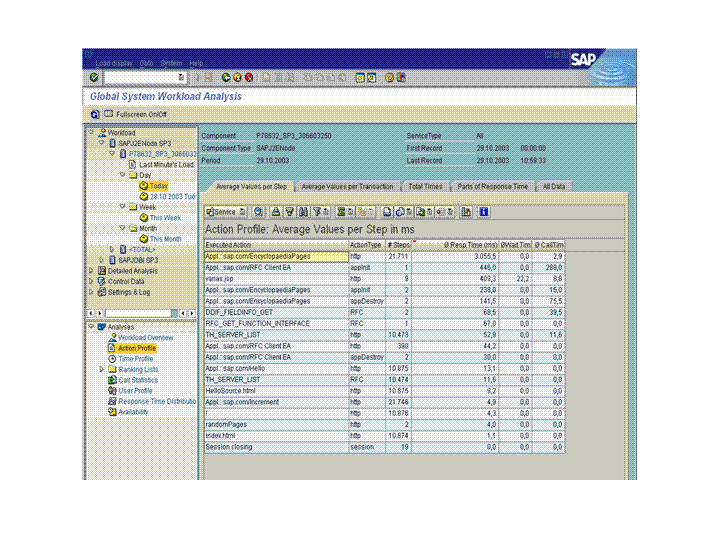
In the Service dropdown listbox, choose the service type EJB Request. You are still in the analysis view Action Profile.
Choose the analysis view Time Profile. You can determine here whether the worst response time of the application occurred during a certain period or began at a certain time.
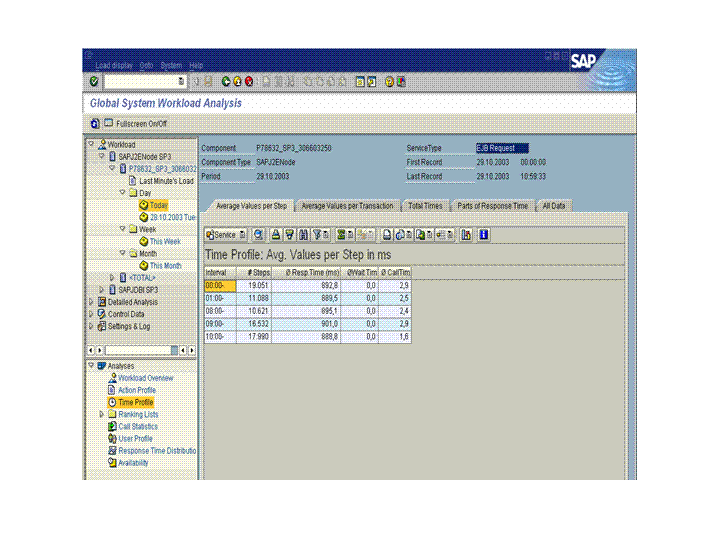
Here you can see that the problem cannot be restricted to a certain period and that there is a constant performance problem in connection with this application.
You should also check the response time distribution by switching to the analysis view Response Time Distribution: there is a very high number of entries in the area of 3-10 seconds response time duration.

You should now check whether the problem is connected to a particular user. To do this, switch to the analysis view Call Statistics, tab page Action, and double-click the relevant application; in our example, EncyclopaediaPages. By doing this, you open the detail view Action Details and display user-specific execution times.
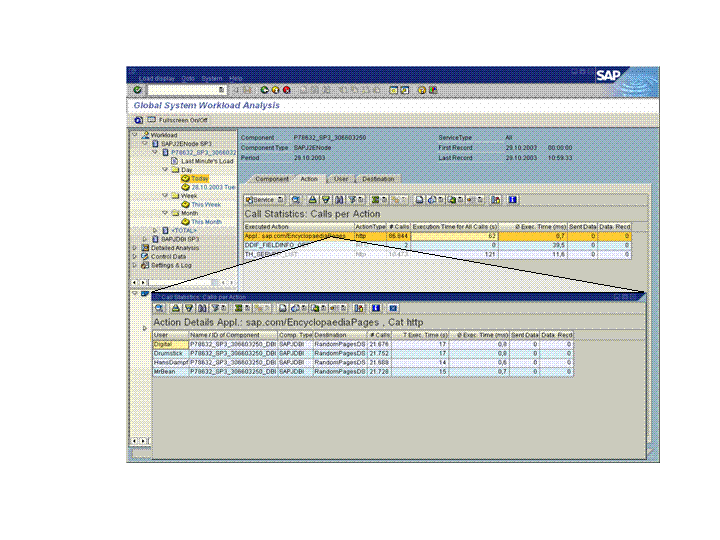
In this detail view, you can see that all values are roughly equal for the different users. The problem is therefore not user-specific.
You can now check whether the problems occur during database access in the same analysis view, on the Components tab page. The database accesses in our example are normal.
Result
The error appears to be in the application itself.
Since the application in our example is a customer-developed application in a development system, it is no problem to stop and restart the application.
You can therefore start the application tracing and investigate the application to method level to find the points in the program at which most time is spent. You can display the source code using a decompiler to see whether the program must be changed to produce better performance.