
 Exposing the iView as a Callable
Object
Exposing the iView as a Callable
Object

Prerequisites
· You have created, configured and deployed an iView to the portal as described in the previous steps of the procedure.
See Deploying the iView.
· You have assigned the iView to a specific user role in Portal Content.
See
 Assigning iViews to
Users.
Assigning iViews to
Users.
Procedure
...
1. To open the portal, enter http://<hostname>:<port>/irj/portal and log on to the system.
2. Navigate to Guided Procedures → Design Time.
3. From the contextual panel, choose Create Callable Object.

4. From the Type list that is displayed, choose User Interface → Portal iView or Page and enter the following basic data:
¡ Name – iView CO
¡ Description – iView CO
¡ Original Language – English
¡ Folder – create a new folder or select an existing one.
5. On the Define Objectscreen, browse the Available Roles list to find the role to which you have assigned the iView. In our particular case, the role is Every User Core Role and it serves only for illustrative purposes.
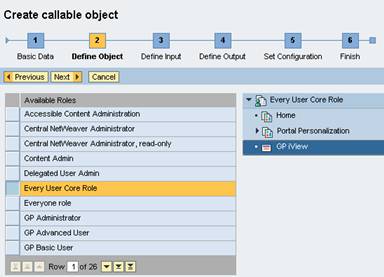
6. Select GP iViewfrom the list on the right and choose Next to continue.
7. On the Define Inputscreen, you can see all the input parameters you have defined for the iView in the Visual Composer environment. You cannot insert new parameters.
Choose Next to continue

8. By analogy, you can inspect all output parameters of the iView.
Choose Next to advance to the next screen.

9. You do not have to add result states buttons as you have added Approve and Reject buttons to the iView in Visual Composer.
Choose Next to continue
10. Choose Finish and Open.
11. To view the result states of the callable object, you should create an action and insert the iView CO in it.

12. You can now include this action in a process and test the process flow.