 Graphics
By clicking on the graphic symbol
 or by choosing the menu path
Goto
→
Graphic
, you can display a graphical representation of your report data in a separate window. You can choose from a number of different types of graphics, depending on where the cursor is located. The graphic can refer to the values in a single row or column, a group of columns, or the entire report list. The system displays the available types of reports in a dialog box, from which you choose the type you would like to see.
The following types of graphics are available:
Graphics for rows
2D graphic row
Graph - row
Graphics for columns
2D graphic column
Graph - column
Graphics for column groups
3D graphic column group
Graph all col./row
Graphics for the entire report
3D graphic
Graph all col./row
Portfolio graphic
Note the following exceptions to the above graphic types:
Since it does not make sense to display a graphic for a single row or column, the graphic types for rows and columns are not offered if only one row or column is selected.
Portfolio graphics cannot be displayed from the detail list.
Only graphics for rows are available for hierarchical lists.

If you set exactly one level of the hierarchy using the function
Hierarchy
→
Set level
, the system may make all types of graphics available depending on the cursor position.
Presentation Graphic
Both two-dimensional and three-dimensional graphics are available as presentation graphics.
2D graphic
A 2D graphic is a simple two-dimensional display of values (in bars, columns or pies). It displays the information contains in individual rows or columns.
Depending on the graphic type, some texts may not be displayed due to lack of space. The graphic type "Horizontal bars" is especially good for displaying the texts.
3D graphic
A 3D graphic is a complex graphic representation that consists of a 2D representation and a 3D representation and displays the information contained in all rows and columns. It lets you change views to look at an overview of all the columns and rows, a view of all the columns for a single row, and so on.
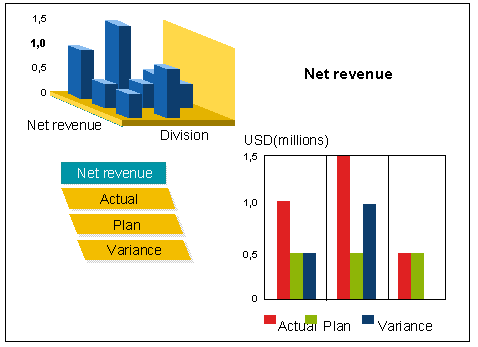
On the upper left-hand side of the graphic window, the system displays a three-dimensional graphic. On this graphic you can click on the element that you want to see in the two-dimensional graphic, which is displayed below and on the right. In the lower left-hand corner you see a list of all the values of one dimension of the graphic (maximum of 30 displayed). You can also click here to display the desired object in the two-dimensional graphic.
Scroll functions for the presentation graphic
When part of either the 2D graphic or the 3D graphic is hidden from view, scroll bars appear in the window to let you scroll to the rest of the graphic.
If you are displaying a 2D graphic for a row or column or a 3D graphic for a column group, you can display a graphic the next row, column or column group directly from this graphic using the
First
,
Previous
,
Next
and
Last row/column/column group
functions.
A maximum of 30 characteristic values can be displayed for a single dimension in each graphic. If the report list has more than 30 characteristic values, you can display these using the
First
,
Previous
,
Next
and
Last
buttons. These functions correspond to scrolling vertically through the report list.
In 3D graphics, you can switch between different forms of representation using the pushbuttons at the top of the window or using the
Goto
menu. The functions
2D display
and
3D display
let you view an enlarged 2D or 3D graphic. The
Groups
function displays a series of 2D graphics at the same time.
Graphic settings for the presentation graphic
You can make a number of settings for your graphic under the menu
Settings
.
For technical reasons any interactive changes you save in the graphic (
Settings
→
Save settings
) are valid only for the presentation graphic. When you save, the system saves all the changes you have made except to the window size and position. The saved settings are used again whenever you call up the same type of graphic for that report.
You can save the window position and size using the function
System
→
User profile
→
User parameters
. By default, the graphic window appears is centered and takes up the entire screen. You can change these settings as follows:
WIP: Window position, values 1 through 9
WIX: Window width, values < 100 (% of screen width)
WIY: Window height, values < 100 (% of screen height)
When you make these settings in your user parameters, the system uses them whenever you call up any graphic.
Line Diagram
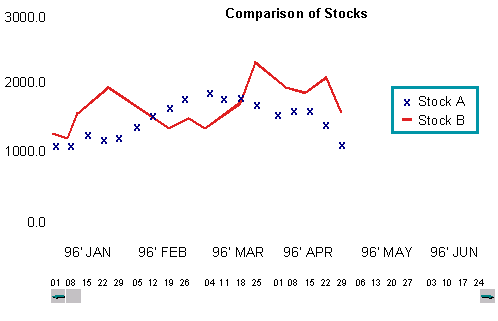
A line graph (also called a statistic graphic) is a two-dimensional representation of statistical values in the form of a curve. This type of graphic is most suited for representing a large number of values. It also lets you represent trends over time for values such as stock prices.
Portfolio Graphic
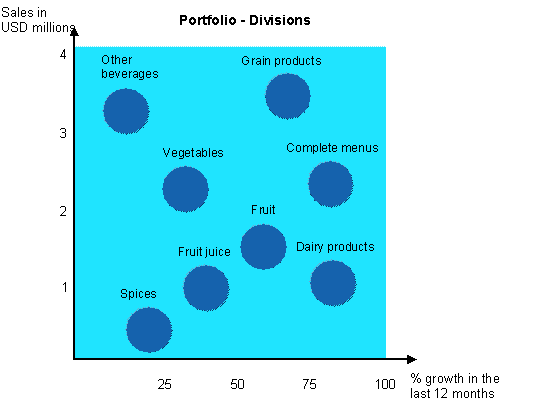
A portfolio graphic is a graphic representation that lets you depict multidimensional report objects. Two of the dimensions of the object are represented by the X and Y axes. The object itself is often displayed as a circle, but may also be represented by a rectangle.
In addition to the X and Y coordinates, the radius or the length of each side of the object can represent the third dimension. A pie chart or bar chart can represent the fourth dimension.
You can also place arrows on the objects in the graphic to emphasize trends or other aspects.
When you call up a portfolio graphic, the system first displays a dialog box in which you can make a number of settings. For example, you can specify which column of your report list should be represented by which dimension in the graphic. For more information on the individual fields in this dialog box, see the online field Help (F1 Help).
For detailed documentation on the various graphic types, settings, and the various export and sending functions, see SAP Graphics .
Printing Graphics
You can print all the available types of graphics directly from the graphic window. To do so, choose
Graphic
→
Print
.
If you want to alter a graphic before printing it, choose
Goto
→
Graphic
→
Graphic to WORD on
from the report list. This activates the download and print function for graphics. Then when you call up the graphic (
Goto
→
Graphic
→
Graphics...
or the corresponding symbol) and choose the type, the system displays the same dialog box as when you send a report list to Microsoft Word for Windows. Once you have made the desired settings, the system sends the graphic to Word for Windows, where you can alter it as desired and then print it. For more information on this procedure, see
Printing Reports
.
If, after printing, you want to display a graphic on the screen again, you need to deactivate the print mode by choosing
Goto
→
Graphic
→
Graphic to WORD off
. Then choose
Goto
→
Graphic
→
Graphics...
or the corresponding icon to display the graphic.