 Understanding the Web UI
You use the Supply Network Collaboration (SAP SNC) Web user interface (Web UI) to perform tasks relevant to your role. Depending on the tasks you want to perform, you use different screens on the Web UI.
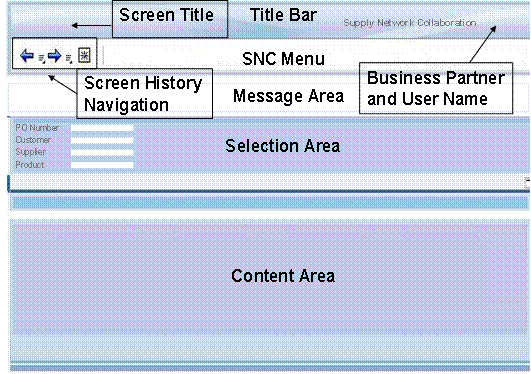
The Web UI screens are divided into several areas. The figure below shows the main areas of a Web UI screen and is followed by an explanation of each area:
SAP SNC Menu
The SAP SNC menu allows you to navigate between the various application areas of SAP SNC. On the SAP SNC menu, the SAP SNC application areas are listed from left to right. When you click an application area, you see a dropdown menu that takes you to the individual screens relevant to that particular area.
To the left of the SAP SNC menu, you find the screen history navigation buttons. These allow you to quickly navigate to pages that you have already visited.
 Note
Note
Do not use the back and forward buttons of your Web browser to navigate between screens on the SAP SNC Web UI.
Screen Title
Above the SAP SNC menu, the current page title is displayed on the left. To the right of the title bar, your business partner name and user name are displayed (if your administrator has made settings for this).
Message Area
The message area displays current messages (such as error messages or confirmation messages). You can view the complete message log for your session by choosing the
Display Message Log
pushbutton.
Note
The message area is not immediately visible if there are no current messages when you call up a screen.
Selection Area
In the selection area, you can define criteria for the data that you want to display.
Content Area
The information you see in this area and the structure within this area depend on which application screen you are on. For example, an overview screen shows a results list, whereas an order document detail screen for an object is divided into a header and item area.