 Creating a Formula Expression
Procedure
In the Object Manager panel, under the Detail section, choose the Assigned Objects tab.
The Assigned Objects tab page appears.
Choose Expression from the Type field and choose Create Object.
In the Object Creation dialog box that appears, enter the following data:
Name
Short Text
Text
Choose Formula from the Type field and choose Create & Navigate to Object.
 Note
NoteIf you choose Create button, the created formula object appears under the Assigned Objects tab.
End of the note.Add the result data object. You can create a new data object or add an existing data object.
Select an Existing Data Object
Choose
 (Graphical Access).
In the context menu, choose Select Data Object.
In the Object Query dialog box that appears, select the data object and choose Select.
Create a New Data Object
Choose
(Graphical Access).In the context menu, choose Create Data Object.
In the Object Creation dialog box that appears, create the data object.
More information: Creating Data Objects
Create the formula using expressions, data objects, mathematical and logical operators.
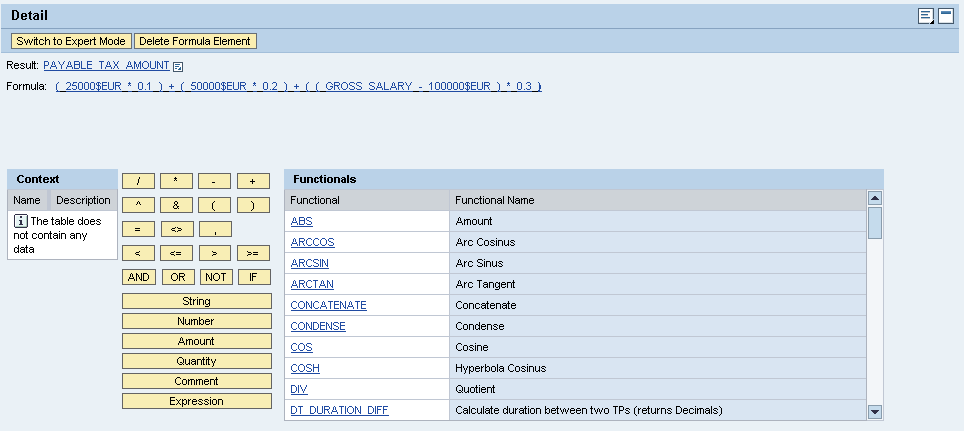
 Example
If you want to create a formula, 3*1, then in the formula builder,
Choose Number .
In the Insert dialog box that appears, enter 3 and choose OK.
The number 3 appears in the Formula field.
Choose *.
Choose Number.
In the Insert dialog box that appears, enter 1 and choose OK.
End of the example.You can also create the formula in the expert mode.
Choose Switch to Expert Mode.
A text box appears next to the Formula field.

You can insert expressions, data objects, string, number, amount, quantity and comment in the formula.
In the context menu of the text box:
To create an expression.
Choose
 Insert Expression
  Create
  .
.More information: Creating Expressions
To select an existing expression.
Choose
Insert Expression Select .In the Object Query dialog box that appears, select the expression and choose Select.
To create a data object.
Choose
Insert Data Object Create .More information: Creating Data Objects
To select an existing data object.
Choose
Insert Data Object Select .In the Object Query dialog box that appears, select the expression and choose Select.

NoteYou can create complex formulas using nested operands.
End of the note.