 Definition of the Time-Related Supply Limit (TSL)
By defining the time-related supply limit (TSL), the system limits the goods quantity that you can deliver to one location.
Process
Determine Maximum and Additional Gross Demand in Days for TSL
To determine the TSL, the system needs values for the maximum and additional gross demand in days. The following figure shows how the system determines these values:
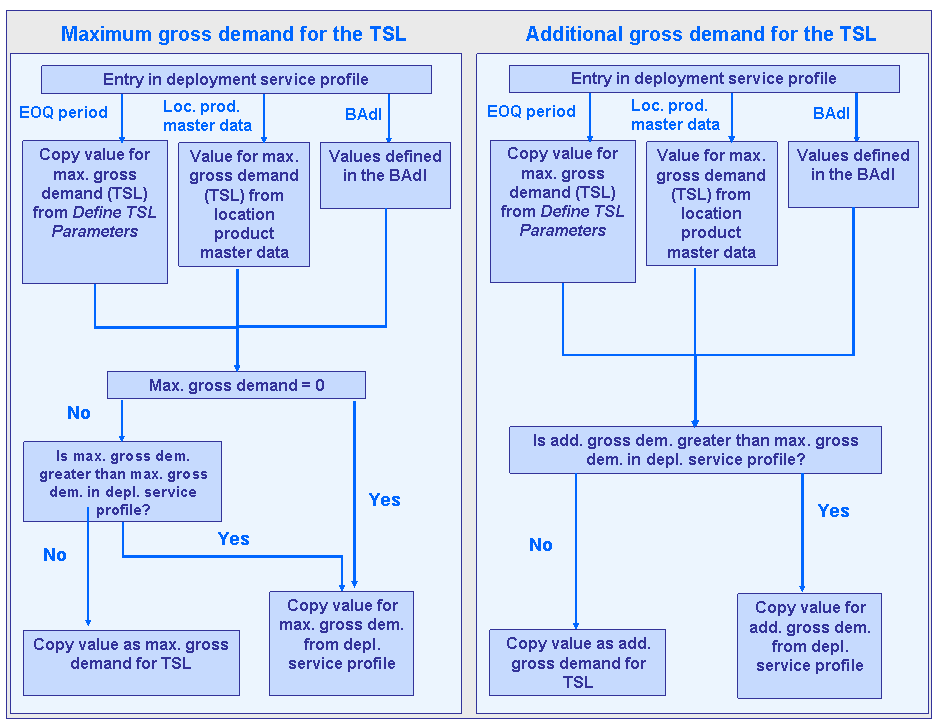
The system checks whether you have specified in the service profile for deployment that deployment is to calculate the TSL parameters based on the EOQ period or using the values in the location product master data. For the service profile for deployment, see Customizing for Advanced Planning and Optimization under
 Supply Chain Planning
  Service Parts Planning (SPP) Deployment
  .
.If you have specified that deployment is to calculate the TSL parameters according to the EOQ period, the system takes into account the maximum and additional gross demands for the TSL that you specified on the Define TSL Parameters screen.
On this screen, you can define both values depending on the product, the location, or the economic order quantity (EOQ).
You can access the Define TSL Parameters screen from the SAP Easy Access menu by choosing
Advanced Planning and Optimization Service Parts Planning (SPP) Planning Deployment and Inventory Balancing Deployment . Example
A larger TSL is more advisable for fast-moving items with short EOQ periods than for slow-moving items with long EOQ periods.
End of the example. Note
NoteYou can also import the data for the TSL parameters on this screen. For more information, see below.
End of the note.If you have specified that deployment is to use the values from the location product master data, the system takes into account the maximum and additional gross demands for the TSL that you entered in the location product master data in the TSL: AddlGrossDem. and TSL: MaxGrossDem. fields on the SPP Deployment tab page.
The system checks whether the previously determined maximum gross demand for the TSL (in step 1) is null.
If so, it transfers the value that you entered in the service profile for deployment in the Max. Gross Demand in Days (TSL) field and uses it as the maximum gross demand for the TSL.
If not, it uses the maximum gross demand for the TSL that was determined in step 1.
The system checks whether the maximum gross demand for the TSL that was determined in steps 1 and 2 is greater than the maximum gross demand that you have entered in the service profile for deployment in the Max. Gross Demand in Days (TSL) field.
If so, the system transfers the value that you entered in the service profile for deployment in the Max. Gross Demand in Days (TSL) field and uses it as the maximum gross demand for the TSL.
If not, it uses the maximum gross demand for the TSL that was determined in step 2.
The system checks whether the additional gross demand for the TSL that was determined in step 1 is greater than the value that you have entered in the service profile for deployment in the Max. Gross Demand in Days (TSL) field.
If so, the system transfers the value that you entered in the service profile for deployment in the Max. Gross Demand in Days (TSL) field and uses it as the additional gross demand for the TSL.
If not, the system uses the additional gross demand for the TSL that was determined in step 1.
The system copies the values calculated in steps 3 and 4 for the maximum and additional gross demands from the SPP Deployment tab page in the location product master data to the TSL: AddlGrossDem. and TSL: MaxGrossDem. fields. It then uses these values to calculate the TSL.
Note
If you want to define your own logic by which deployment calculates the TSL parameters, you can implement the Business Add-In (BAdI) /SAPAPO/DEPL_TSL_PARAMETERS and use it to define your own logic. In this case, you have specified in the service profile for deployment that you want to use the TSL parameters determined by the system in accordance with the BAdI implementation.
Determine TSL
The system determines the TSL as follows:
It creates the sum of the following values:
Gross demand across the replenishment lead time plus additional gross demand for the TSL (see above).
Maximum safety stock across the replenishment lead time plus additional gross demand for the TSL.
Maximum EOQ across the replenishment lead time plus additional gross demand for the TSL.
It compares this total with the maximum gross demand for the TSL (see above) and uses the smaller value as the TSL.
Determine TSL for Products Planned Using a Reorder Point
If you plan a product in reorder-point-based planning mode, the system calculates the TSL as follows:
It compares the values for the reorder point and the maximum stock level and selects the higher of the two. You can view both values in the location product master data on the SPP DRP tab page.
It adds the value determined in step 1 and the EOQ and thus ascertains the TSL for the product planned using a reorder point.
Determine Maximum Shipping Quantity
The system calculates the maximum shipping quantity. This ensures that the TSL is not exceeded by a goods quantity that is shipped to a location. The system proceeds as follows:
The system deducts the available stock and the confirmed total gross receipt from the TSL.
The system compares the value determined in step 1 with the net demand across the replenishment lead time and uses the greater of the two values as the maximum shipping quantity.
Import Data
You can also import data for the TSL parameters on the Define TSL Parameters screen from a spreadsheet table (for example, Microsoft Excel). To do so, you create a spreadsheet table with columns like those specified on the Define TSL Parameters screen.
Note
So that the system can import data correctly, it is important that you create the columns in the same order that they are specified on the Define TSL Parameters screen (Location, Product, EOQ Per.=>, Additional Gross Demand in Periods, Maximum Gross Demand in Periods).
Save the table as a CSV file. You can now import this file from the Import Data for TSL Parameters screen. You have to make the following settings on this screen so that the system can import your table:
You choose whether you want to import the table in simulation mode. You can see the results of the import in the simulation mode but you cannot make any changes.
In the CSV File Column Separator field, you specify the sign that separates the values in the CSV file; this is often a semicolon (;).
In the CSV File: First Data Row field, you specify which row of your table contains the first import-relevant data. If, for example, you have entered titles in the first row of your table, specify 2 in this field so that the system imports all data as of the second row.
In the CSV File: First Data Column field, you specify which column of your table contains the first import-relevant data.
In the Change Mode field, choose between A, R, and D. If you choose A, the system overwrites only the location product/minimum EOQ period combination that existed before the import, and adds new combinations. If you choose R, the system overwrites all your previous entries with the imported table. If you choose D, the system deletes all entries with the same key. Note that in this case only the columns in the table that contain the key fields can be filled.