 Creating a Catalog
Procedure
In the Object Manager panel, under the Detail section, choose the Assigned Objects tab.
The Assigned Objects tab page opens.
Choose Catalog from the Type field and choose Create Object.
In the Object Creation dialog box that appears, enter the name of the catalog and choose Create & Navigate To Object.
The newly created catalog appears in the Object Manager panel.

You can add structure, leaf and link nodes to the root node of the catalog.
Add a Structure
Under the Structure subsection, in the context menu of the catalog, choose
 Create Subnode
  Structure
  .
.The structure node appears below the root node.
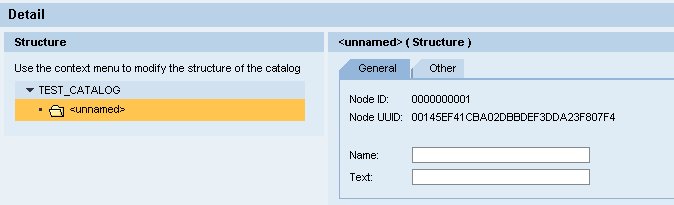
Enter the following data in the General tab.
Name
The name is displayed in the tree hierarchy in the catalog maintenance view. The name is used as a backup if the text is not available.
Text
The text is displayed in the catalog browser mode.
 Note
NoteYou can also add sub-nodes to the structure.
End of the note.
Add a Leaf
Under the Structure subsection, in the context menu of the catalog, choose
Create Subnode Leaf .The leaf node appears below the root node.

Enter the name of the leaf node under the General tab.
Assign an object to the leaf node. You can either assign an existing object or a new object to the leaf node.
Assign an Existing Object
Under the General tab, choose
 (Graphical Access).
In the context menu, choose Select Object.
In the Object Query dialog box that appears, choose the object and choose Select.
Assign a New Object
Choose
(Graphical Access).In the context menu, choose Create Object.
In the General Data section, enter the name and choose the type of object from the Type field.
Choose Create & Navigate to Object button.
The object opens in the Object Manager panel.
NoteIf you choose Create button, the object is created and assigned to the leaf.
End of the note.
Add a Link
Under the Structure subsection, in the context menu, choose
Create Subnode Link 
Enter the name of the link node.
Choose
(Graphical Access).In the context menu, choose Select Catalog Node.
In the Select a Node dialog box that appears, under the Select Catalog tab, choose the catalog and choose Select.
In the Select Node tab that opens, select the node and choose OK.
The catalog is assigned to the link.
NoteThe root node can also be linked.
End of the note.
Save the catalog.