
 Exposing the Interactive Form in Guided
Procedures
Exposing the Interactive Form in Guided
Procedures

Use
In this step of the tutorial, you will expose the interactive form template that you created as a callable object in Guided Procedures. You must configure the object so that you can use the form in a process and send it to the processor by e-mail.
Procedure
Creating the Callable Object
...
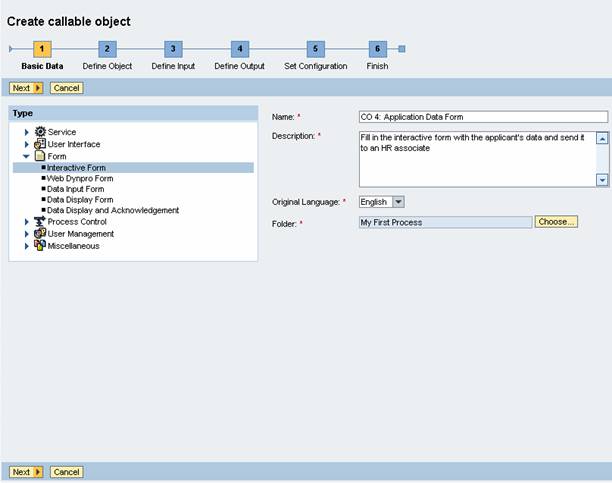
1. Launch GP design time and choose Create Callable Object from the contextual panel.
2. Enter the following data:
○ Type – select Form → Interactive Form
○ Name – enter CO 4: Application Data Form
○ Description – enter a brief description of the callable object, as shown in the example below
○ Original Language – choose English
○ Folder – choose folder My First Process
Example: Basic Data
3. Choose Next.
a. To select the form template that you have created, choose Change….
b. Browse the file system to select the MyFirstFormProcess.xdp file.
c. For Template Adapter, choose Adobe-based form.
d. For Language, choose English.
e. For Encoding, select the same encoding that you used when you created the form template. In this example, the UTF-8 encoding is used.
f. Choose OK.
4. Choose Next.
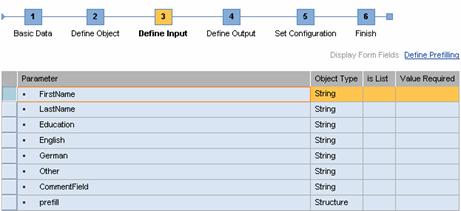
The form’s input parameters are displayed automatically, as shown in the example below.
Example: Input Parameters
5. Choose Next.
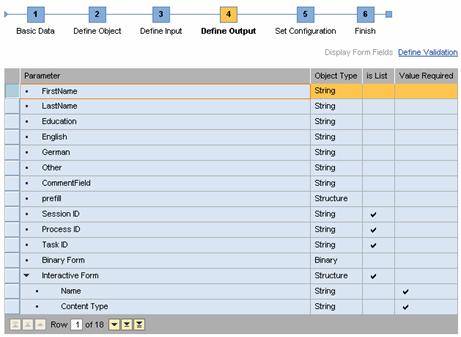
The form’s output parameters are also displayed automatically, as shown in the following example.
Example: Output Parameters
6. Choose Next.
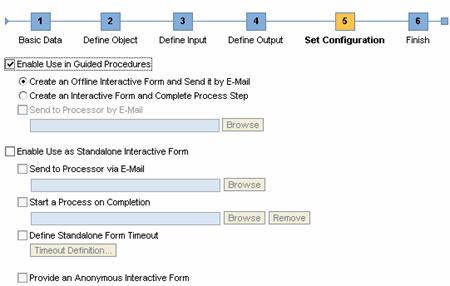
In the Set Configuration screen, choose Enable Use in Guided Procedures. Make sure that the option Create Offline Interactive Form and Send it by E-Mail is selected, as in the example below.
Example: Interactive Form Configuration
7. Choose Next, and then Finish and Open.
8.
Choose  (Activate).
Creating an Action
...
1. Open the gallery and choose Create Action from the contextual panel.
2. Enter the following data:
○ Name – for example, Send Application Data
○ Description – enter a brief description of the action
○ Original Language – select English
○ Folder – select folder My First Process
3.
Make sure that
Callable Object for Execution is selected from the
Item dropdown list, and choose  (Insert).
4. Browse to select CO 4: Application Data Form.
To confirm, choose Select.
5.
Choose (Activate).
Result
You have created the action that you will add to the process flow.
Your next step is to enhance the approval callable object, so that it displays the comments entered offline by the HR associate.