 Creating a Decision Tree Expression
Procedure
In the Object Manager panel, under the Detail section, choose the Assigned Objects tab.
The Assigned Objects tab page appears.
Choose Expression from the Type field and choose Create Object.
In the Object Creation dialog box that appears, enter the following data:
Name
Short Text
Text
Choose Decision Tree in the Type field.
Choose Create & Navigate To Object.
The newly created decision tree expression appears in the Object Manager panel.
 Note
NoteIf you choose Create the decision table expression appears under the Assigned Objects tab.
End of the note.Under the Detail section, assign the result data object. You can assign a standard data object, an existing data object or a new data object.

Select a Standard Type
Choose
 (Graphical Access).
In the context menu, choose Select Standard Type and choose the data object type.
Select an Existing Data Object
Choose
(Graphical Access).In the context menu, choose
 Select Result Data Objects
  More Result Data Objects
  .
.In the Object Query dialog box that appears, select the data object and choose Select.
Create a New Data Object
Choose
(Graphical Access).In the context menu, choose Create Data Object.
More information: Creating Data Objects
NoteThe result data object can be an element, a structure or a table data object.
End of the note.
Assign a root node to the decision tree. You can assign an existing expression or a new expression.
Select an Existing Expression
In the context menu of the node, choose
Node Actions Assign condition on node Select existing expression More Expression... .In the Object Query dialog box that appears, select the expression and choose Select.
Create a New Expression
In the context menu of the node, choose
Node Actions Assign condition on node Create new expression... .In the Object Creation dialog box that appears, create the expression.
More information: Creating Expressions
NoteThe root node can only be a condition.
End of the note.The selected expression is set as the root node and two child nodes appear under the root node.
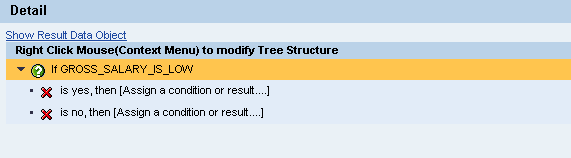
Add conditions and result to the child node. You can assign an existing expression or a new expression to the child node depending upon the outcome of the condition in the root node.
Assign an Existing Expression as a Condition
In the context menu of the positive child node, choose
Node Actions Assign condition on node Select existing expression More Expression... In the Object Query dialog box that appears, select the expression and choose Select.
Assign a New Expression as a Condition
In the context menu of the positive child node, choose
Node Actions Assign condition on node Create new expression... In the Object Creation dialog box that appears, create the expression.
More information: Creating Expressions
Assign an Existing Expression as a Result
In the context menu of the negative child node, choose
Node Actions Assign result on node Select existing expression More Expression... .In the Object Query dialog box that appears, choose the expression and choose Select.
Assign a New Expression as a Result
In the context menu of the negative child node, choose
Node Actions Assign result on node Create new expression... In the Object Creation dialog box that appears, create the expression.
More information: Creating Expressions
NoteThere is no restriction to the level of nodes that you can create in the decision tree.
The last node should always be a result
End of the note.
Save the expression.