 Creating Queries


Creating Queries
Prerequisites
You are in the initial screen of the Queries component.
Procedure
 Switch User Group icon to get to the User Groups dialog box. Choose the user group that you want the new query to belong to.
The name of the query
 Create.
You get to a dialog box containing a list of the InfoSets that are assigned to the user group you have chosen.
For more information on creating additional InfoSets, see
 OK.
OK.
There are various search functions that you can use to find the right InfoSet from a large number of InfoSets with many fields.
 Find Specify the name or description of the InfoSet that you want to find The system searches list of InfoSets.
  InfoSet Search Specify a field name or a table name. The system searches the list of InfoSets.
 If you have chosen an InfoSet, you get to the Create Query: Title, Format screen.
You might need to change the settings under the following group headers:
There are sequences of screens for
Within each of these sequences of screens, you have the following navigation options:
 Next Screen and
  Previous Screen options to browse backwards and forwards.
  Back function to get to
The following diagram shows the most important navigation options.
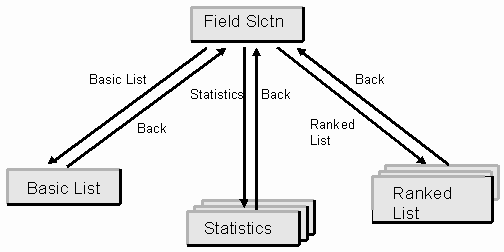
In a query, you are able to define the following:
You can combine the various list types in any way that you like.
You can also add sublists to existing queries.
When you execute a query, in the list overview, you see by default the basic list first, followed by the statistics, and finally the ranked lists. You can adjust the sequence if you want to.