Including DataStore Objects in Process
Chains
Including DataStore Objects in Process
Chains

Use
Process chains allow data to be loaded and processed without errors.
More information: Process Chains
Prerequisites
You have already created an InfoPackage for loading data into the DataSource for the DataStore object.
You have created one data transfer process for loading data into the DataStore object and one data transfer process for updating the data from the DataStore object to another InfoProvider.
Procedure
...
1.
Call the process
chain maintenance. Choose  Process Chain Maintenance in the
Administration area of the Data Warehousing Workbench. The
Process Chain Maintenance Planning View
screen
appears.
Process Chain Maintenance in the
Administration area of the Data Warehousing Workbench. The
Process Chain Maintenance Planning View
screen
appears.
2.
In the left-hand
screen area of the required  display component, navigate to the process
chain in which you want to insert the DataStore object. Double-click it to
select it. The system displays the process chain planning view in the
right-hand screen area.
display component, navigate to the process
chain in which you want to insert the DataStore object. Double-click it to
select it. The system displays the process chain planning view in the
right-hand screen area.
If no suitable process chain is available, create a new process chain. More information: Creating Process Chains
3.
To insert the
activities around the DataStore object as processes, select  Process Types in the left-hand screen
area. The system displays the available process categories.
Process Types in the left-hand screen
area. The system displays the available process categories.
4.
In the  Data Target Administration process
category, choose the application process type
Data Target Administration process
category, choose the application process type  Activate DataStore Object
Data.
Activate DataStore Object
Data.
5.
Use drag and drop
to insert the application process type Activate DataStore Object Data into the
process chain. The dialog box for inserting process variants
appears.
6. Create a process variant and confirm your entries. An additional dialog box appears.
7. Use the input help to select the InfoPackage that you want to use to load the data into the DataSource. Confirm your entries.
8. Use the input help to select the data transfer process that you want to use to load data into the DataStore object. Confirm your entries.
9.
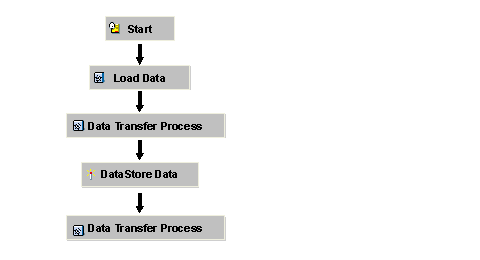
The processes  Load Data, Data Transfer Process, and Activate DataStore Object Data are inserted together into your process
chain.
Load Data, Data Transfer Process, and Activate DataStore Object Data are inserted together into your process
chain.
10.
In the process
category Load Process and Postprocessing, choose
the application process type Data Transfer Process and use drag and drop to insert it into your
process chain. The dialog box for inserting process variants
appears.
11. Create a process variant and confirm your entries. An additional dialog box appears.
12. Use the input help to select the data transfer process that you want to use to load data from the DataStore object into the connected InfoProvider. Confirm your entries. The process Data Transfer Processis inserted into your process chain.
13. If you now connect the processes Activate DataStore Object Data and Data Transfer Process, you can select the conditions under which further updates are triggered.
Example
The following figure shows an example of a process chain that is used to load data into a DataStore object. The activation process makes the data available for reporting and enables the data to be updated to other InfoProviders.