 Configuring Navigation Zoom
You can display a subset of the navigation hierarchy by configuring a role, workset, or a folder in a role or workset, as a navigation zoom. Navigation zoom allows you to subdivide the portal into a main portal and several subportals. This enables portal users to view specific subject areas of the portal separately from the rest of the portal.
At runtime, clicking a navigation zoom point replaces the main portal screen with a subset of the navigation hierarchy. The navigation zoom point becomes the root node, and all of the navigation nodes below the navigation zoom point are arranged in top-level navigation and detailed navigation.
 Note
Note
Only items that appear in detailed navigation can be configured as navigation zoom points. Top-level navigation items cannot be navigation zoom points.
Procedure
Launch the Portal Content Studio. In top-level navigation, choose
 Content Administration
  Portal Content
  .
.From the Portal Catalog, right-click a role or workset and choose
Open Role/Workset . The role or workset opens in the appropriate editor.In the editor, select the role, workset, or folder that you want to configure as a navigation zoom point, and click Properties to display the properties of the object that you selected.
In the Property Editor, from the Property Category dropdown list, choose Navigation Zoom.
In the Navigation Zoom Point property, choose Yes.
Optional: To provide a look and feel for the navigation zoom that is different from the main portal, you specify a portal desktop to be used for the navigation zoom.
In the Navigation Zoom Desktop property, specify the PCD location of the portal desktop.
NoteThe main portal desktop is always used for anonymous users, even if you have defined a different portal desktop for the navigation zoom.
Make sure not to set hovering for the window in which the navigation zoom opens. If the first level entries in a navigation zoom are iViews or pages, portal users will not be able to navigate to these objects.
More information: Setting the Hover Effect
End of the note.Optional: You can provide a title for the navigation zoom. The title appears in the masthead of the navigation zoom. If you do not specify a different title, the title of the node that you have defined as a navigation zoom point appears in the masthead.
In the Navigation Zoom Title property, specify a title to appear in the masthead.
Optional: You can define quick links for navigation zoom areas.
More information: Navigation with Quick Links.
Click Save.
Result
At runtime, the configured navigation zoom points are visualized in detailed navigation as an arrow inside a folder. When portal users click the navigation zoom point, the portal screen is replaced with the defined subset of the navigation hierarchy. If a different title and portal desktop were defined, these appear in the navigation zoom screen.
When portal users click the arrow beside the navigation zoom point, the item expands in the Detailed Navigation iView without replacing the portal screen.
In the navigation zoom, portal users can click Back to Main Portal to return to the main navigation hierarchy.
Example
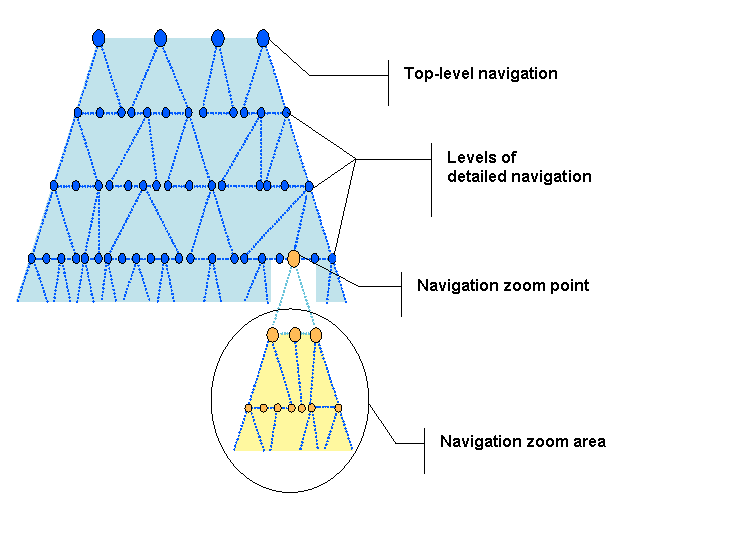
The navigation zoom point is a node that appears in detailed navigation in the main portal. When the portal user clicks the navigation zoom point at runtime, the main portal screen is replaced with a new portal screen. The navigation zoom point becomes the root node and the hierarchy under that point appears in top-level and detailed navigation.