Defining Entry Points
An entry point is the node in a role or workset structure that serves as the initial item of a particular navigation hierarchy. For example, if your portal is configured to have a top-level navigation, the specified entry point appears on the first level of the top-level navigation. If you remove the iView displaying top-level navigation, the entry points and lower-level navigation structures are displayed in the Detailed Navigation iView.
You can define as a navigation entry point any level of a role or workset structure. When you define a workset as an entry point, it is retained as such if you then add the workset to a role.
Root nodes and folders within structures provide entry points that allow for useful drill-down navigation within the navigation hierarchy.
 Note
Note
Role/workset structure items that are above the highest defined entry point will not be seen in the navigation hierarchy. For that reason, we recommend that you not define pages and iViews as entry points.
Only entry points at the highest level are relevant for the portal navigation structure; entry points at lower levels are disregarded.
When you define a lower level item as an entry point, the system does not check whether a higher level item in the same structure was already defined as an entry point.
Prerequisites
You have created role and workset hierarchies.
Procedure
Launch the Portal Content Studio. In top-level navigation, choose
 Content Administration
  Portal Content
  .
.From the Portal Catalog, right-click a role or workset and choose
Open Object . The role or workset is loaded into the appropriate editor.In the displayed editor, select either:
The root node of the role or workset hierarchy
A workset or folder within the role or workset hierarchy
A folder within a workset of the role or workset hierarchy
In the Role/Workset Editor, click Properties to display in the Property Editor the properties of the object that you selected.
From the Property Category dropdown list, choose Navigation.
In the Property List, scroll to the Entry Point property and choose Yes.
Click Save.
In the same way, assign the Yes value to all of the navigation nodes that you want to define as entry points in the portal navigation hierarchy.
Example
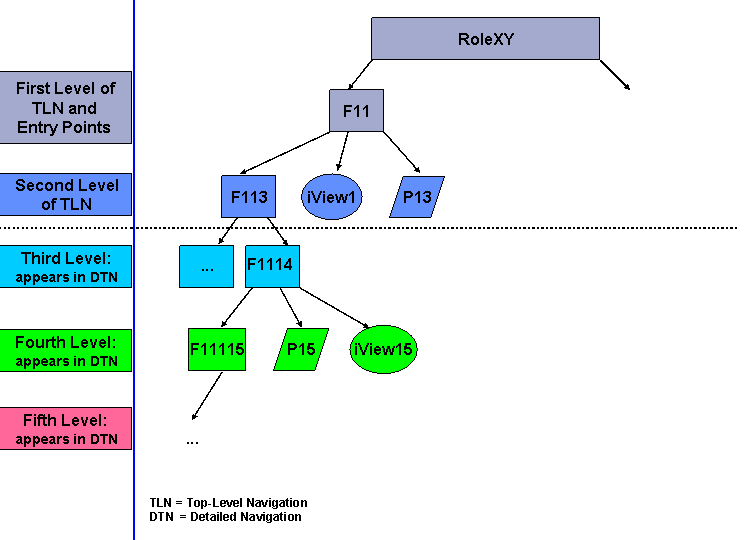
In the following scenario, the portal is defined as having top-level navigation with two levels. The first figure shows a role, RoleXY, whose defined hierarchy comprises five levels. In this role hierarchy, folder F11 on the second level of the role is defined as an entry point.
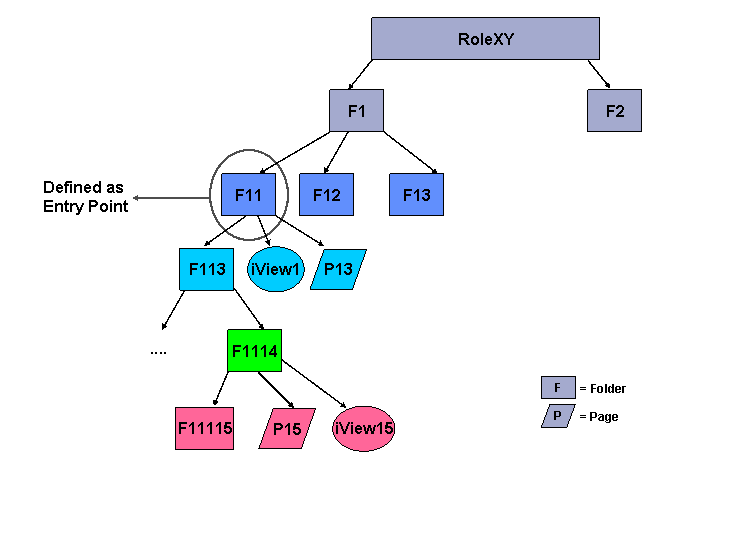
The portal navigation structure is as follows:
Folder F11 appears as a tab on the first level of top-level navigation.
Upon clicking F11, the user sees the entries belonging to F11 (F113, iView1, and P13) on the second level of navigation.
All entries below F113 are in the detailed navigation.
F1 does not appear in the navigation hierarchy.